Turning on Attendance and Proof of Work
- For
- Facility managers
- Where
- Web app
- Time to read
- 6 minutes
- Time to watch
- 3 minutes
KleanProof has two switches for your cleaning crews, and you can use one or both. Attendance covers shifts, clocking in and out at the site, breaks and timesheets. Proof of Work covers cleaning routes, where a cleaner taps Done at each area as they go.
Both are on the Operation plan. Cleaners on the app are free and never take a seat. Only admins can flip these switches.
This page gets you from off to your first working shift. Plan on about 20 minutes for your first site.
Step by step
1Flip the switch
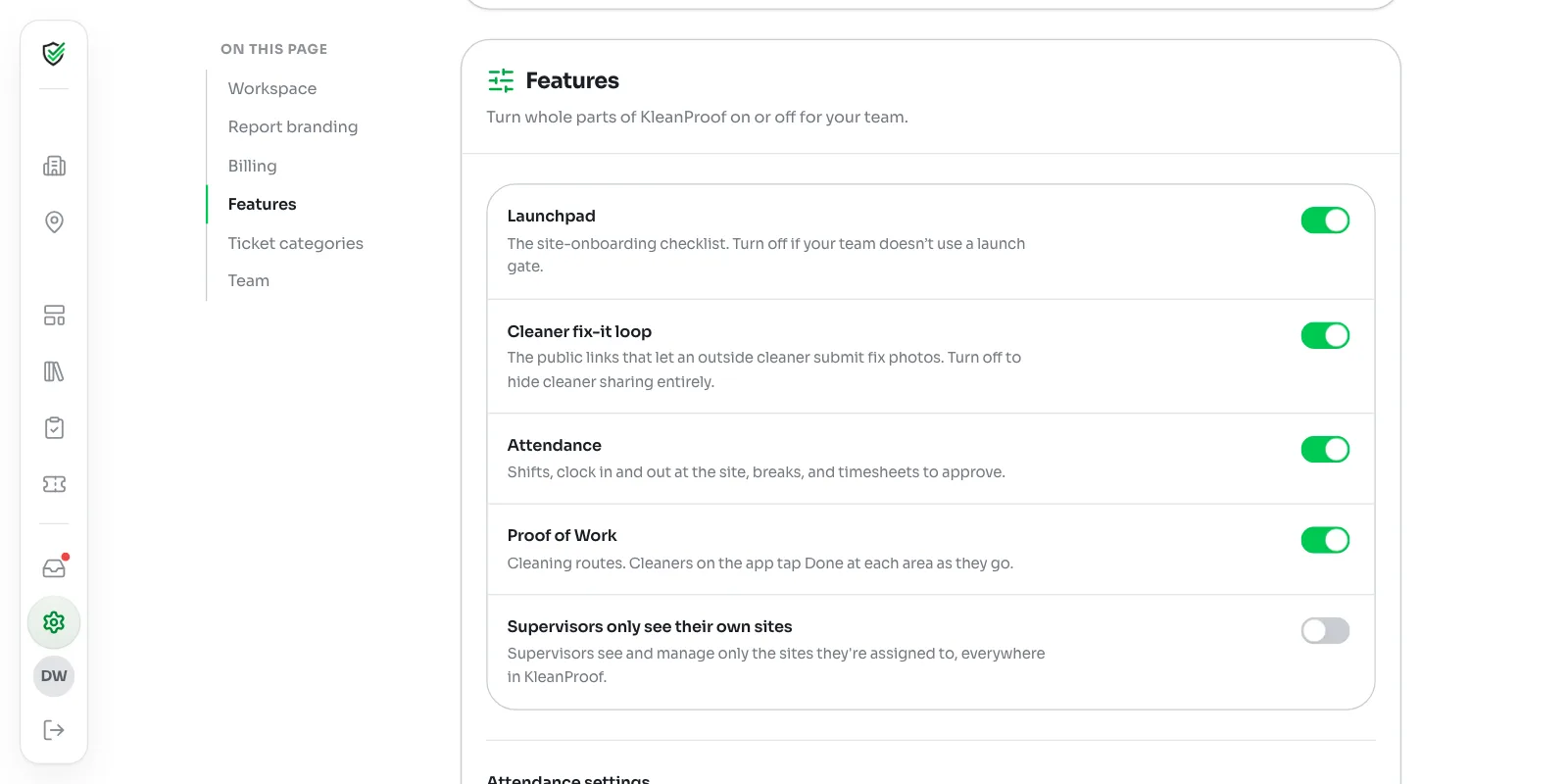
Click Settings in the left-hand menu, then Features. Turn on Attendance, Proof of Work or both.
If the switches are locked with an Operation plan tag, you're on the Crew plan. Plans and billing explains how to move up.
2Read the setup list
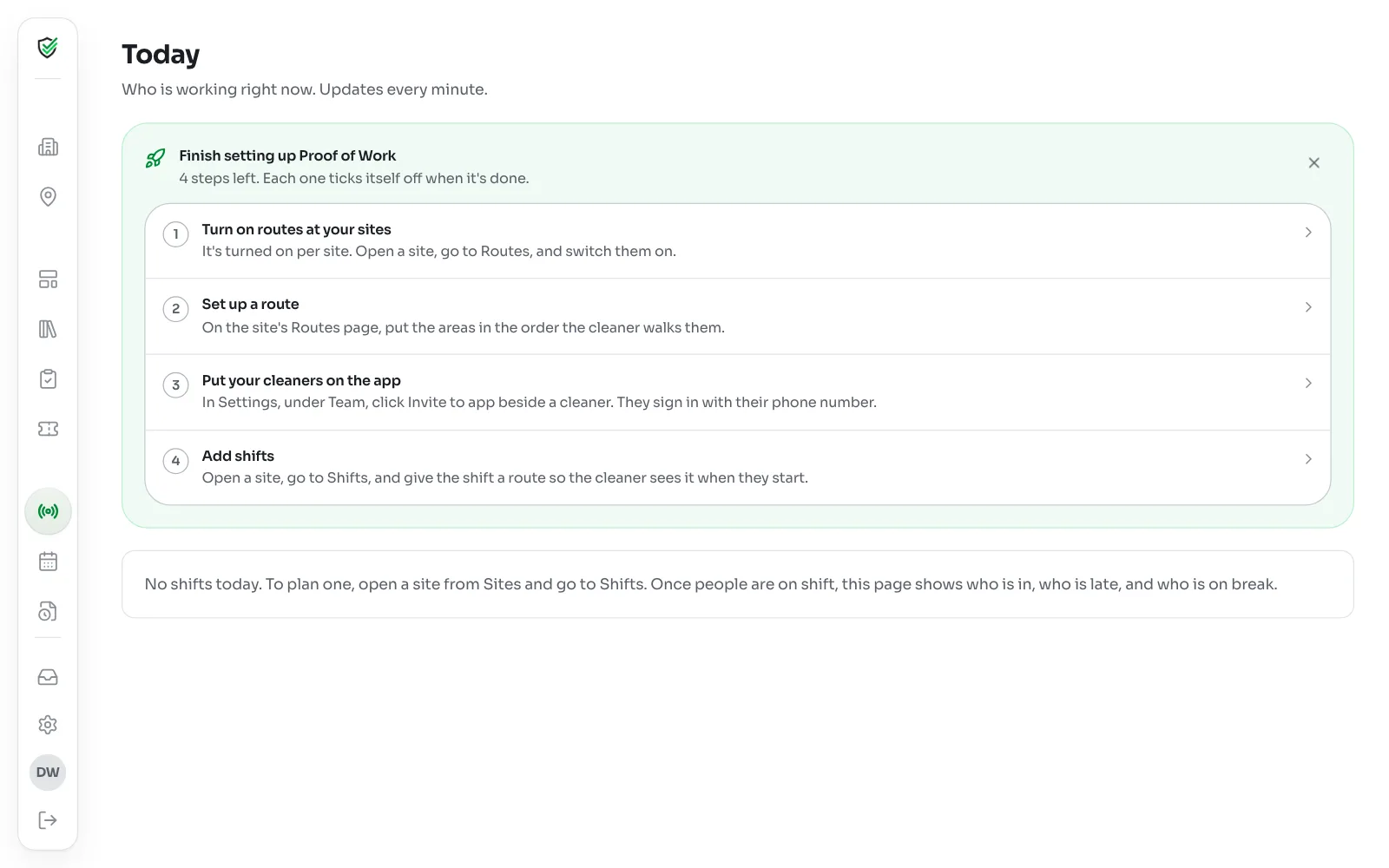
A box opens with the order that works. Click Got it to close it. The same list stays at the top of your Today and Schedule pages under Finish setting up.
Each step ticks itself off when it's done, so you always know what's left. You can hide the list with the X once you're happy.
Nobody sees anything new until a site is set up, so it's safe to turn this on before you're ready.
3Turn it on at your first site
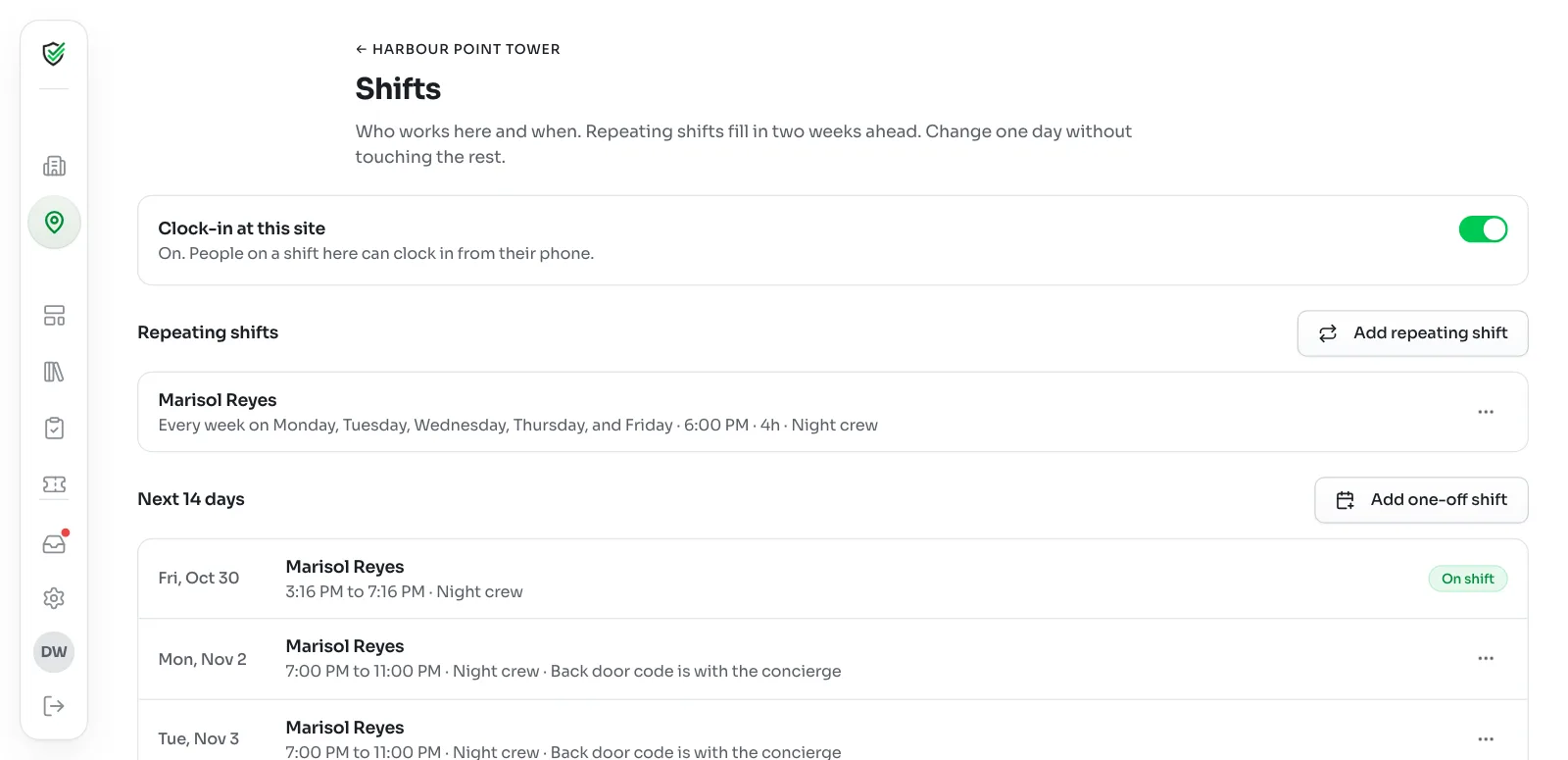
It's turned on one site at a time, not everywhere. That lets you try it at one building before you roll it out. Open a site from Sites:
- For Attendance, click Shifts and turn on Clock-in at this site.
- For Proof of Work, click Routes and turn on Routes at this site.
You can plan shifts and build routes while the switch is off. Nobody can clock in or see a route until it's on.
Clock-in checks the phone's location against the site's map pin. If you see a warning that the site has no map pin, click Edit on the site and add the address.
4Build a route
Skip this step if you only turned on Attendance.
On the site's Routes page, add a route and put the areas in the order the cleaner walks them. Building cleaning routes walks through it.
5Put your cleaners on the app
Click Settings, then Team. Under Cleaning staff, click Invite to app beside a cleaner. Putting cleaners on the app covers what they get and what to do when something goes wrong.
Only invite the cleaners who will use it. Everyone else keeps getting their fix links by text or email, the same as today.
6Add shifts
Open a site, click Shifts and add who works when. Repeating shifts fill in two weeks ahead. Planning shifts and reading the schedule covers the details.
That's the last step. The next time that person opens the app, their shift is waiting for them.
Alert times and pay periods
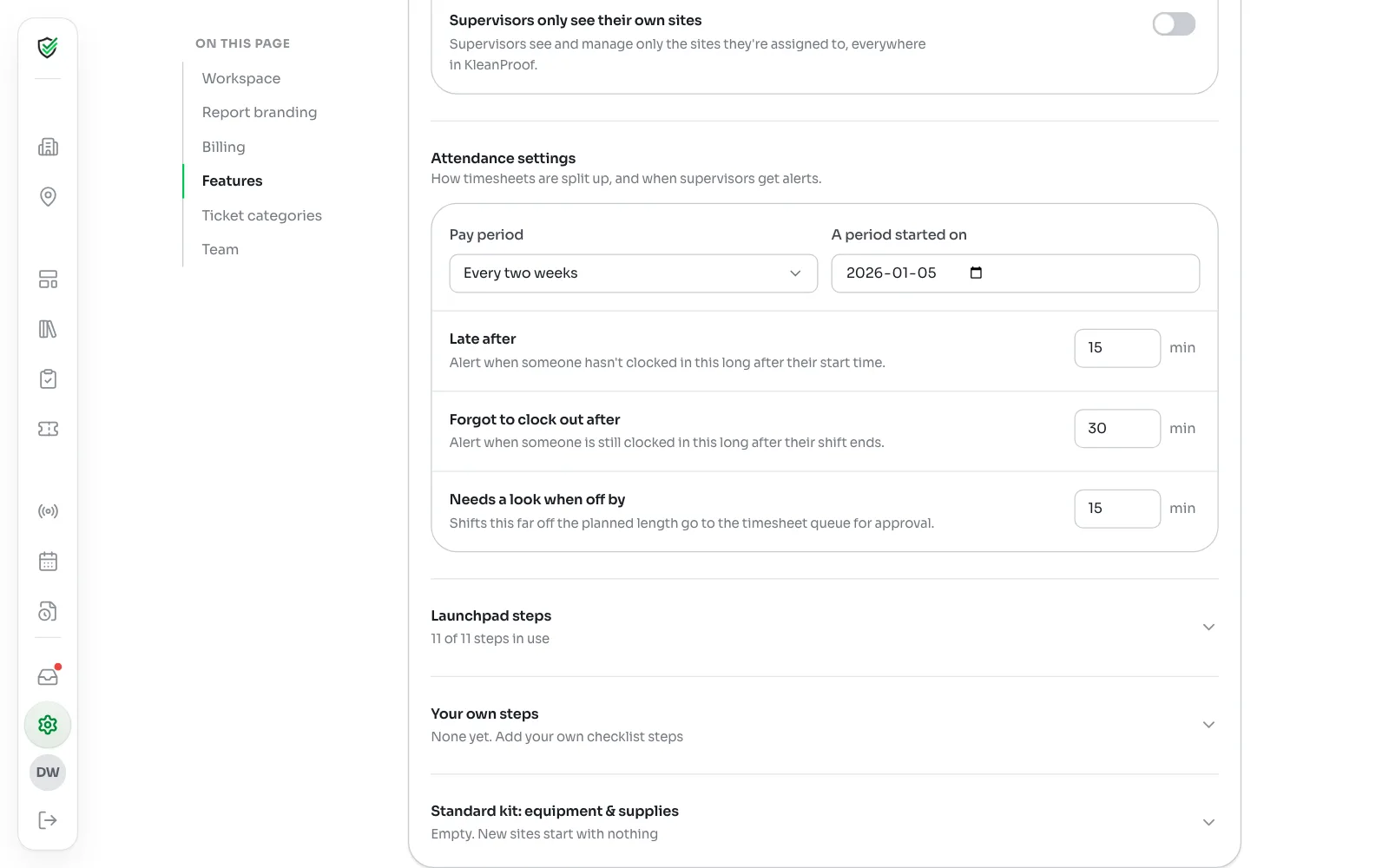
With Attendance on, an Attendance settings card shows under the switches. It saves as you change it.
- Pay period: weekly, every two weeks or twice a month. Timesheets and the export follow it. For weekly and every two weeks, A period started on sets the day your periods line up with, so pick the first day of any past pay period.
- Late after: how long after the start time, with no clock-in, before supervisors are alerted.
- Forgot to clock out after: how long after the shift ends before the alert.
- Needs a look when off by: shifts this far off the planned length wait for someone to approve them.
Keeping supervisors to their own sites
By default every supervisor sees every site. Turn on Supervisors only see their own sites under Features to limit them, everywhere in KleanProof, to the sites they're assigned to. That includes shifts, timesheets and which cleaners they can invite.
Using only one switch
- Attendance only: shifts, clock-in, breaks and timesheets, with no routes.
- Proof of Work only: cleaners get a route. They tap Start route instead of Clock in, and Finish at the end. You still plan shifts, but there are no timesheets to approve.
- Both: the cleaner clocks in, works the route, then clocks out.
Turning it off
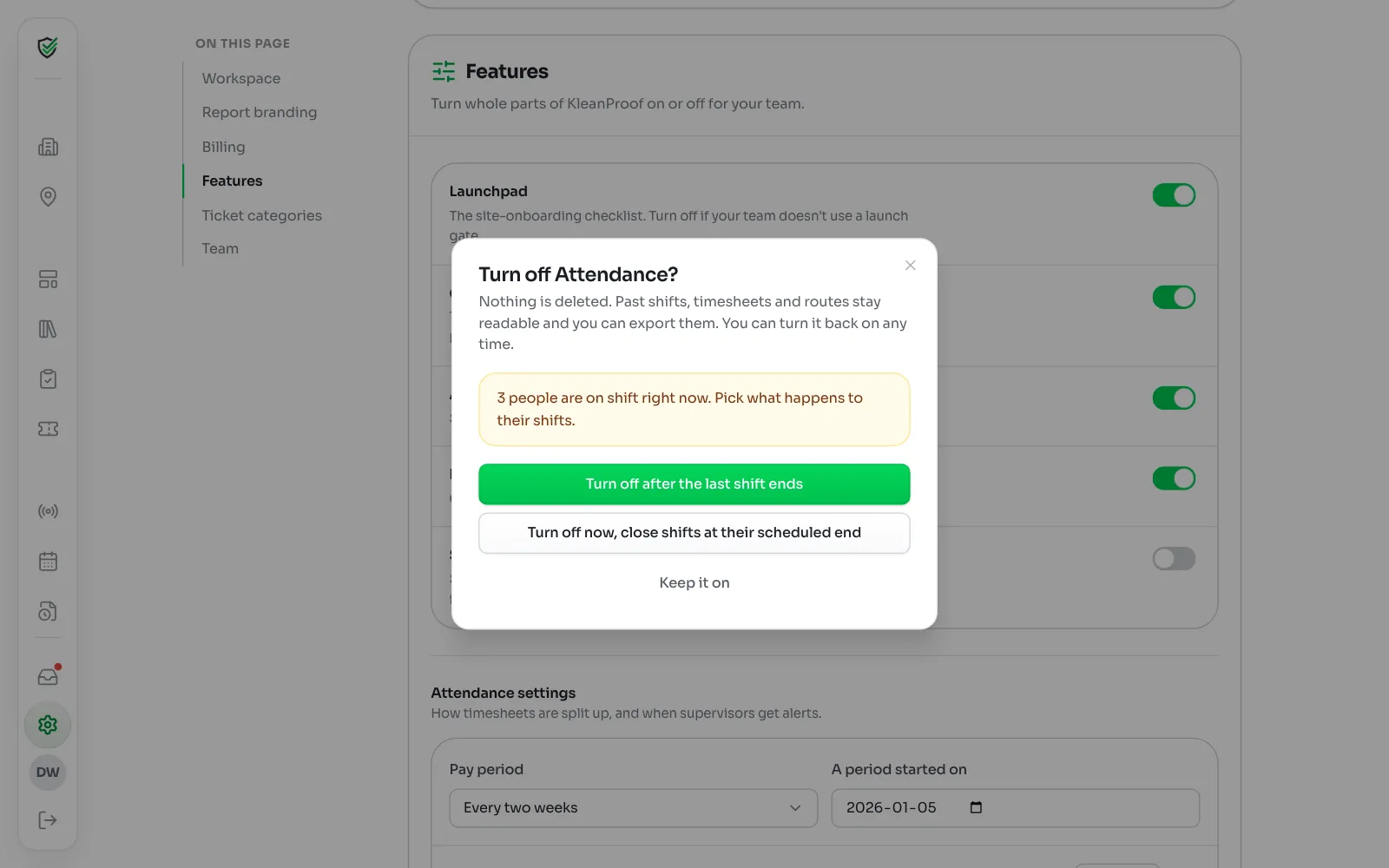
Turn the switch off on Settings, Features. Nothing is deleted. Past shifts, timesheets and Done history stay readable and you can still export them. You can turn it back on any time.
If people are on shift right now, you pick one:
- Turn off after the last shift ends: it waits, then turns off by itself. The switch says Turns off once the last shift ends. Click Keep it on to change your mind.
- Turn off now, close shifts at their scheduled end: open shifts close at their planned end time and wait in Timesheets for someone to approve them.
Cleaners on the app keep their Tickets tab when it's off. Turning off the switch on one site works the same way for that site's shifts.
Moving from Operation to Crew turns both off. The plan page warns you before you confirm.