
Planning shifts and reading the schedule
- For
- Supervisors
- Where
- Web app
- Time to read
- 5 minutes
- Time to watch
- 2 minutes
Supervisors and admins plan who works when from a site's Shifts page, and see the whole week on Schedule.
This needs Attendance or Proof of Work turned on by an admin. You can plan shifts before clock-in is on at the site. Nobody can clock in until it is.
Step by step
1Open the site's Shifts page
Click Sites, open a site and click Shifts.
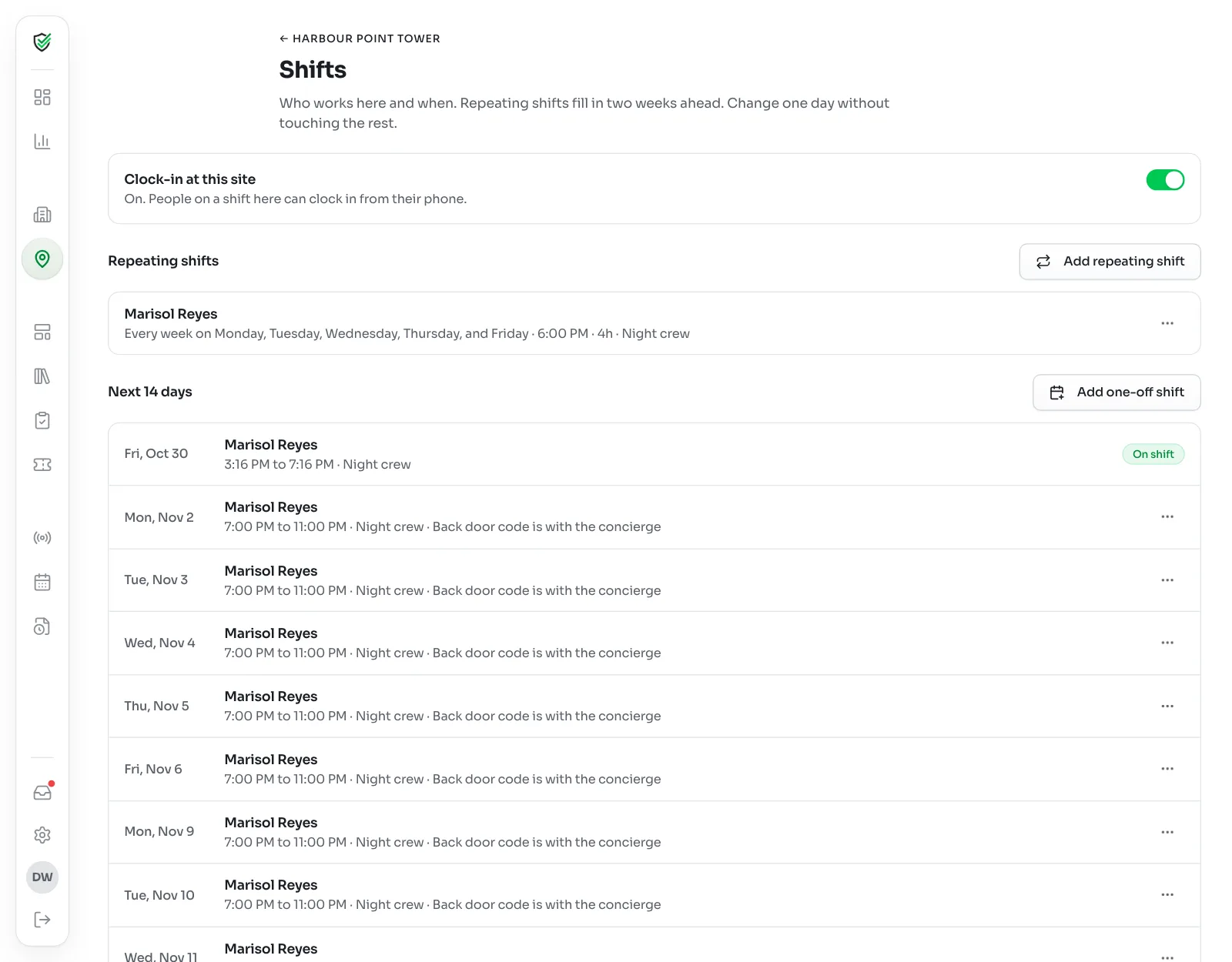
The page has three parts: the Clock-in at this site switch, your Repeating shifts, and the Next 14 days as they'll really happen.
2Add a repeating shift
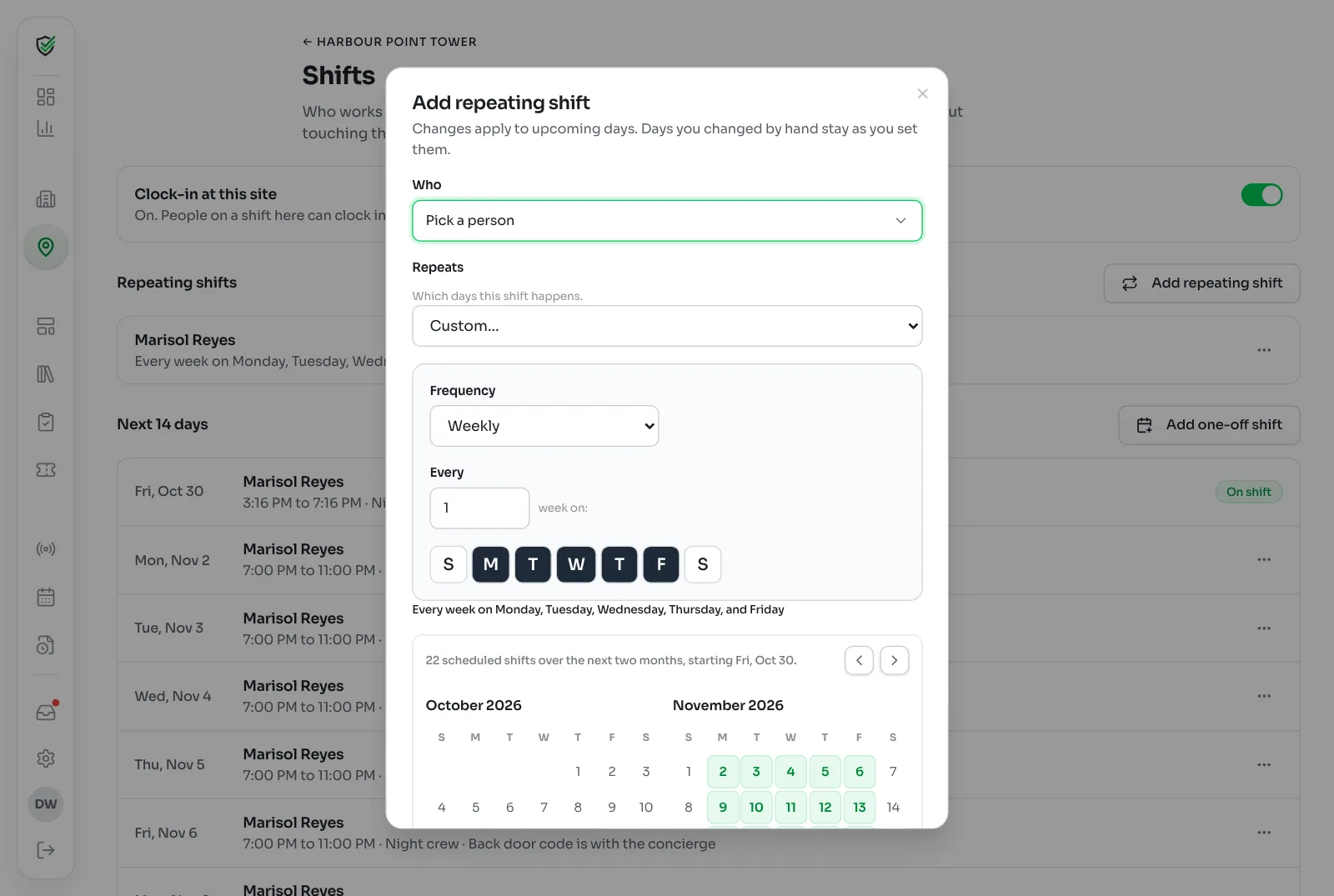
Most cleaning work repeats, so start here. Click Add repeating shift and fill it in:
- Who: pick a cleaner or anyone on your team. (no app) beside a name means they can be planned but can't clock in yet.
- Repeats: which days this shift happens. It starts at Monday to Friday.
- Start time and Length.
- Starts on, and Ends on if the shift stops on a known date.
- Route: the route for this shift, or No route (clock-in only).
- Notes: anything the person should know, like where the key is. They see it on their phone.
Click Add shift. KleanProof fills in the next 14 days and keeps adding as days pass.
3Add a one-off shift
For a single day, like a cover or a deep clean, click Add one-off shift above Next 14 days. It shows a One-off tag and doesn't repeat.
4Change or cancel one day
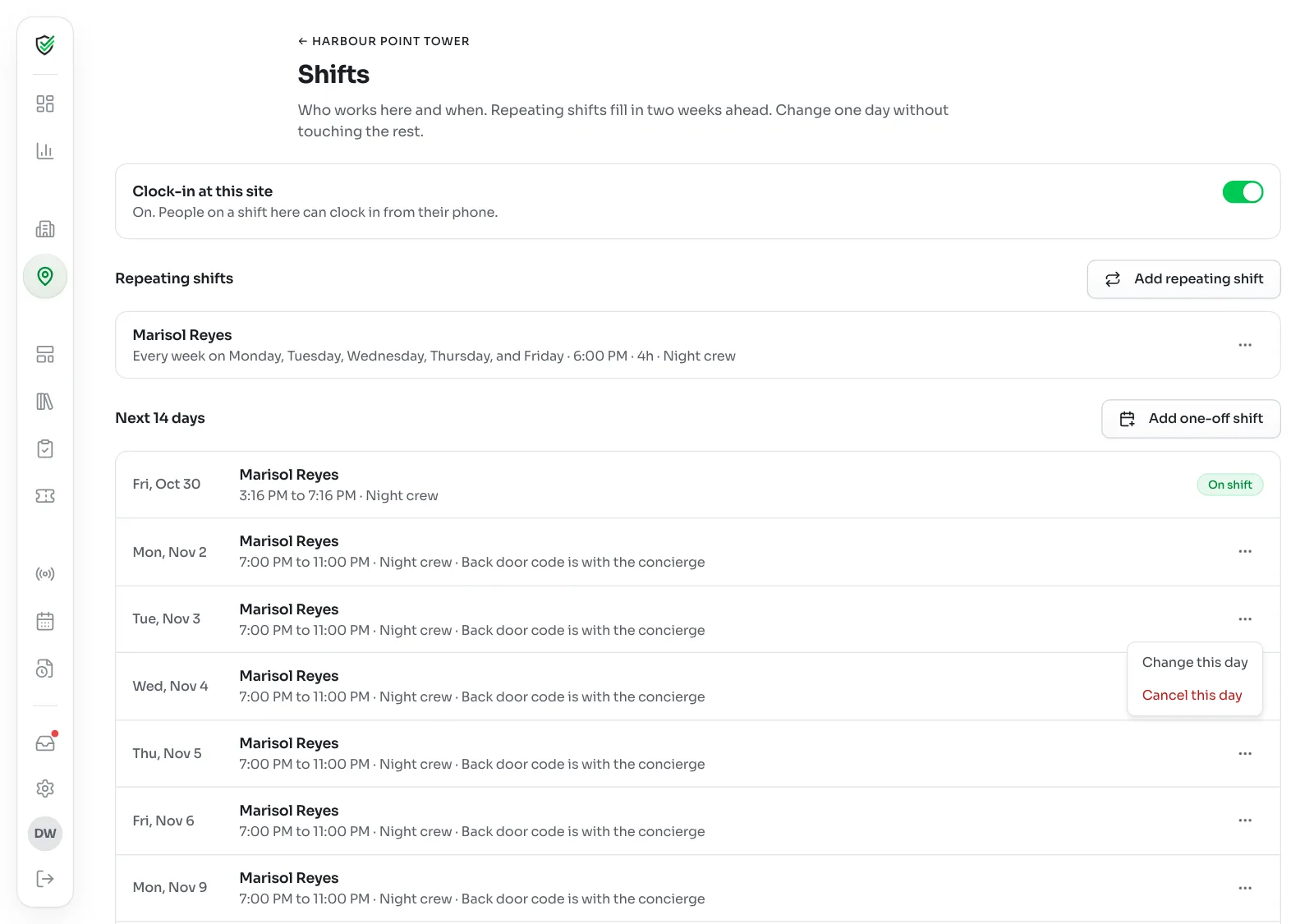
Sick day or a swap? Under Next 14 days, click the ⋯ on a shift and pick Change this day or Cancel this day. Only that day changes. The repeating shift stays as it is.
Editing a repeating shift later won't touch days you changed by hand.
5Stop a repeating shift
When a contract ends or a person leaves, click the ⋯ on the repeating shift, then Stop repeating. Upcoming days come off the schedule. Past shifts and their hours stay.
6Read the week on Schedule
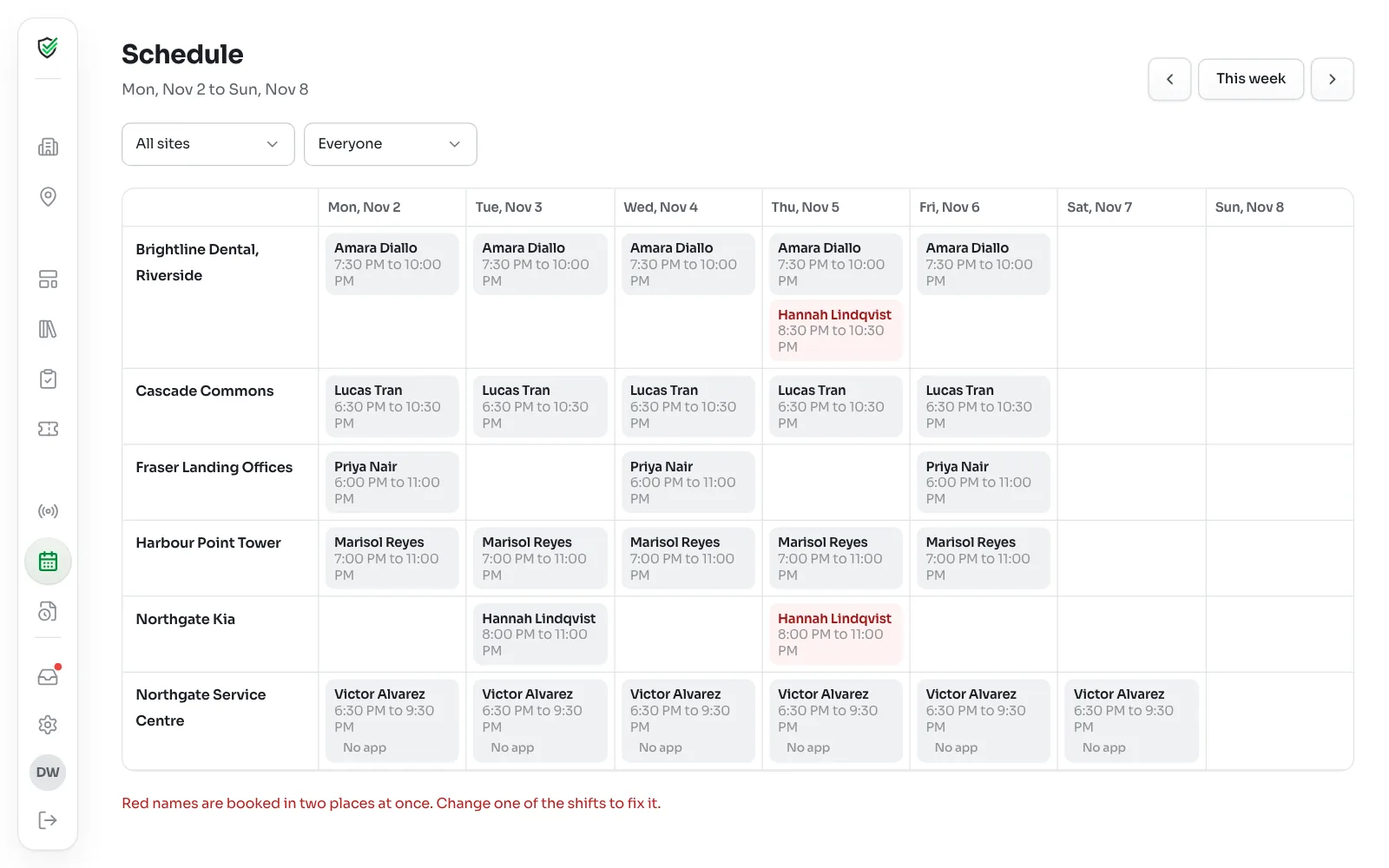
Click Schedule in the left-hand menu. It shows Monday to Sunday for everyone across all sites. Use the arrows to move between weeks, and This week to come back.
Filter with Site and Person. Click a shift to change just that day. Click a site's name to go to its Shifts page.
What the tags mean
- Double booked: one person has two shifts at the same time. Their name shows in red on Schedule. It's a warning, not a block, so fix it by changing one of the shifts.
- No app: this person isn't on the app. Their shift shows on the schedule, but it can't be clocked.
- One-off: a single shift that doesn't repeat.
- Cancelled: the day was cancelled. It stays in the list so you can see what happened.
- On shift, Done and Missed: how the shift went.
Time zones and overnight shifts
Times are in the site's time zone. An overnight shift belongs to the day it starts, on the schedule and in the pay period.