
Approving timesheets
- For
- Supervisors
- Where
- Web app
- Time to read
- 5 minutes
- Time to watch
- 2 minutes
Most shifts approve themselves. When someone clocks in and out on time, at the site, the hours go straight to the export marked Automatic.
The rest wait for a person. That's what Timesheets is for. It should only take a few minutes at the end of a pay period, or a minute a day if you keep on top of it.
Step by step
1Open Timesheets
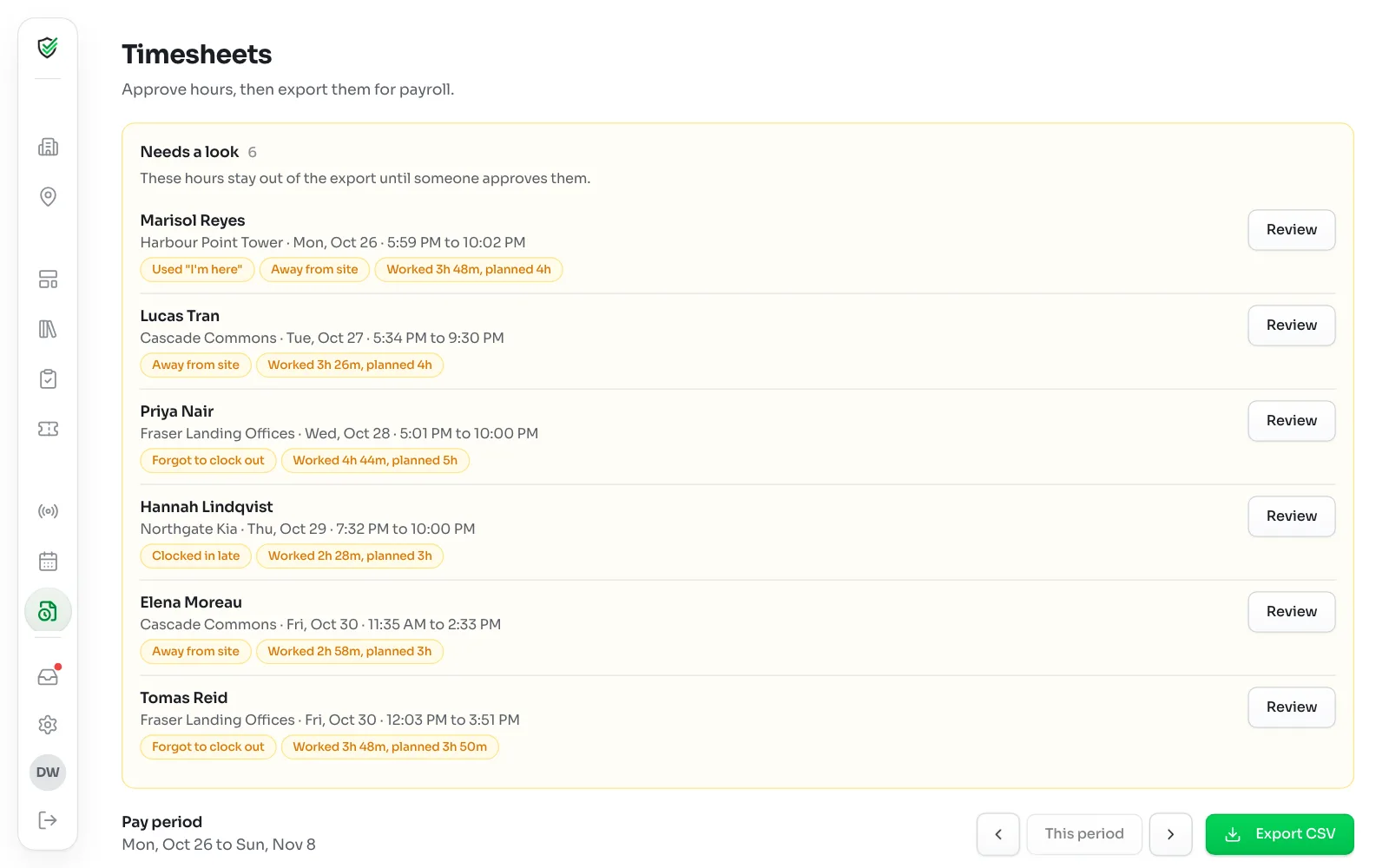
Click Timesheets in the left-hand menu. Needs a look is at the top, with a count. Under it is the full Pay period.
Hours under Needs a look stay out of the export until someone approves them.
2See why a shift is here
Each shift says why it's waiting:
- Away from site: clocked in or out too far from the site.
- Used "I'm here": the app thought they were away, and they said they were on site.
- Forgot to clock out: the shift closed at its scheduled end time.
- Clocked in late: after the start time.
- Never clocked in: there was no clock-in at all.
- Fake location app: the phone has an app that fakes its location.
- Worked 3h 26m, planned 4h: the hours are off by more than your admin's limit.
3Review a shift
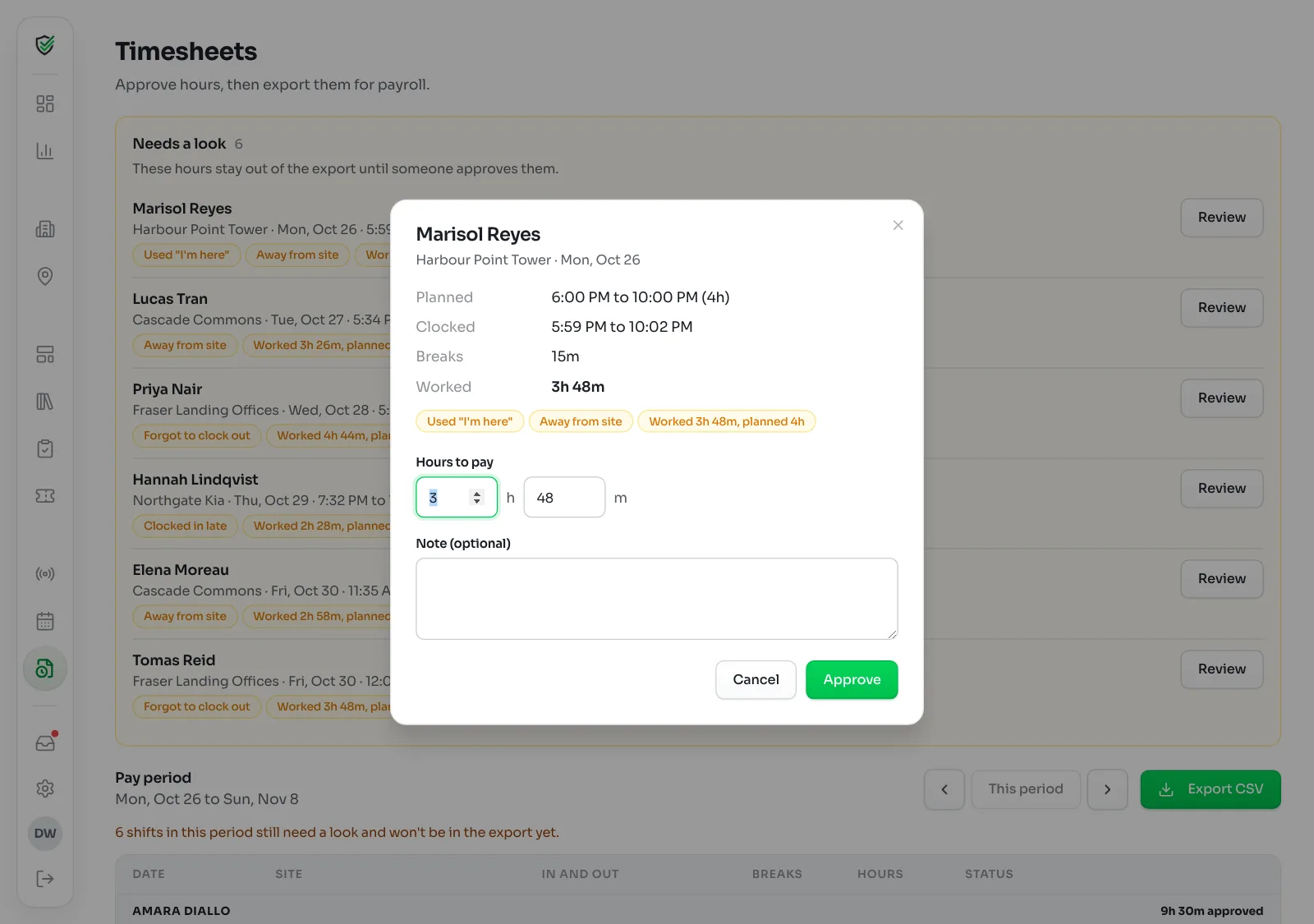
Click Review. You see what was Planned, what was Clocked, the Breaks taken and the hours Worked.
If it looks right, click Approve. You can add a Note (optional), and the hours are ready for the export.
4Change the hours if you need to
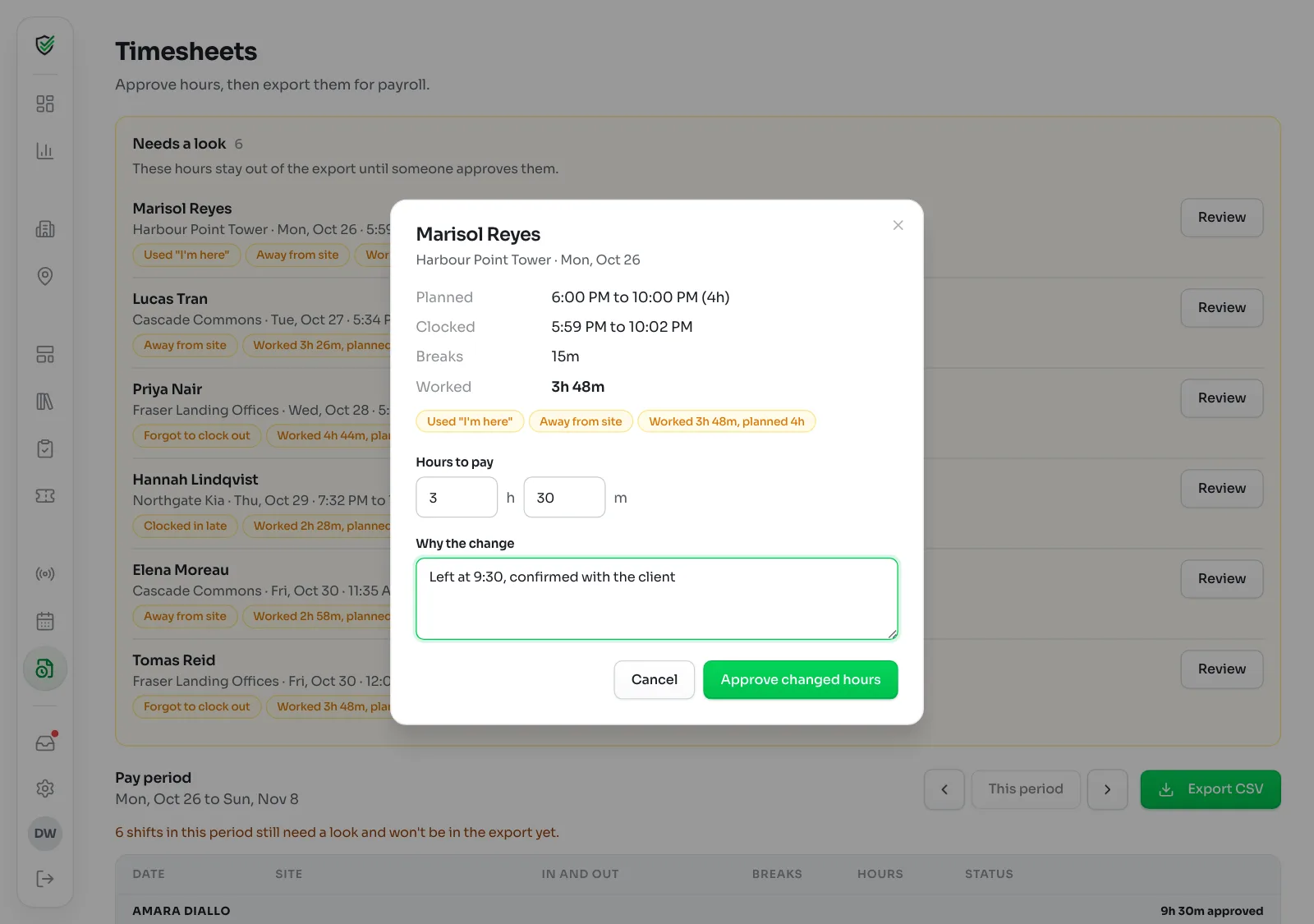
Change Hours to pay. The note box becomes Why the change, and it's required, so whoever looks later knows what happened. Something like: left at 10, confirmed with the client.
Click Approve changed hours. The original clock times stay on the shift and the row shows Approved by you, (adjusted).
5Check the pay period
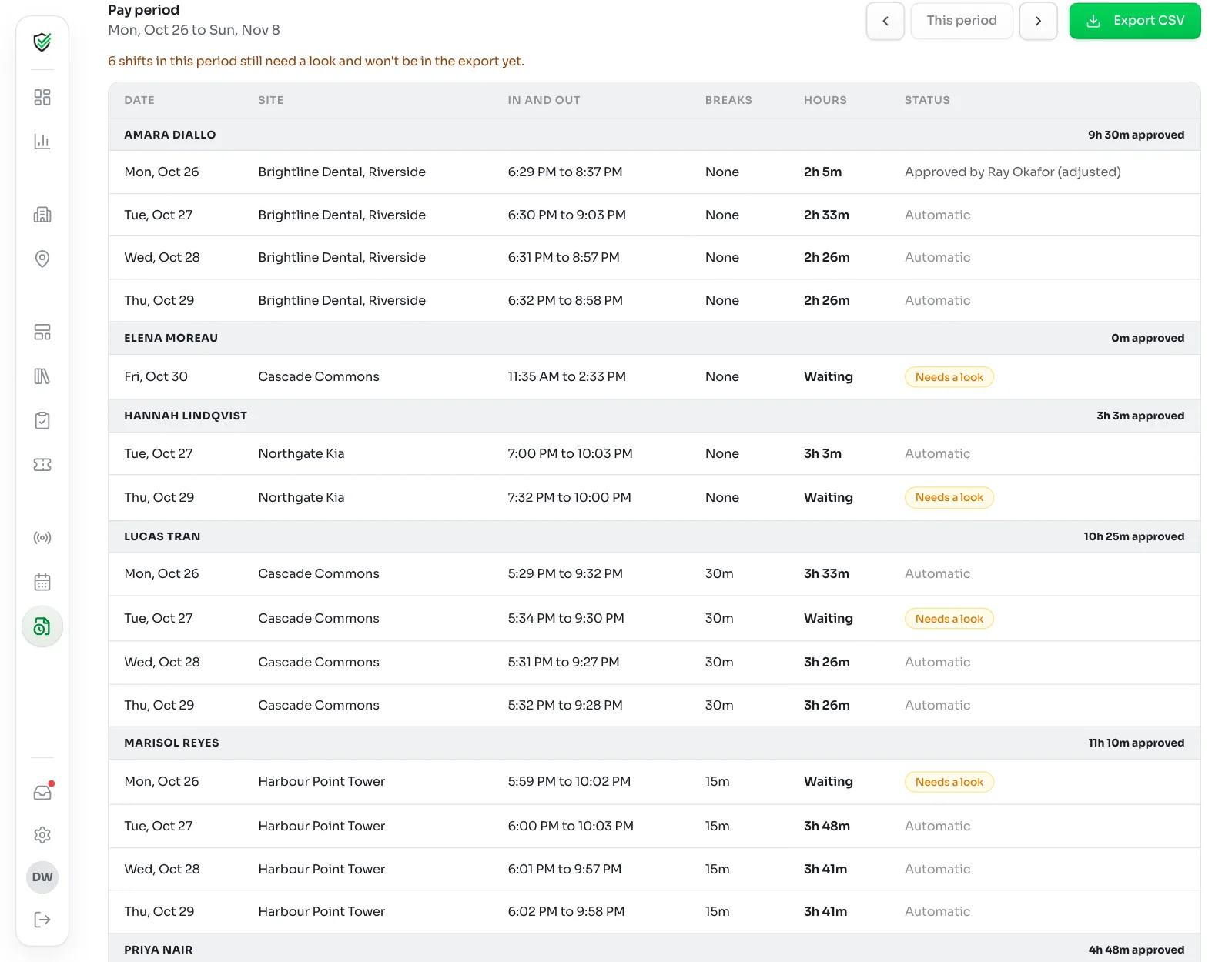
The table under Pay period lists each person's shifts with the Date, Site, In and out times, Breaks and Hours, and a total approved beside their name.
Status reads Automatic, Approved by a name, or Needs a look. Use the arrows to go to other periods, and This period to come back.
6Export for payroll
Click Export CSV. The file has each person's name, site, date, in and out times, breaks, hours and who approved them, and opens in Excel or Google Sheets.
Only approved and automatic hours go in. If anything is still waiting, the page tells you how many shifts won't be in the export yet.
Forgotten clock-outs
If someone never clocks out, or clocks out away from the site, KleanProof uses their scheduled end time and puts the shift in Needs a look. Fix Hours to pay if you know when they really left.
Setting what needs a look
An admin sets how far off a shift can be before it waits for a person, under Needs a look when off by in Settings, Features. Your pay period is set in the same place. Turning on Attendance and Proof of Work covers those settings.
Approving from your phone
You don't need a computer. Approving hours from your phone shows how.