
Building cleaning routes
- For
- Facility managers
- Where
- Web app
- Time to read
- 6 minutes
- Time to watch
- 3 minutes
A route is the order a cleaner works through a site, one stop at a time. They tap Done at each stop, so you can see when every area was last cleaned.
Routes come from the same list of areas as your inspections, so the two never drift apart. You need Proof of Work turned on first. Turning on Attendance and Proof of Work shows how.
If the site has no areas yet, build its inspection layout first. Building a site's checklist shows how. Routes are made from those areas.
Step by step
1Open Cleaning spaces
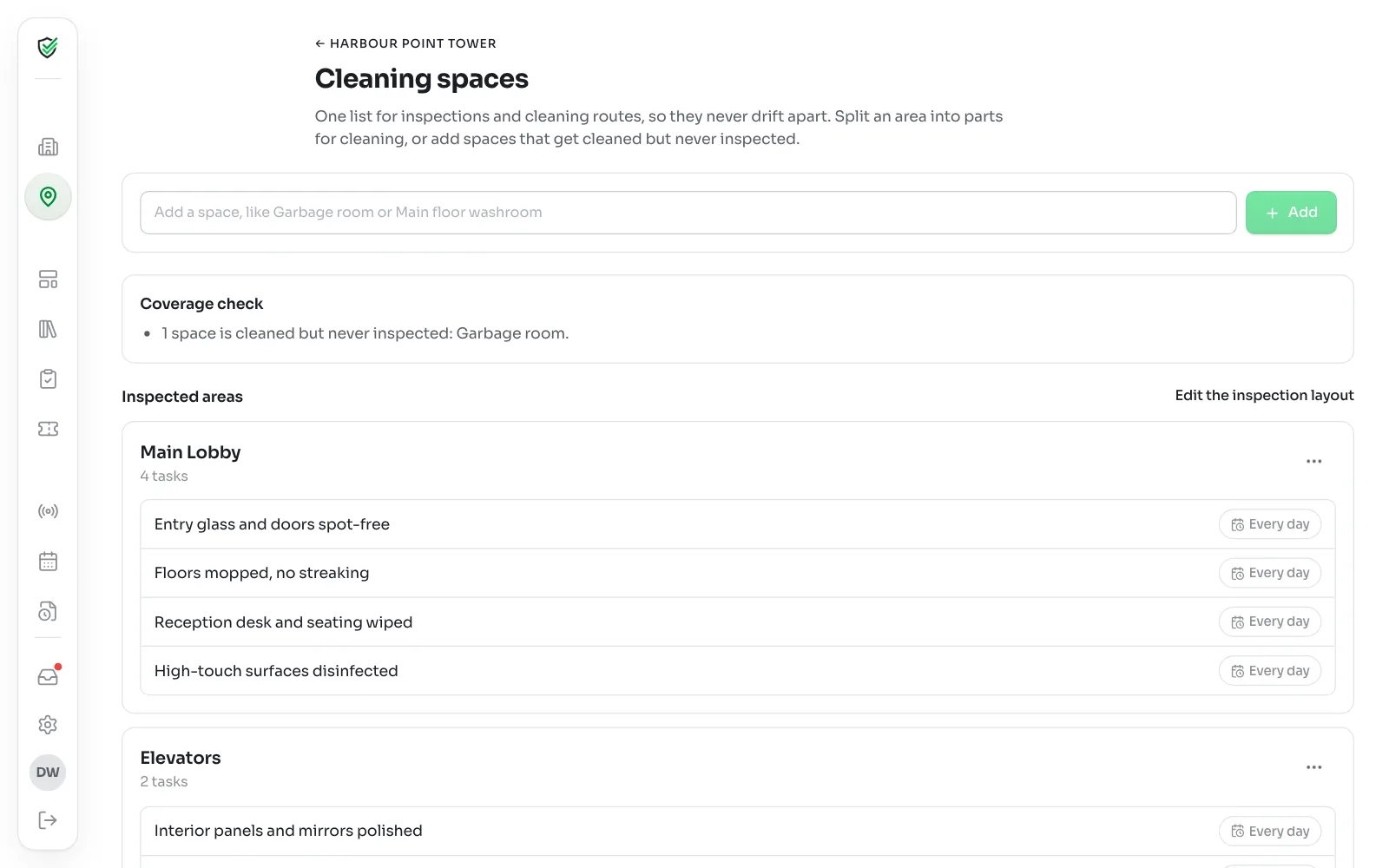
Open the site from Sites and click Cleaning spaces. Every inspected area on the site is listed, with its tasks.
This is where you fix any gap between how a site is inspected and how it's really cleaned. If the areas already match the way your crew works, skip to Add a route.
2Split an area that's cleaned in pieces
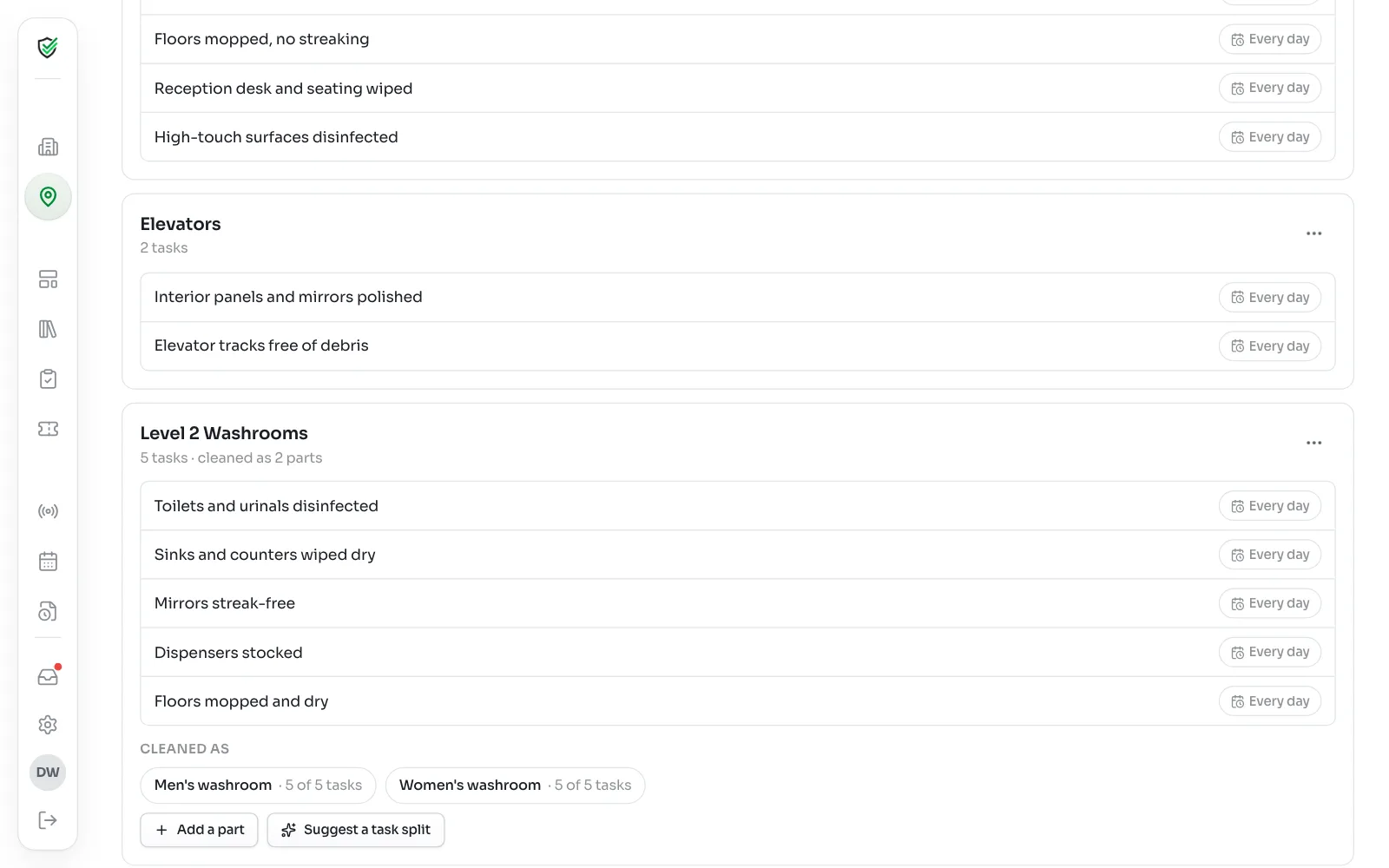
Some areas are one line on an inspection but several jobs for a cleaner, like a floor of washrooms. Click the ⋯ on the area, then Split for cleaning.
Type a name for the first part, like Men's washroom, and click Add part. Click Add a part for the next one. Each part becomes its own stop on a route.
With two or more parts, you can click Suggest a task split to have KleanProof sort the area's tasks between them. Read it over, then click Use this split or No thanks. Or click a part to pick its tasks by hand.
Inspections still see the one area. Scores don't change.
3Add spaces that aren't inspected
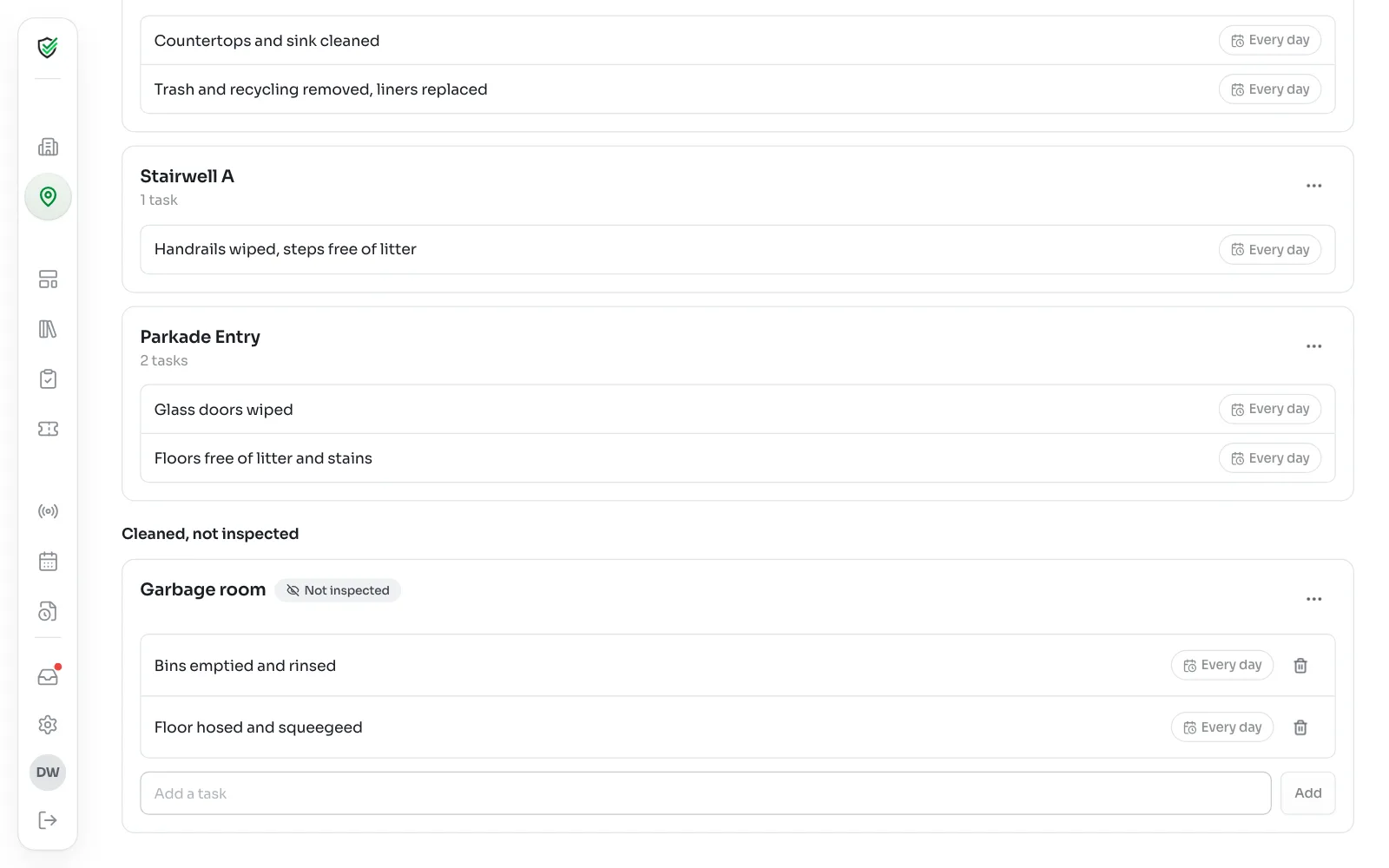
A garbage room or janitor closet needs cleaning but never shows up on an inspection. Type it in the add box at the top, like Garbage room, and pick Add as cleaned, not inspected.
KleanProof may suggest where it fits. If it sounds like something inspections should check, it says so. If it looks like a part of an area you already have, it offers Add as part of. It only suggests. You decide.
Open the new space under Cleaned, not inspected and use Add a task to list what gets done there. These spaces never touch your scores.
4Add a route
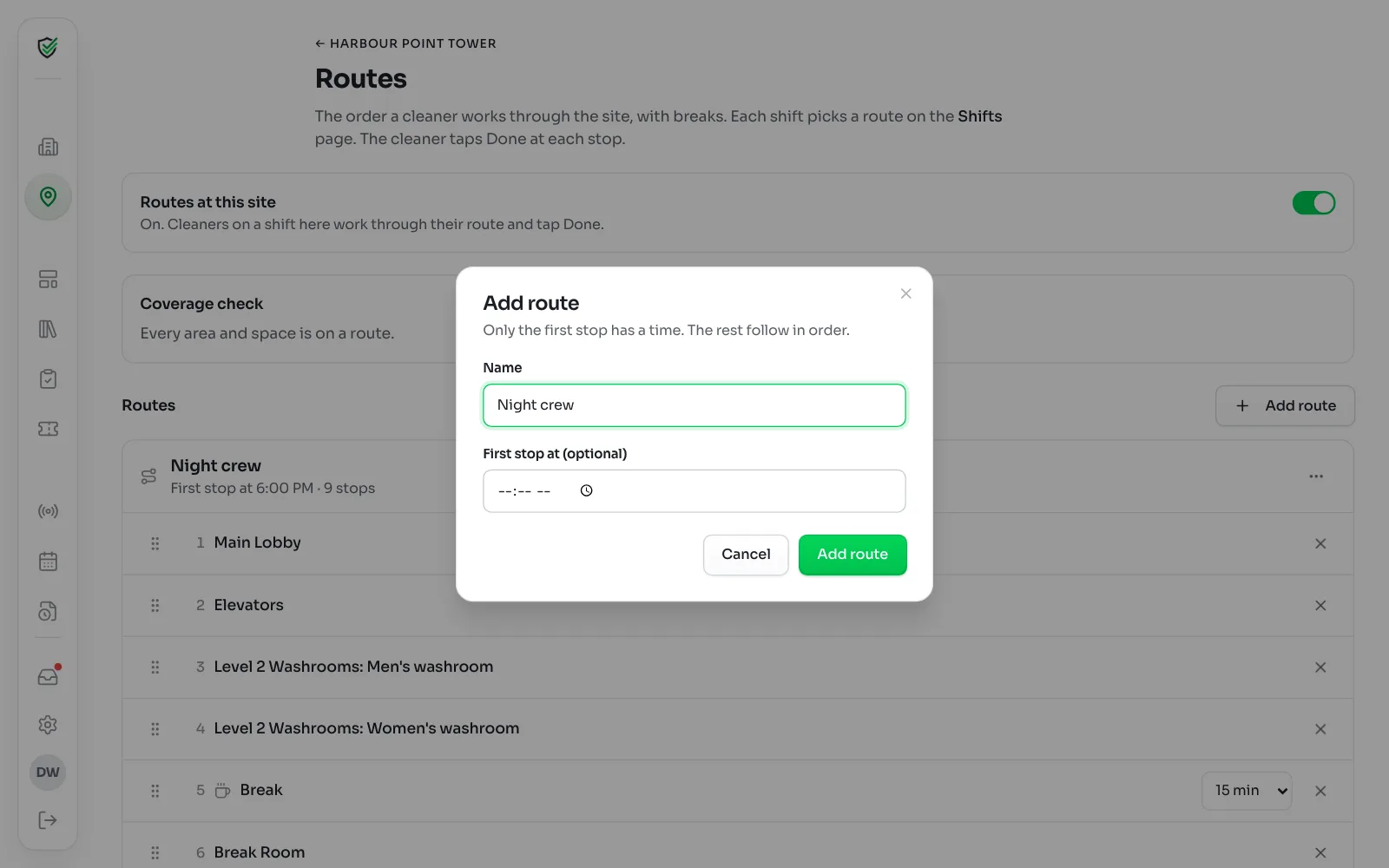
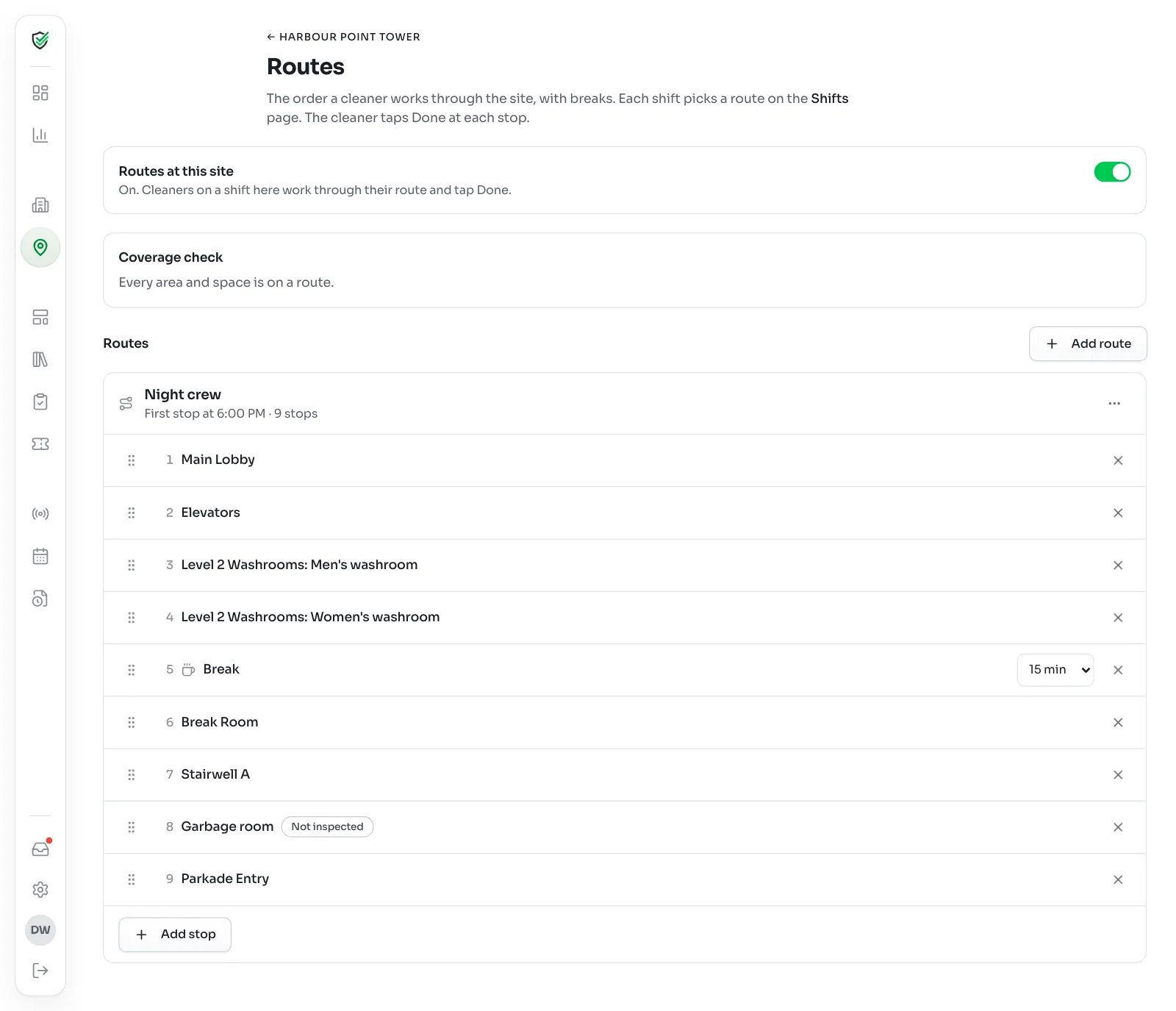
Go back to the site page and click Routes. Click Add route.
Give it a name your team will know, like Day porter or Night crew. A site can have as many routes as it needs.
Set First stop at if the route starts at a set time. Only the first stop has a time. The rest follow in order.
5Put the stops in order
Click Add stop on the route. The list is grouped into Inspected areas and Cleaned, not inspected. Anything already on this route is marked On route, so you don't add it twice.
Add stops in the order they get cleaned. Pick Break or Lunch where they fall in the shift, then set the length. Break starts at 15 minutes and Lunch at 30.
Drag a stop by its handle to move it, and click the X to take it off. The cleaner sees the change on their next shift.
6Run the coverage check
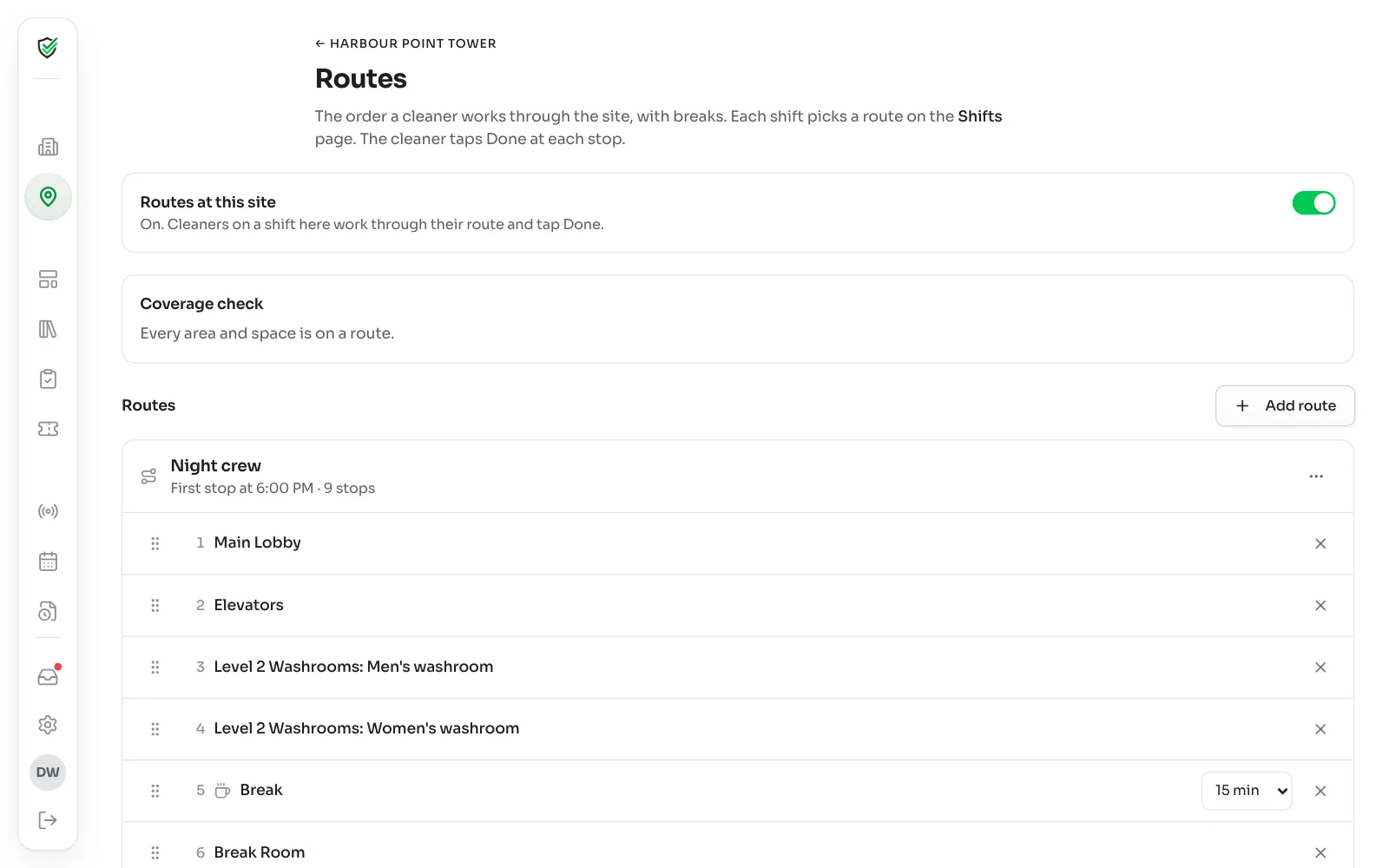
The Coverage check at the top of the page tells you what the routes miss:
- Inspected but on no route: inspections will check it, but no cleaner is sent there. Add it to a route.
- Cleaned-only spaces on no route: a space you added that nobody is assigned to clean.
- Every area and space is on a route: you're covered.
7Turn routes on and give shifts a route
Turn on Routes at this site at the top of the page. Until it's on, cleaners don't see a route.
Then go to the site's Shifts page and pick the route on each repeating shift, under Route. Shifts without one show No route (clock-in only).
What the cleaner sees
On shift, the cleaner gets one big card for the current stop with a Done button. Each job shows what clean looks like under it. They can Skip for now with a reason, or tap a later stop to do it first. Either way you see it on the Today board.
Using the KleanProof app on shift shows their side.
Every Done is timed, so you can see when an area was last cleaned on an inspection or ticket.
Tips from a first route
- Walk it first. Build the route in the order your best cleaner already works.
- Keep stops the size of a real job. A stop for every sink is too many taps, and a stop for a whole building proves very little.
- Add the break where it really happens, or it'll show up as skipped.
- Have one cleaner try it for a week before you roll it out.
Changing a route later
Click the ⋯ on the route for Rename or change time or Remove route.
Removing a route doesn't erase anything. Upcoming shifts on it keep running for clock-in only until you pick a new route. Past shifts and their Done history stay.
If an area is removed from the site after it's on a route, the stop shows Removed from the site. Take it off with the X.