Using the KleanProof app on shift
- For
- Cleaners
- Where
- Phone app
- Time to read
- 6 minutes
- Time to watch
- 3 minutes
Your company added you to the KleanProof app. You got a text with a link to get it. This is everything you need for a shift.
The app is free for you, and it follows your phone's language.
Step by step
1Sign in with your phone
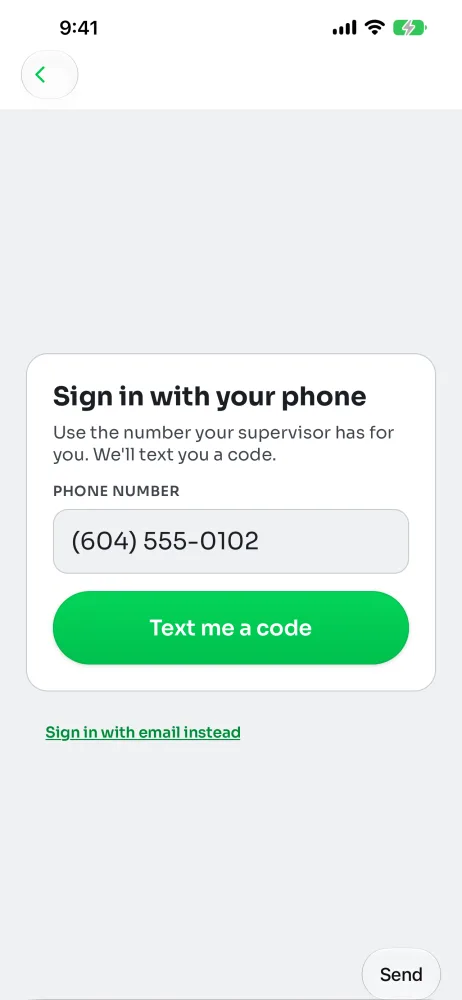
Open the app and tap Cleaner? Sign in with your phone. Type the phone number your company has for you and tap Text me a code.
Type the 6-digit code from the text. It signs you in by itself. There's no password, and you stay signed in.
2Find your way around
The app has three tabs: Today, Tickets and Me. The first time, three short cards show you around. Tap Next, then Got it.
Today shows your shifts for today and tomorrow. If you see No shift right now, your supervisor hasn't planned one for you yet.
3Clock in when you arrive
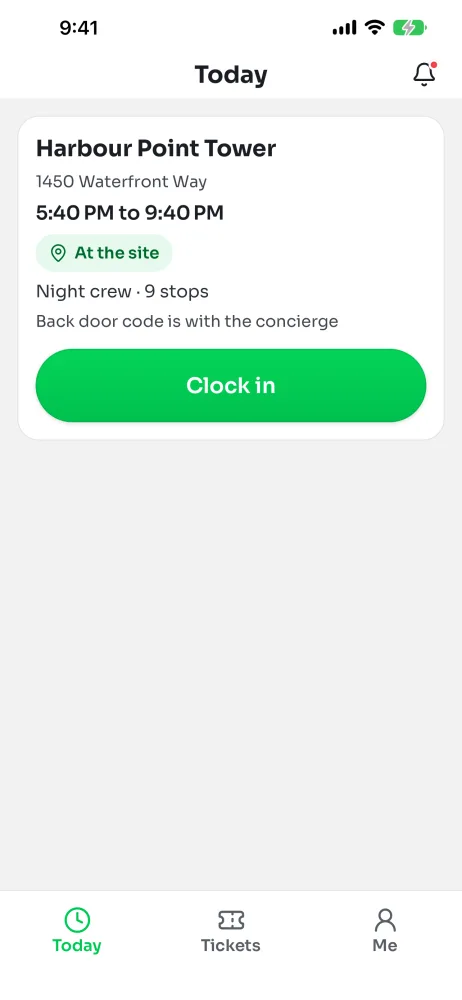
At the site, tap Clock in. The app checks your location once, and the card shows At the site.
Any note from your supervisor is on the card, like where to find the key.
If you're more than an hour early, the app asks first, so you don't clock in by accident. Tap Clock in to go ahead or Not yet to wait.
4If it says you're away from the site
Big buildings and basements can confuse a phone. If the app says you're away but you're there, move closer to the door and tap Try again.
Still stuck? Tap I'm here but it won't let me, then Clock in anyway. You're clocked in and your supervisor sees a note. You're not in trouble.
5Tap Done at each area
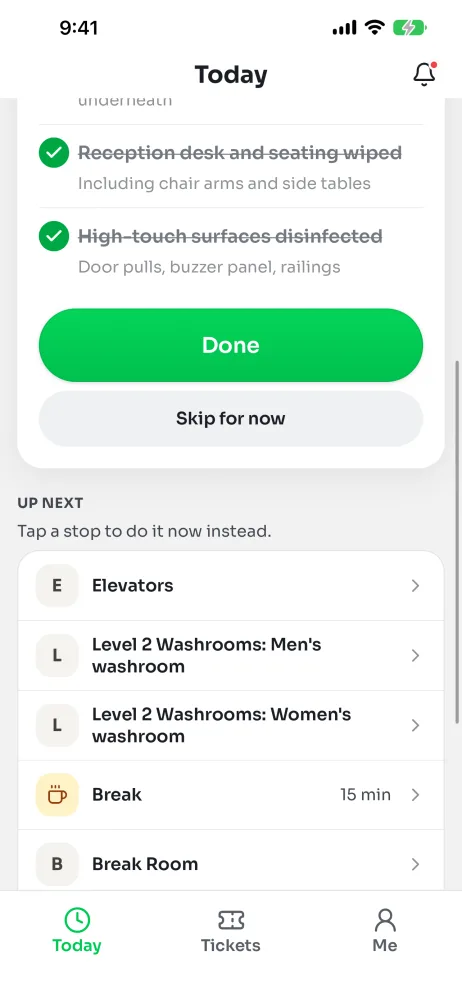
If your shift has a route, the app shows one area at a time. Clean it, then tap Done. The next one comes up and the count at the top goes up.
The card lists the jobs for that area, with what clean looks like under each one. You can tick them off as you go if it helps. Those ticks stay on your phone. Done is what the office sees.
Know the site well? Tap Hide what clean looks like to shorten the list. A Today only tag means an extra job just for today.
6Can't do an area right now? Skip it for now
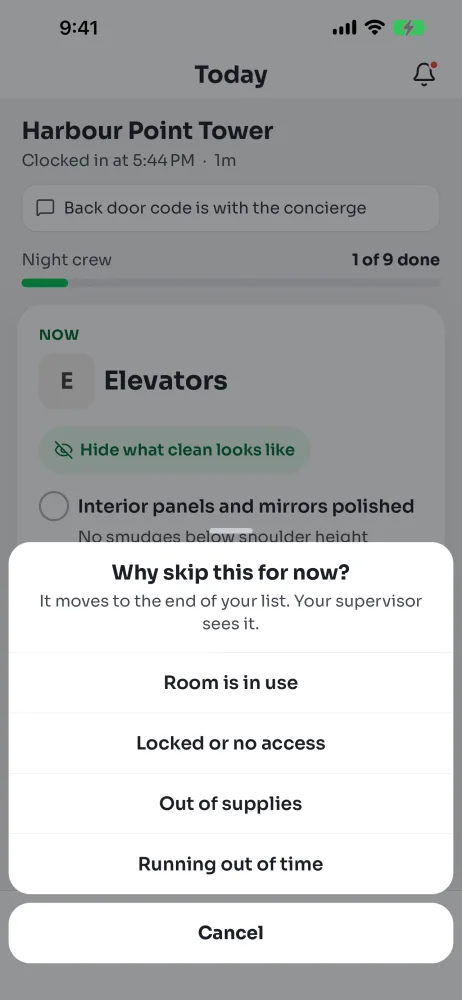
Tap Skip for now and pick a reason: Room is in use, Locked or no access, Out of supplies or Running out of time.
It moves to the end of your list, under Skipped earlier, so you can come back to it. Your supervisor sees the reason.
7Want to do a different area first?
The rest of your stops are listed under Up next. Tap one, then pick a reason. It becomes your current stop.
Your supervisor sees skips and changes of order. That's fine. The route is the usual order, not a rule.
8Take your break
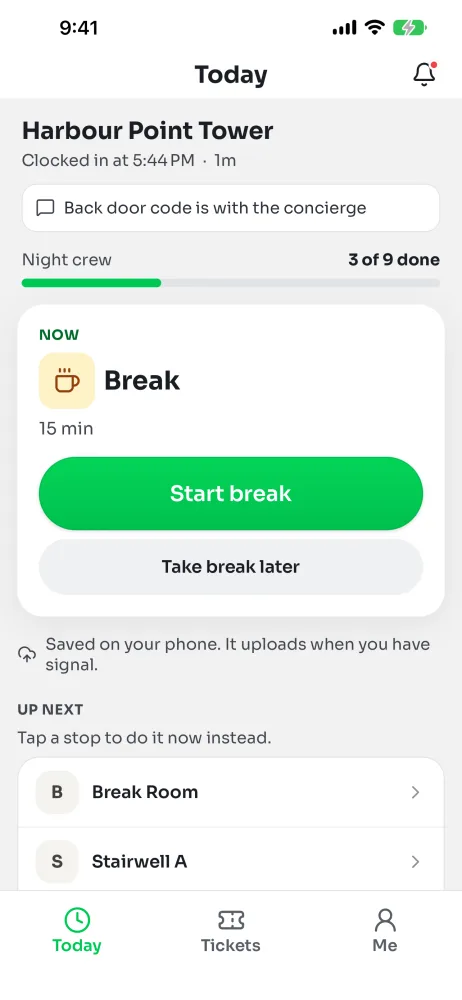
When a break or lunch comes up on your route, tap Start break. Tap End break when you're back. The card shows how long you've been on break.
Not ready yet? Tap Take break later. It moves to the end of your list.
No route? Tap Start break on your clock card.
9Clock out when you leave
When every stop is done, the app says All stops done. Tap Clock out.
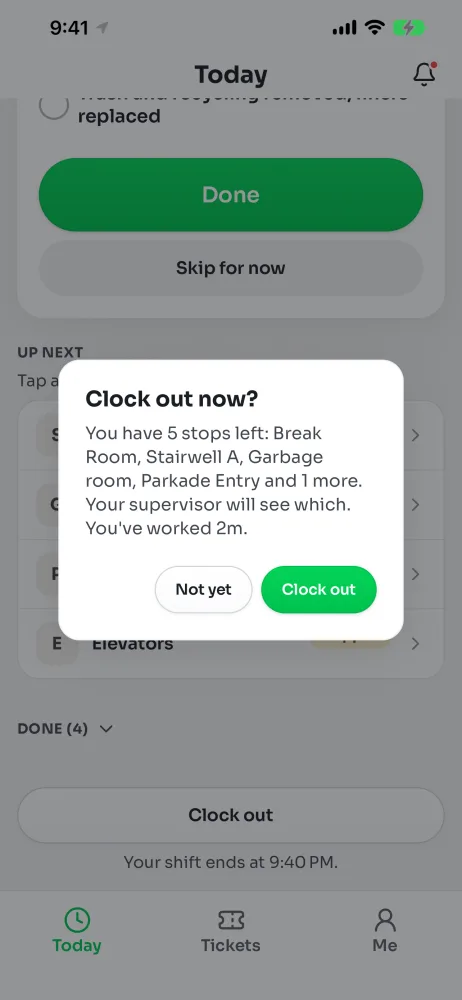
If you still have stops left, the app asks first and lists them. You can still clock out. Your supervisor gets one note with what was left.
Tapped it by mistake? Tap Undo clock out in the next five minutes.
If your company doesn't use clock-in
Some companies only use routes. In that case the button says Start route instead of Clock in, and you tap Finish at the end. Everything in between is the same.
No signal
Keep working. Clock-ins, Done and breaks save on your phone and send when you have signal again. The app says Saved on your phone. The time you tapped is what counts.
Tickets
When something at your site needs fixing, your phone buzzes and it shows under Tickets. Fixing tickets and chatting in the app shows each step.