Fixing tickets and chatting in the app
- For
- Cleaners
- Where
- Phone app
- Time to read
- 4 minutes
- Time to watch
- 2 minutes
When an inspection finds something at your site, your supervisor can send it to you as a ticket. It's a short list of things to fix, with photos. Your phone buzzes and it shows under Tickets.
Not on the app? You'd get a link instead. Fixing a ticket from a link covers that.
Step by step
1Open the ticket
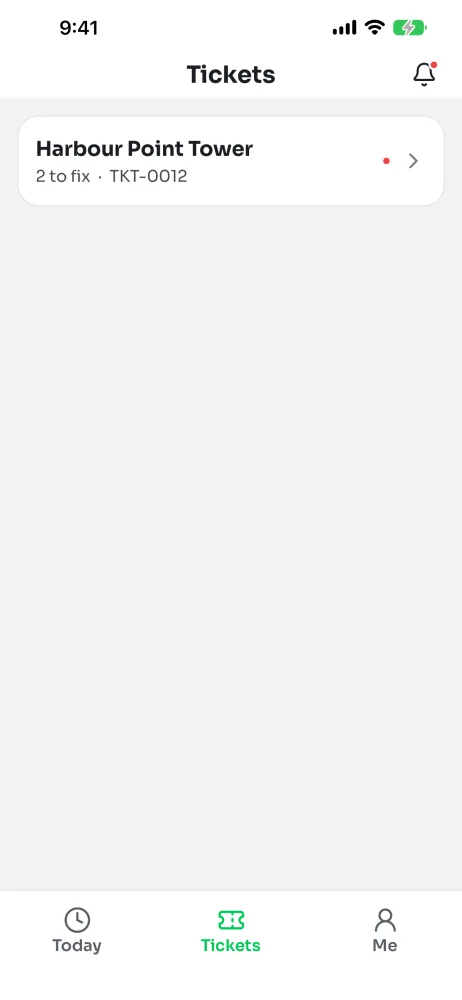
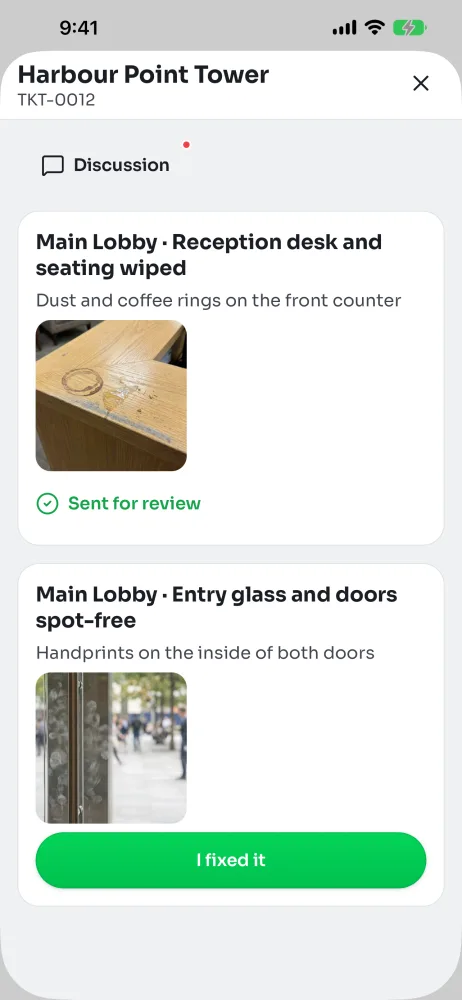
Tap the notification, or tap the Tickets tab. Each card shows the site and how many things are left to fix. Tap one to open it.
You can do this any time, on shift or not. Your shift's route doesn't change.
2See what needs fixing
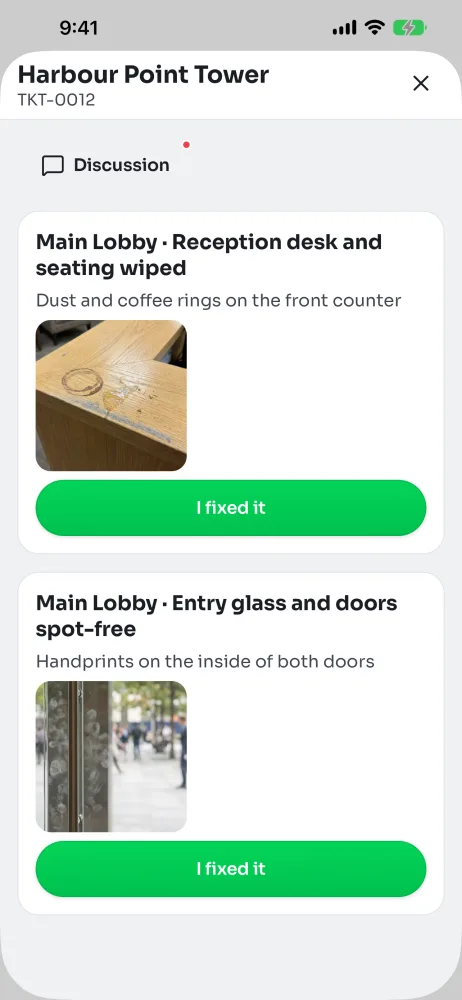
Each item shows the area, the task and what was wrong, with the inspector's photos. Tap a photo to see it bigger.
Do them in any order. Each one gets its own fix.
3Fix it and say what you did
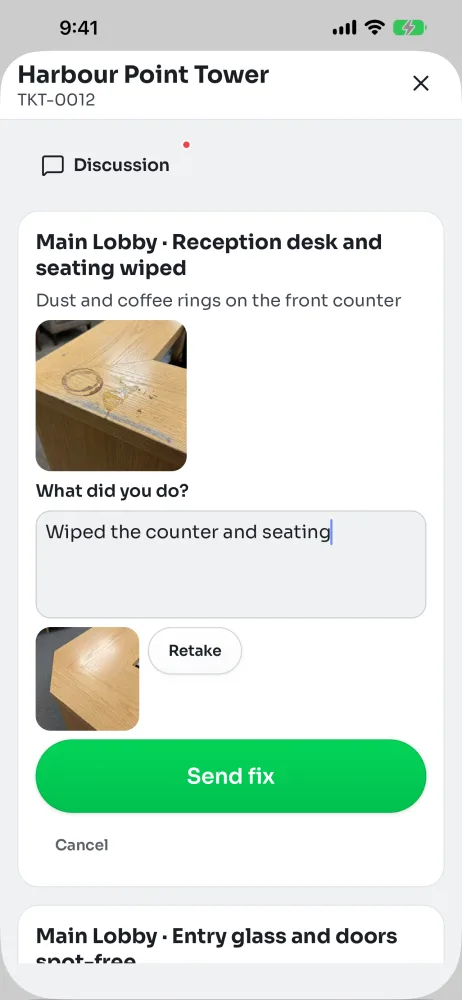
When it's clean, tap I fixed it. Under What did you do?, write a few words, like: wiped the counter and polished the glass.
4Take a photo
Tap Take a photo and get the same spot the inspector did. A photo helps your supervisor sign it off. Tap Retake if it's blurry.
5Send the fix
Tap Send fix. The item changes to Sent for review. Your supervisor checks it and closes the ticket. Nothing else is needed from you.
No signal? It saves on your phone and sends when you have signal.
If a fix is sent back
If your supervisor wants another look, the ticket says Sent back. Have another look. Open it and read their reason under Sent back. Fix it and tap I fixed it again.
Talking to the office
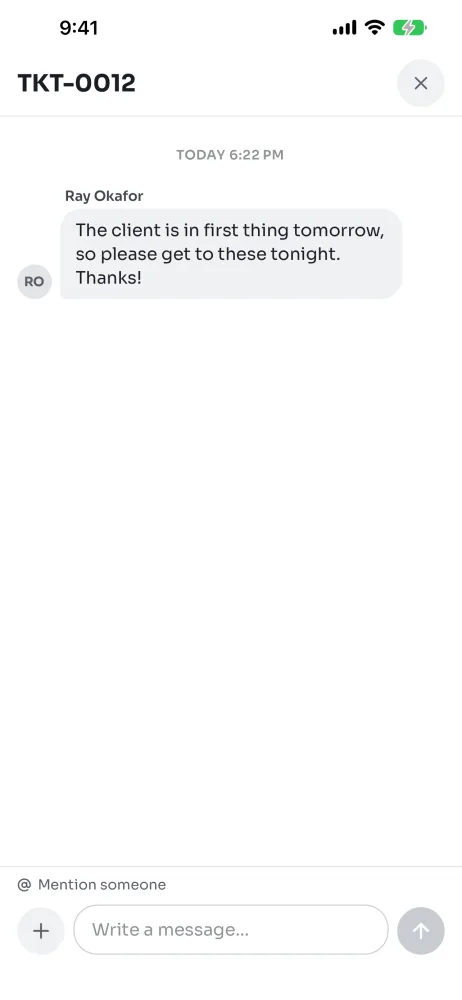
Have a question? Tap Discussion at the top of the ticket. You'll see messages from your supervisor and inspector, and you can reply there. A dot on the button means there's something new.
To get someone's attention, type @ and pick their name from the list. You can always @ the ticket's supervisor and inspector, plus anyone already @'d in the discussion.
Other cleaners who were sent the ticket see the discussion too. The office sees everything you write, so keep it about the job.
Your notifications
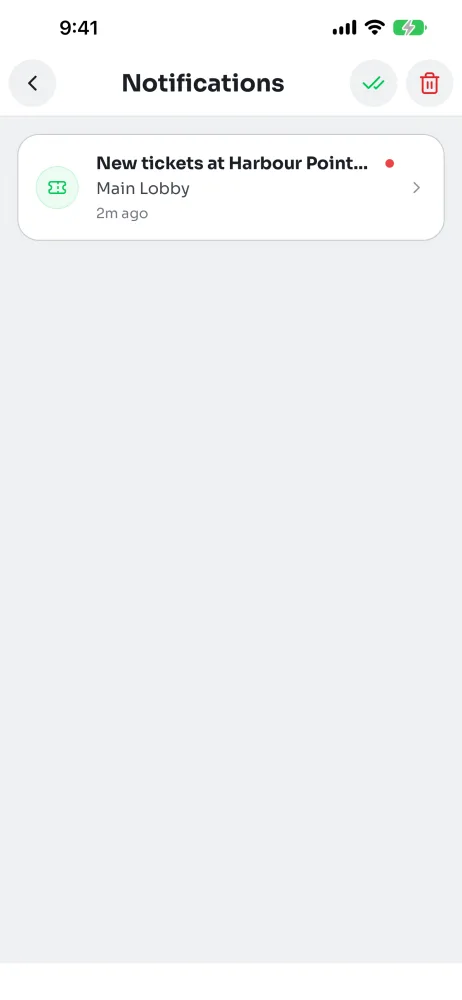
The bell at the top of the app opens your notifications. It lists new tickets and anyone who @'d you. Tap one to go straight there.
Making sure your phone buzzes
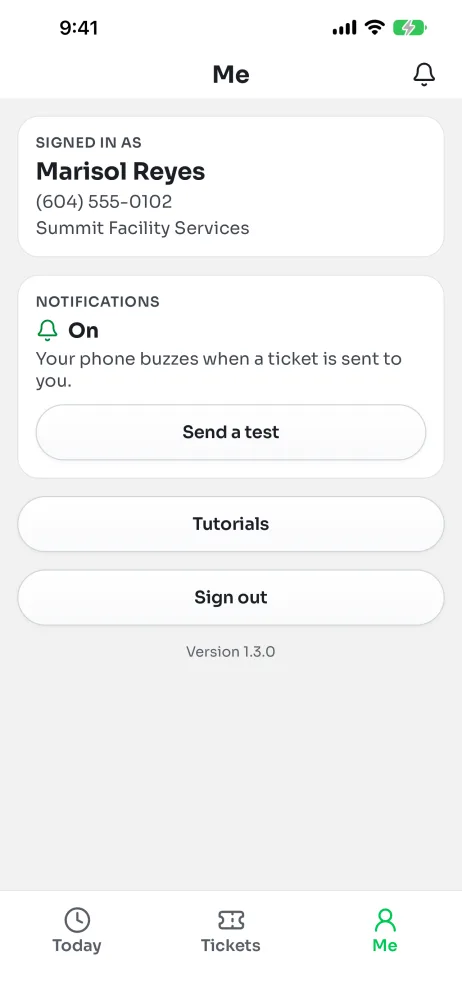
Open the Me tab. The Notifications card says if they're On or Off.
- Off: tap Turn on notifications. If it says Open settings, tap it and allow notifications for KleanProof.
- On: tap Send a test. Your phone should buzz in a few seconds.
Also on Me: your name and number, Tutorials, and Sign out. If you sign out, you'll need a new code to get back in.