Fixing a ticket from a link
- For
- Cleaners
- Where
- Phone, no app
- Time to read
- 3 minutes
Your company sent you a link to a list of things that need fixing. This page shows how to send in each fix, so your supervisor can see the work is done without a phone call or a trip back to the building.
Everything happens in your phone's web browser. There is nothing to install and no password to remember.
Step by step
1Open the item
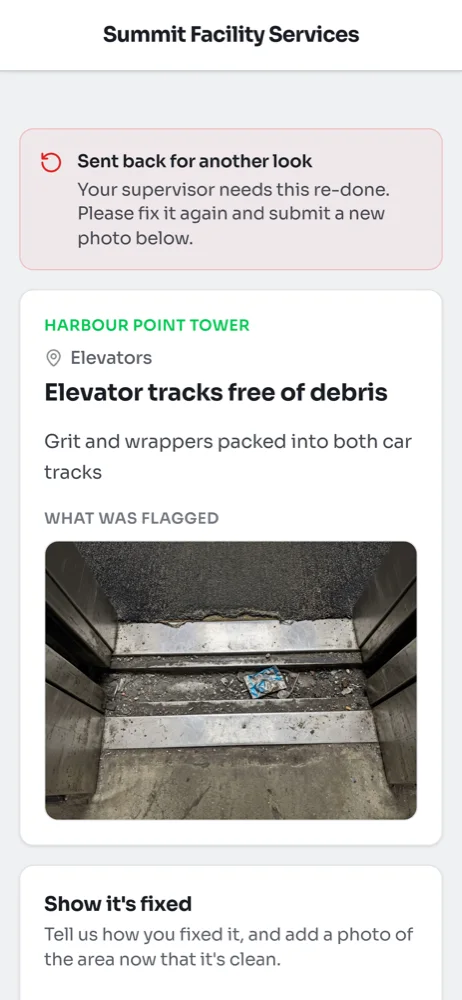
Open your link and tap the item you are going to fix. The page shows the building, the area and what was wrong, with the inspector's photos under What was flagged. Use the photo to find the exact spot.
2Fix it, then say what you did
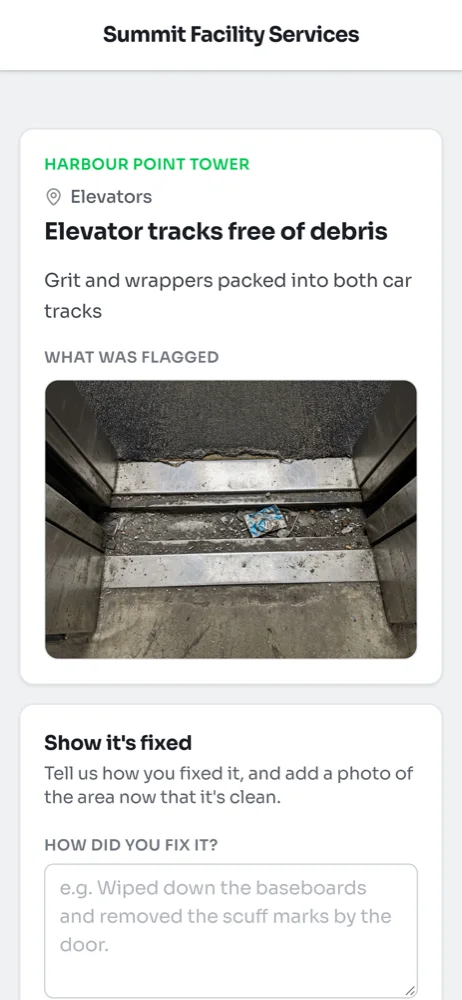
Do the work first. Then scroll down to Show it's fixed and write what you did in the box under How did you fix it? A short sentence is enough, such as which doors you washed or which sinks you dried. It needs at least 10 characters.
3Add a photo
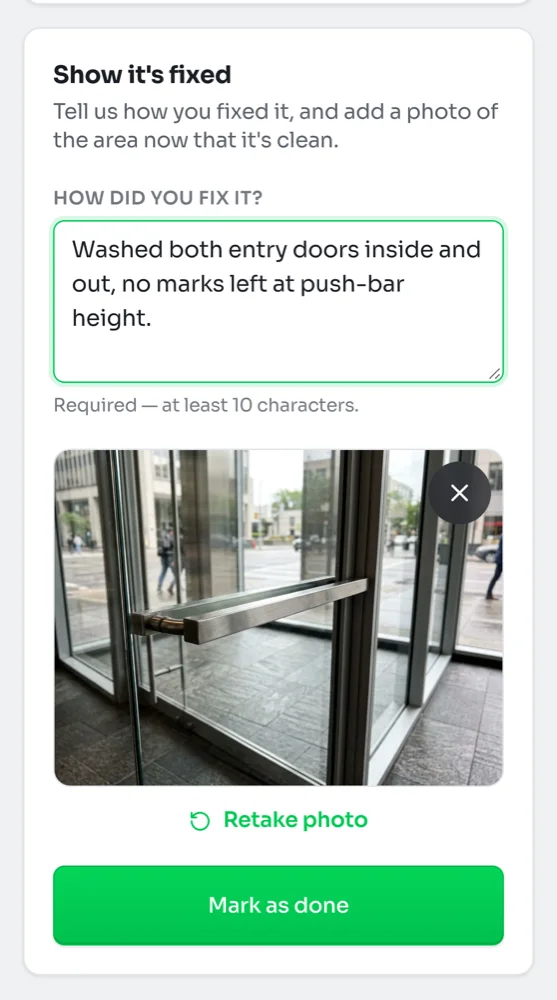
Tap Take photo to open your camera and take a picture of the same spot now that it is clean. Upload photo lets you pick one you already took. Try to match the inspector's angle so your supervisor can compare the two.
The photo appears on the page. Tap the X on it to remove it, or Retake photo to try again.
4Mark it as done
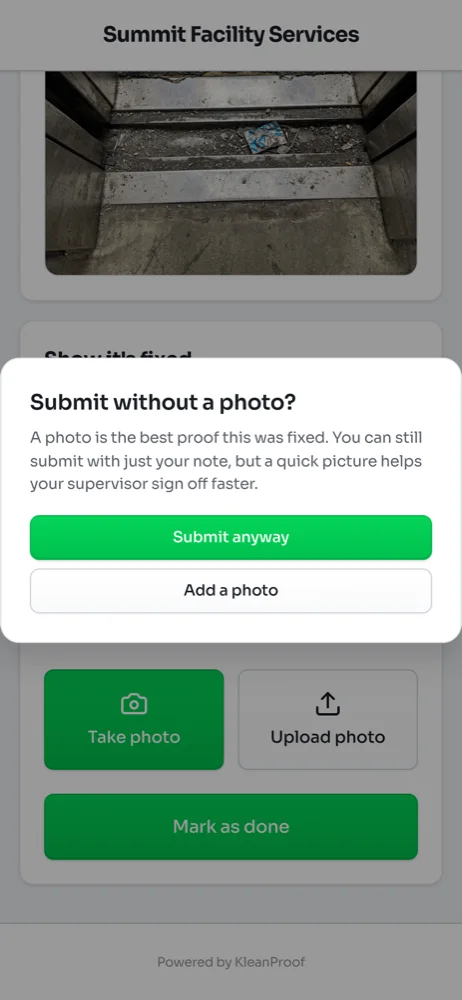
Tap Mark as done. If you did not add a photo, the page asks whether to submit without one. A photo is the best proof, so tap Add a photo unless you cannot take one. Submit anyway sends your note on its own.
For site-wide checks that have no one spot to photograph, the photo is optional and this question does not come up.
5Move on to the next item
Once it is sent, the page shows how many items you have fixed out of the total. Tap the green Next button to go straight to the next open item, or Back to the list to choose one. When every item is sent in, the page tells you that you are all done.
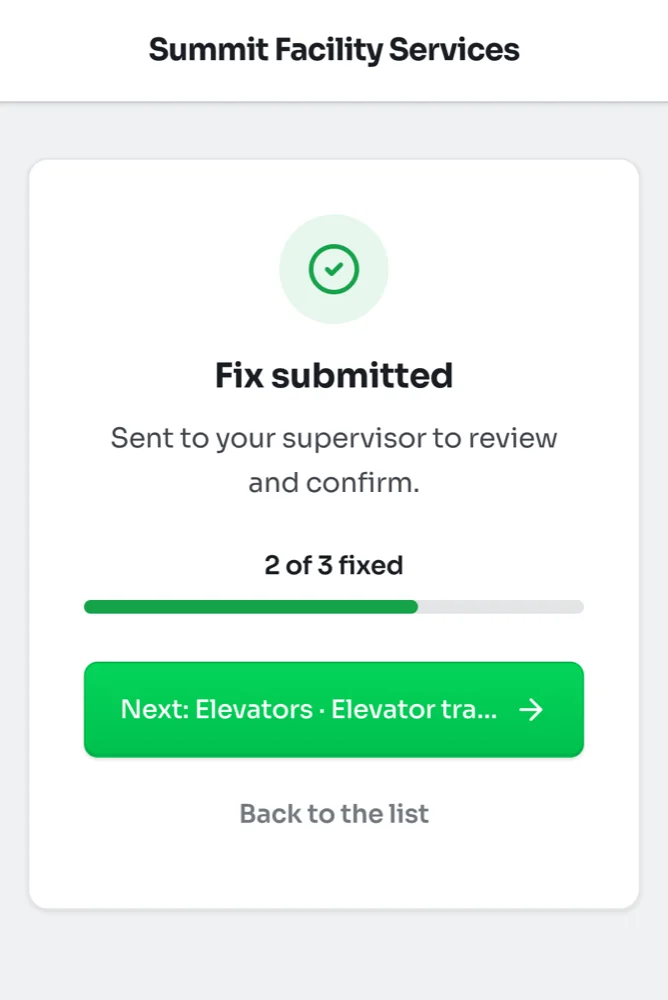
After you send it
Your supervisor looks at your note and photo and either signs the item off or sends it back. Until then, opening the item again shows Submitted and waiting for review with the photo you sent. On the list, the item is marked Done.
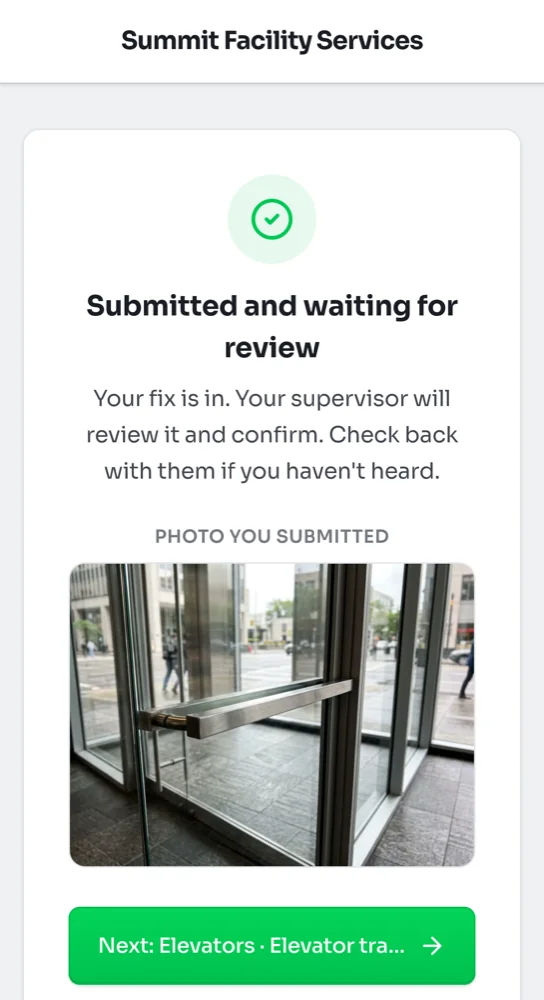
When an item is sent back
If your supervisor is not happy with the result, the item goes back on your list as Still needs fixing. Opening it shows Sent back for another look at the top. Fix it again and send a new note and photo the same way. Ask your supervisor if you are not sure what they want done differently.