
Building a site's checklist
- For
- Facility managers
- Where
- Web app
- Time to read
- 6 minutes
Every site has an inspection layout. It is the checklist your inspector walks on their phone, split into areas such as Lobby or Washrooms, with tasks inside each area such as Floors or Mirrors. Each task gets a Pass, Fail or N/A on the day.
A good layout matches the building and the cleaning contract. The score, the tickets and the reports all come from it, so it is worth half an hour to get right.
Step by step
1Open the site's layout
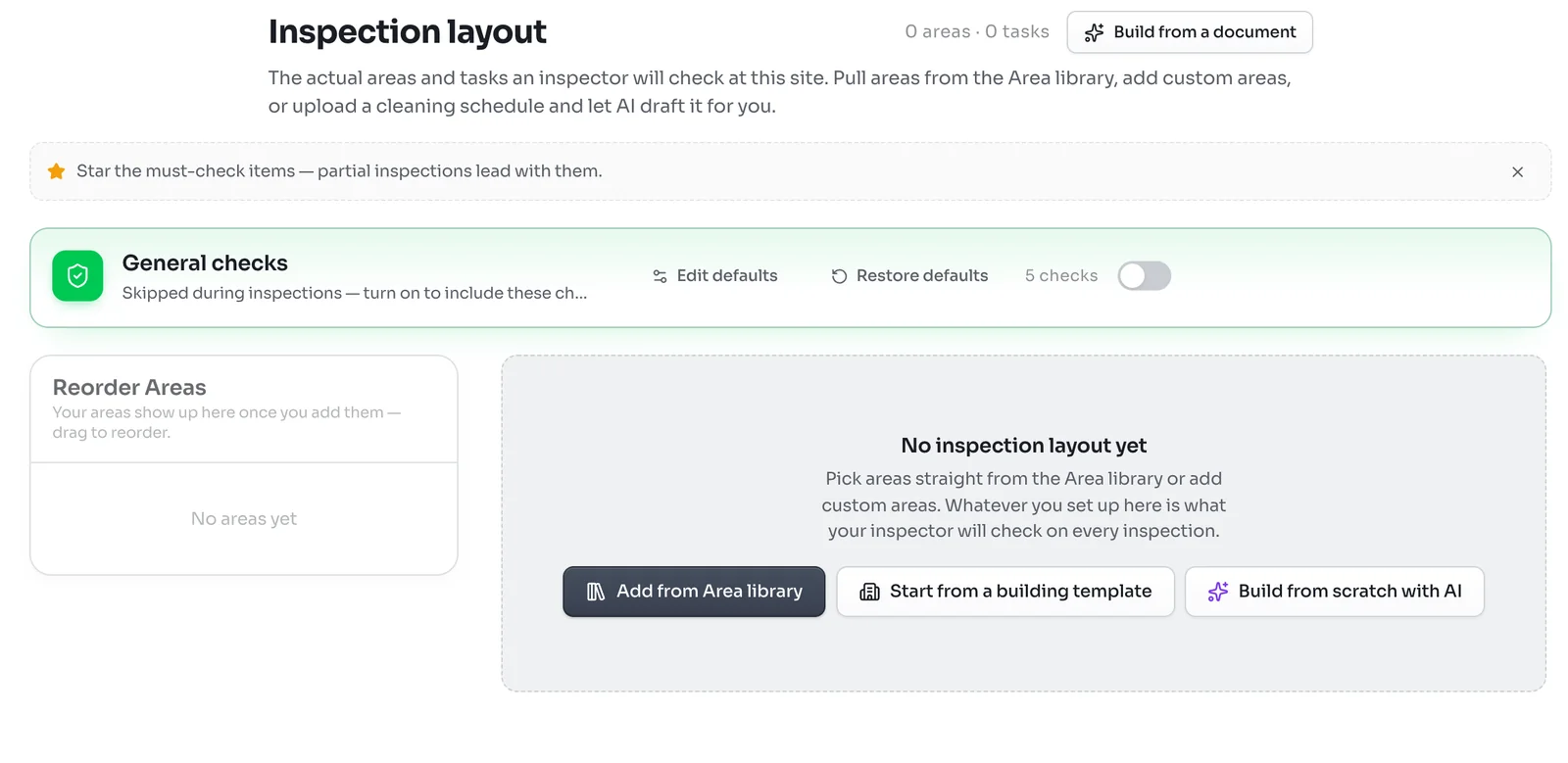
Open the site and click Inspection layout. A new site starts empty, with three ways to begin:
- Add from Area library picks areas one by one from KleanProof's library.
- Start from a building template copies a whole layout you or KleanProof set up before.
- Build from scratch with AI opens a chat where you describe the building and the AI builds the areas and tasks.
If you have the cleaning contract's schedule or scope of work, click Build from a document at the top instead. Importing a cleaning schedule with AI covers this.
2Start from a template
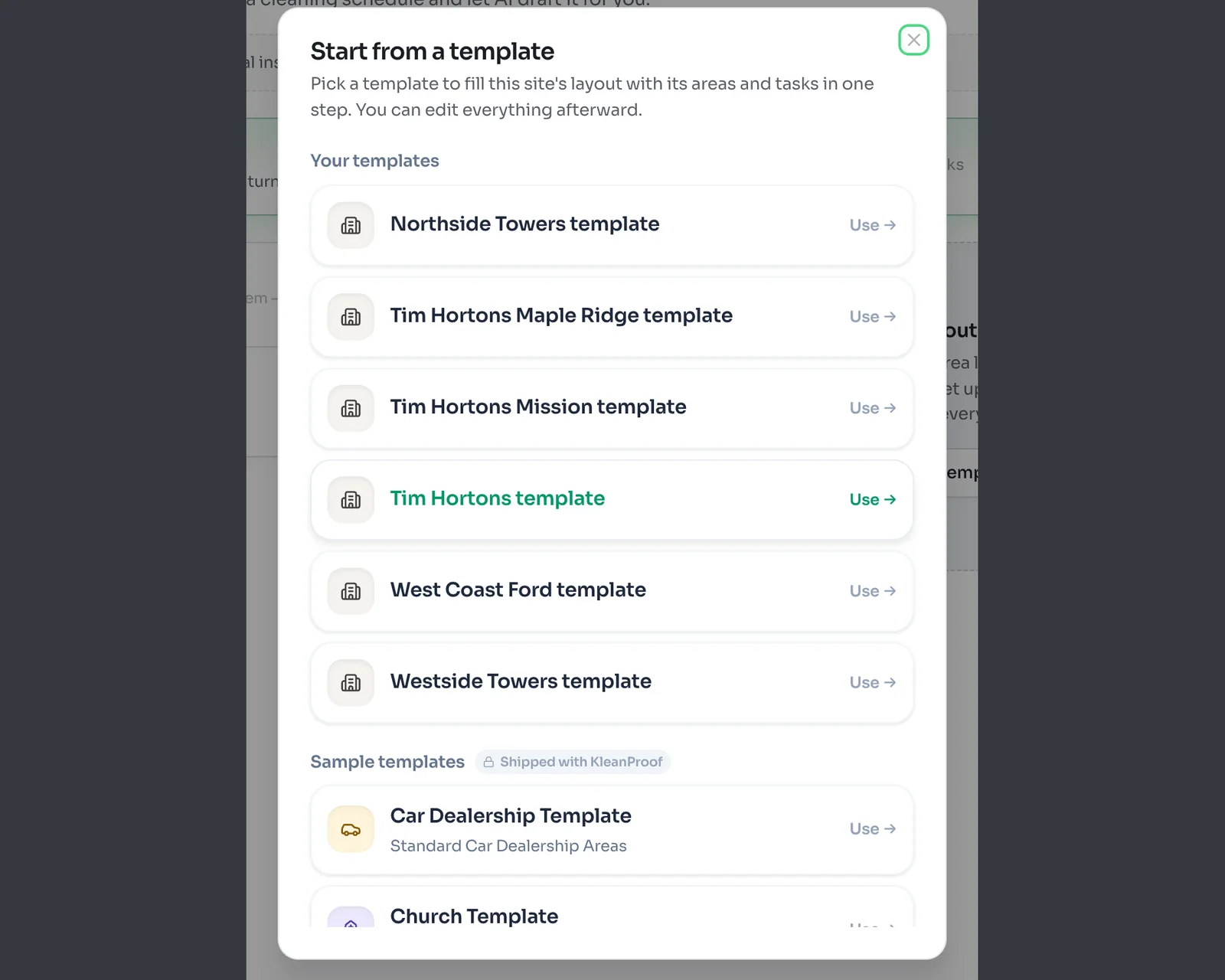
If you clean similar buildings, a template saves the most time. Your templates are layouts your team saved. Sample templates ship with KleanProof for common building types, such as a car dealership or a church. Click Use on one to copy its areas and tasks into this site.
The copy belongs to this site. Change anything you like, and the template stays as it was.
3Or pick areas from the library
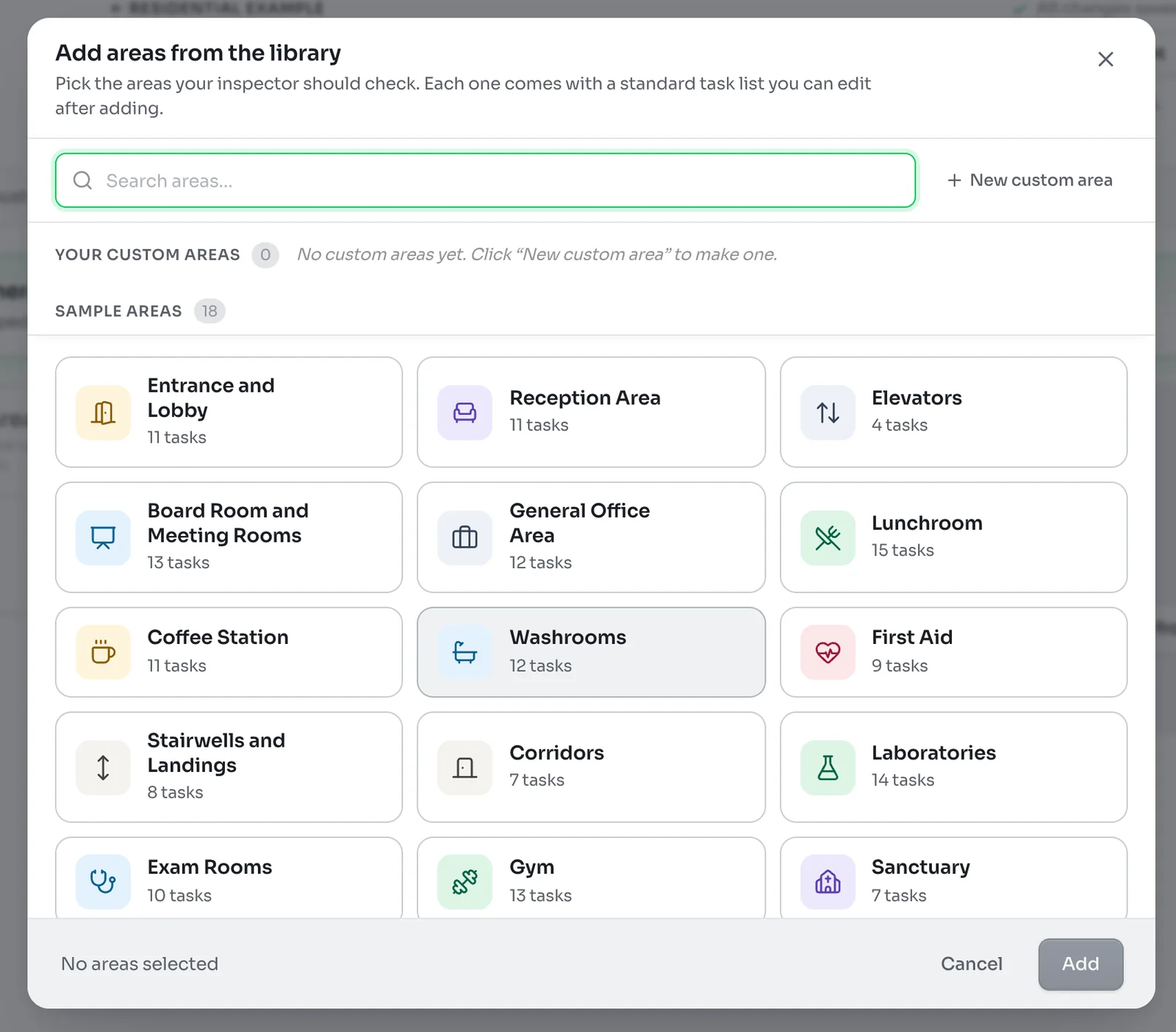
The area library holds common areas, each with a standard list of tasks. Click every area this building has, such as Entrance and Lobby, Elevators and Washrooms, then click Add. Search at the top if you do not see one.
For a space the library does not have, click New custom area and give it a name, such as Loading Dock. Custom areas you make are saved to the top of the library for every site.
4Shape the layout
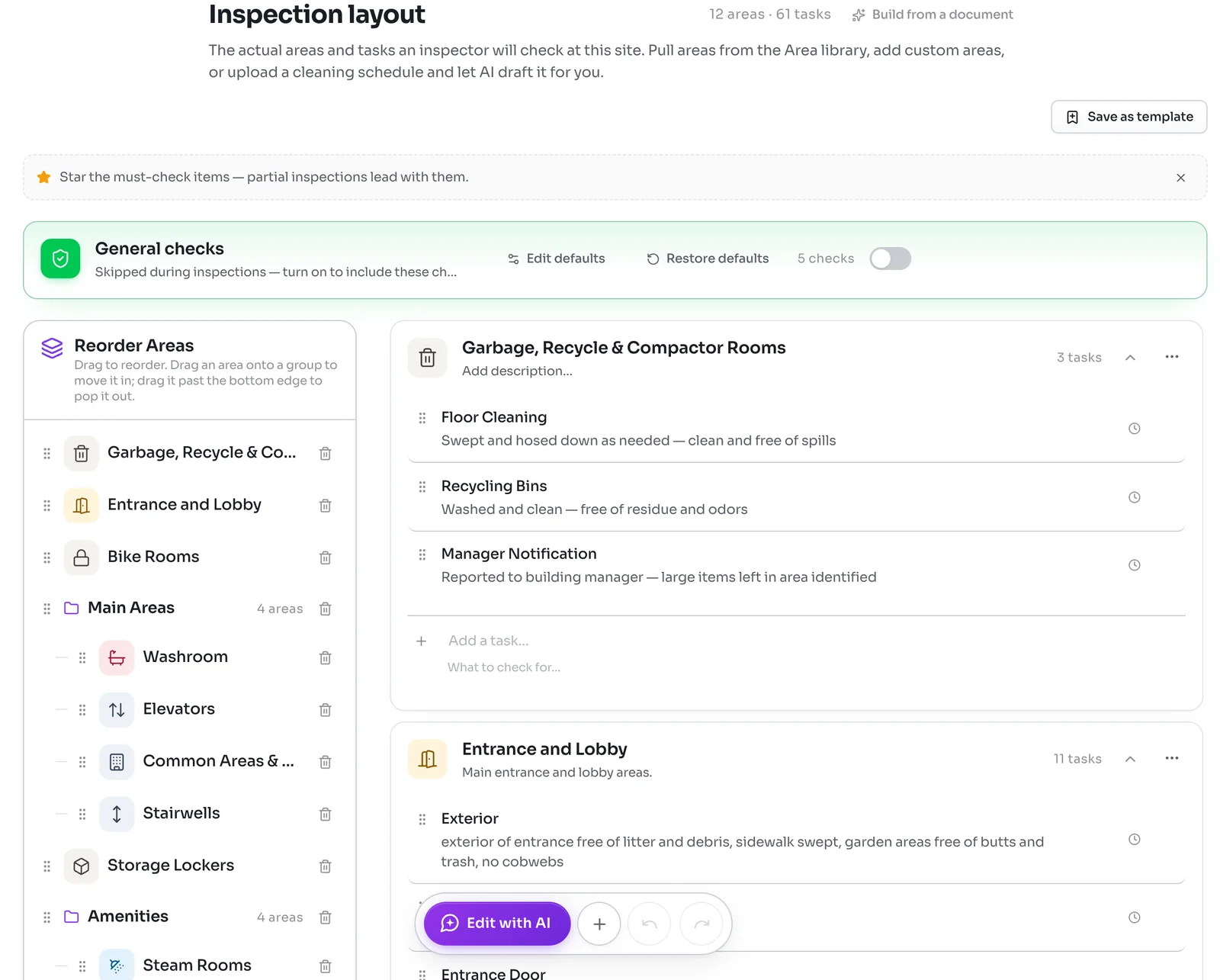
Your areas now fill the page, with a Reorder Areas panel on the left. Put the areas in the order your inspector walks the building. Drag an area up or down, or drag it onto a group to file it inside, such as Main Areas or Amenities. Groups are useful for floors or wings of a large building.
Inside each area, edit the tasks to match the contract:
- Click a task's name or description to change it. The description tells the inspector what a pass looks like.
- Type in Add a task at the bottom of an area to add one.
- Hover over a task and click the X to remove it.
Everything saves as you go. The top of the page shows All changes saved once it is stored.
5Star the must-check items
Click the star on any task that must never be missed, such as washroom supplies or the main entrance. Starred tasks come first when an inspector runs a quick partial inspection, so the most important things always get looked at.
6Set how often each task comes up
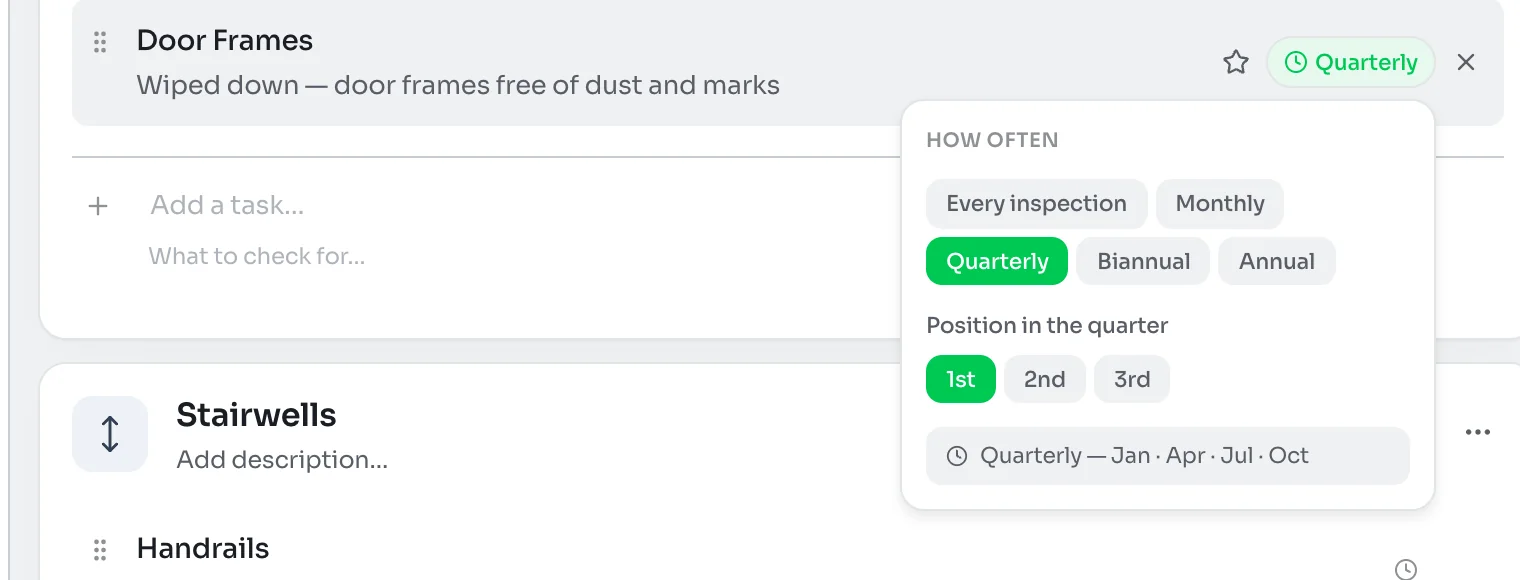
Most tasks are checked on every inspection. Deep-clean work such as vents, carpets or high dusting often happens less often, so there is no point rating it every visit. Click the clock beside a task and choose from Every inspection, Monthly, Quarterly, Biannual or Annual.
Then pick when it comes up. A monthly task comes up in one week of the month. A quarterly task comes up in the 1st, 2nd or 3rd month of each quarter, and the popup spells out the months, for example Jan · Apr · Jul · Oct. An annual task comes up in the month you choose.
Outside its time, the task is set aside in the inspector's app as upcoming, so it does not clutter the walk.
General checks
The green General checks bar holds site-wide checks that do not belong to one area, such as staff in uniform or the janitor room tidy. The inspector answers each one Yes, No or N/A, and a photo is optional.
They are skipped unless you turn them on with the switch for this site. Edit defaults changes the starting list for new sites. Restore defaults replaces this site's general checks with your workspace defaults.
Save the layout as a template
Once a layout is right, click Save as template to reuse it at similar sites. Building templates and the task library explains how templates work.
Edit with AI
The purple Edit with AI button at the bottom opens a chat that can change the layout for you. Ask it in plain words, such as adding a parkade area with four tasks or making all carpet tasks quarterly. The arrows beside it undo and redo changes.