Running an inspection
- For
- Inspectors
- Where
- Phone app
- Time to read
- 4 minutes
An inspection is you walking a site with the phone and rating each task on the checklist Pass, Fail, or N/A. Every Fail needs a photo and a short note, and each one becomes a ticket for the cleaning crew the moment you submit. Passes need nothing more than the tap. The whole thing works without signal, so you can rate in a parkade or a basement and the app sends it up once you are back in range.
Step by step
1Find the site and tap Start
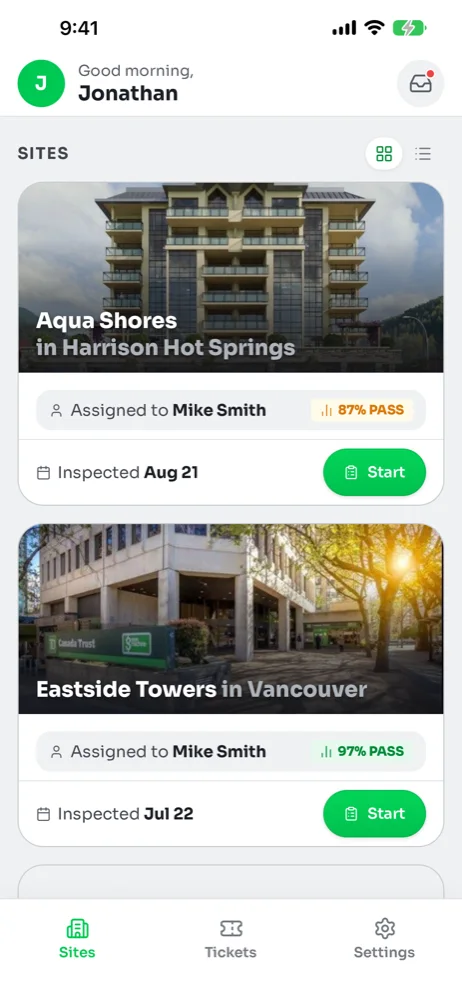
Open the app. The Sites tab lists every site you are assigned to, with the last inspection date and the last score on each card. Find the site you are standing in and tap the green Start button on its card.
2Choose Full or Partial
A sheet slides up with two choices. Full inspection means you rate every task in every area and the site gets a score. Partial spot-check lets you rate a handful of tasks and submit; it does not get scored and it does not count as the site's scheduled inspection.
The Initial clean switch is for the first inspection after a new crew takes over a site. Leave it off unless your manager told you to turn it on. When it is on, tickets from this inspection are not counted against the crew's fix times.
3Work through the areas
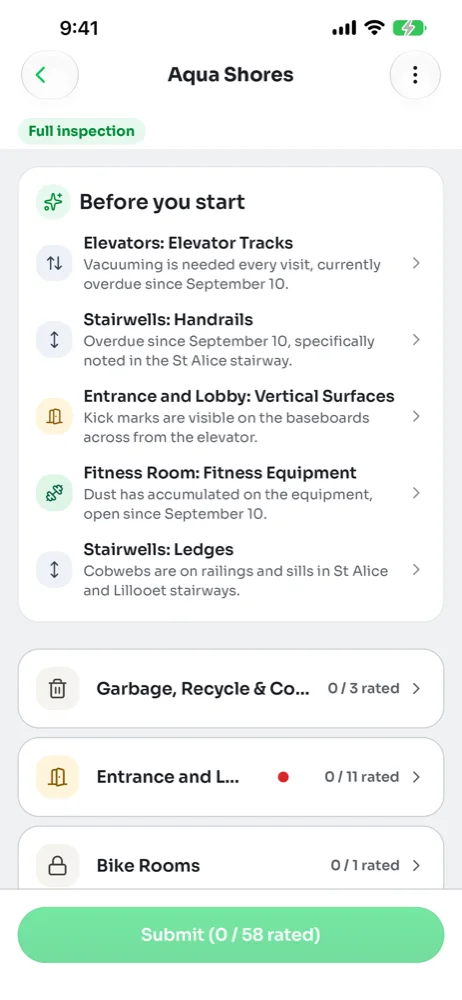
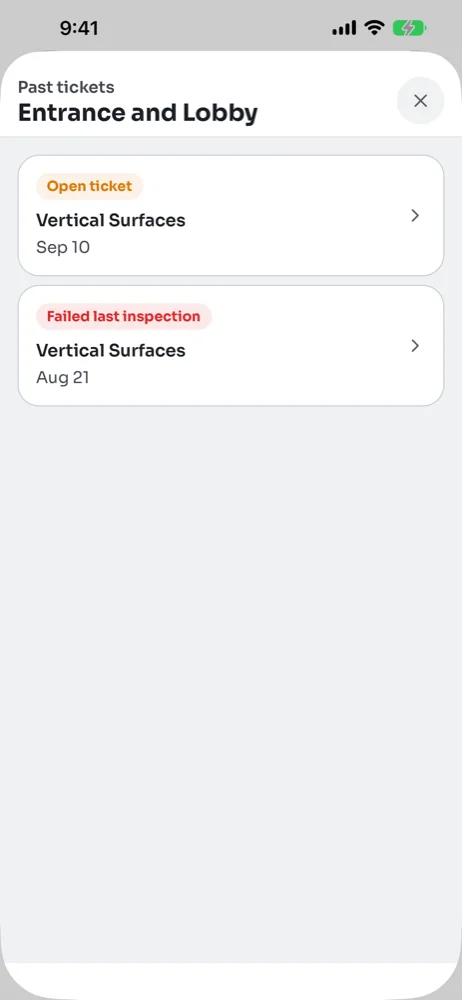
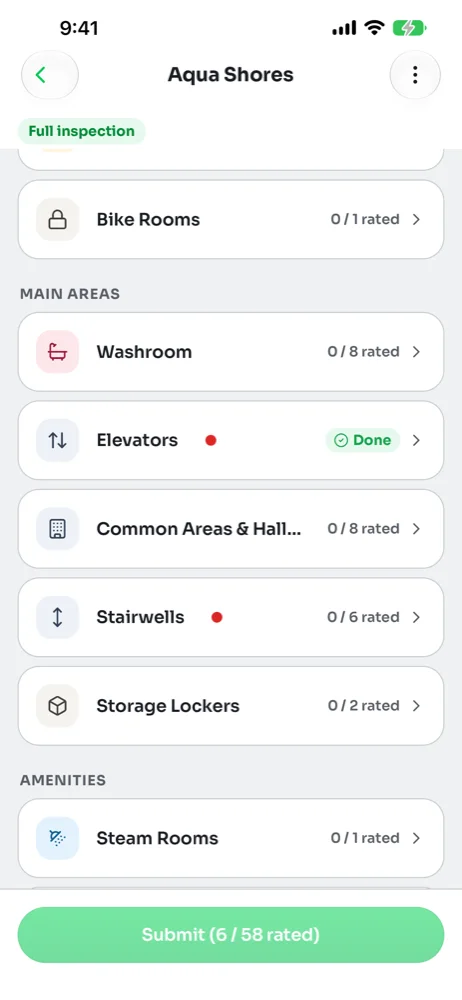
The inspection opens on a list of areas, grouped the way your site is set up. At the top, a Before you start card lists any tickets still open at this site, so you know what the crew was supposed to have fixed. A red dot next to an area name means it has an open ticket. Tap the dot to see the past tickets for that area, or tap the area name to start rating. Some sites also have a General Checks area for site-wide items such as staff uniforms and the janitor room.
4Rate each task Pass or Fail
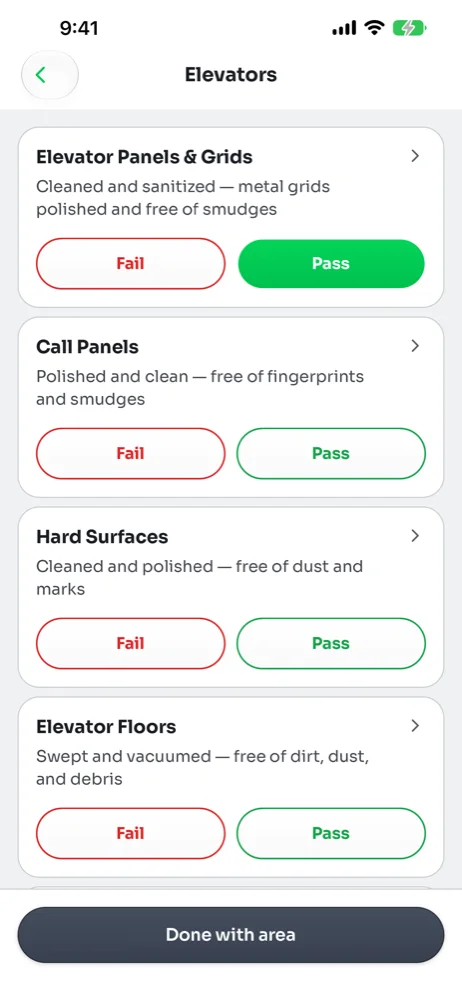
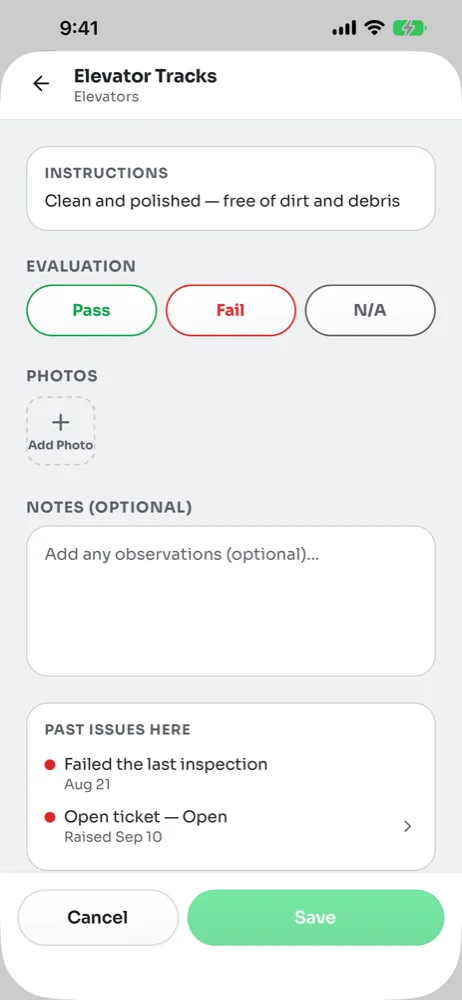
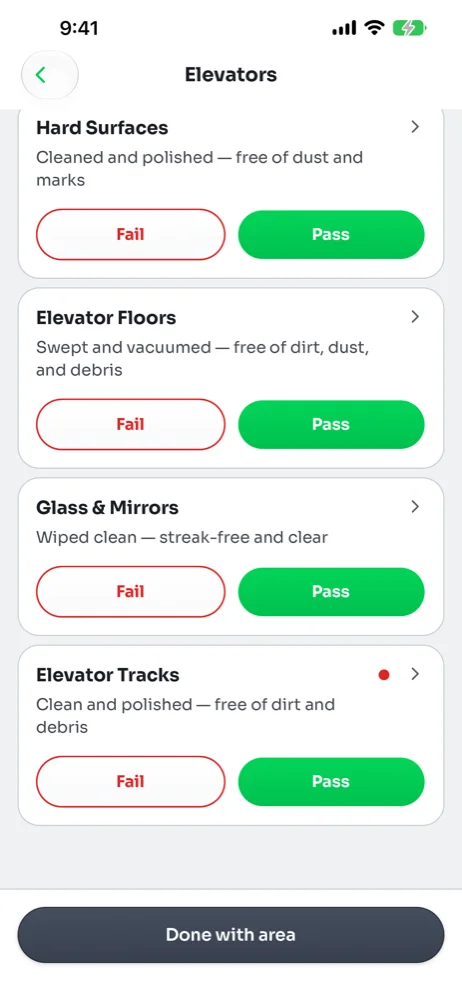
Each area shows its tasks with a Fail and a Pass button under each one. The grey line under a task is the standard you are checking against. A red dot beside a task name means that exact task has an open ticket. Tap Pass when the task meets the standard. Tap the task name if you want to open its detail page, which also has the N/A option and a Past issues here list so you can see what went wrong before.
5On a Fail, take a photo and write a note
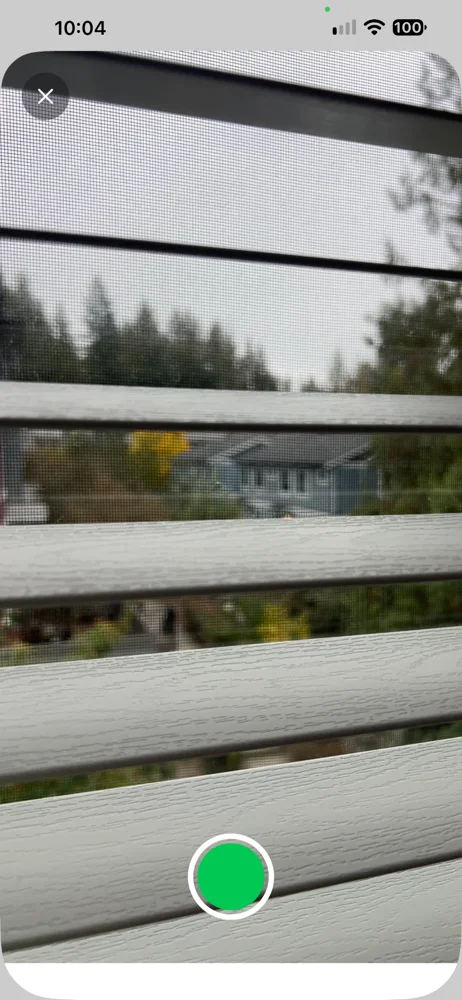
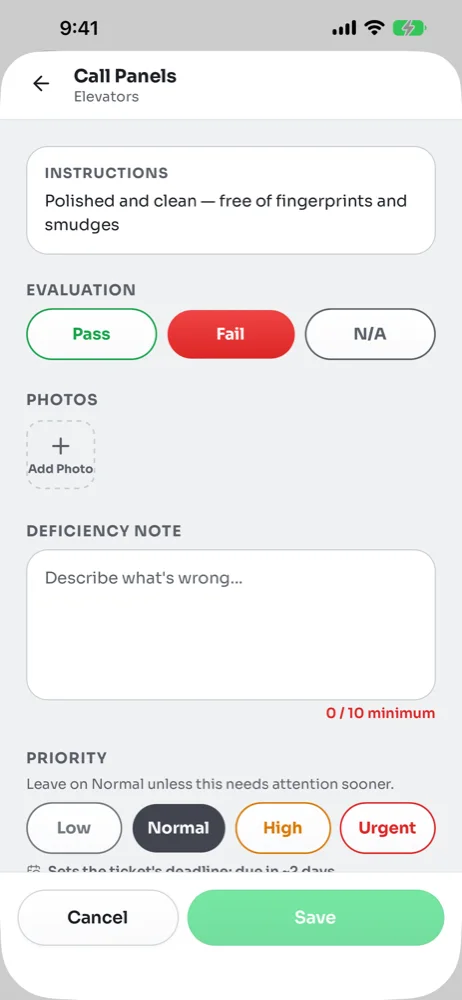
Tapping Fail opens the camera right away. Take a photo of what is wrong. You can add more than one if it helps. After the photo the task detail page opens with Fail selected, and the app needs a note of at least ten characters before it will let you save. Write what the crew needs to know: where it is and what you saw. If the same spot already has an open ticket, a Still failing notice tells you the app will mark that ticket as found again instead of opening a second one.
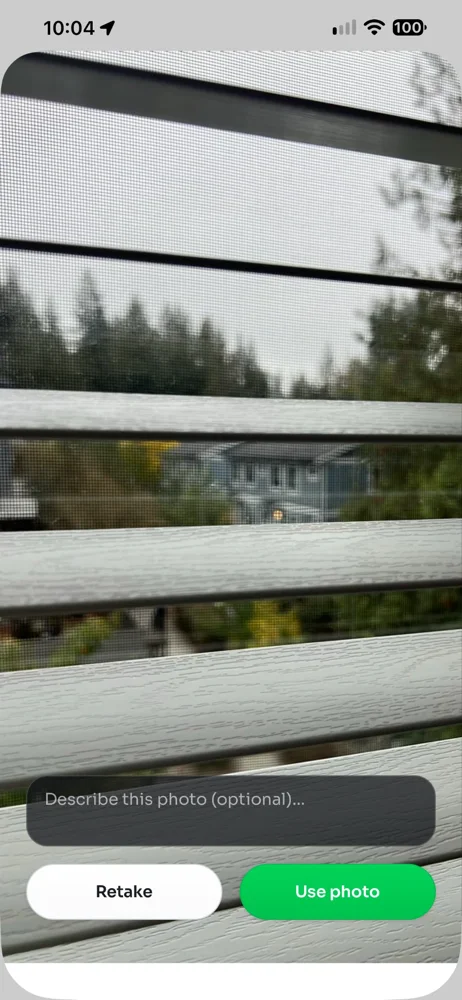
After you press the shutter, the app shows the photo with Retake and Use photo. You can type a short caption on the photo itself if it helps; that caption is separate from the deficiency note that comes next.
N/A works the same way without the photo. Use it when a task could not be checked, for example a locked room, and say why in the note.
Below the note is a Priority row. Leave it on Normal unless the problem needs attention sooner. Priority sets the deadline on the ticket the crew receives.
6Finish the area
When every task in the area has a rating, tap Done with area. Back on the area list, the area shows Done and the Submit button count goes up.
7Pause or cancel if you need to
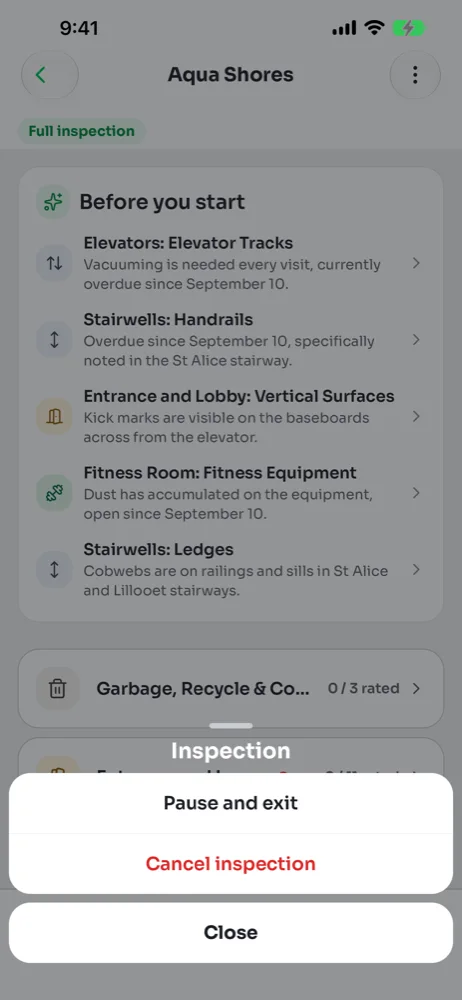
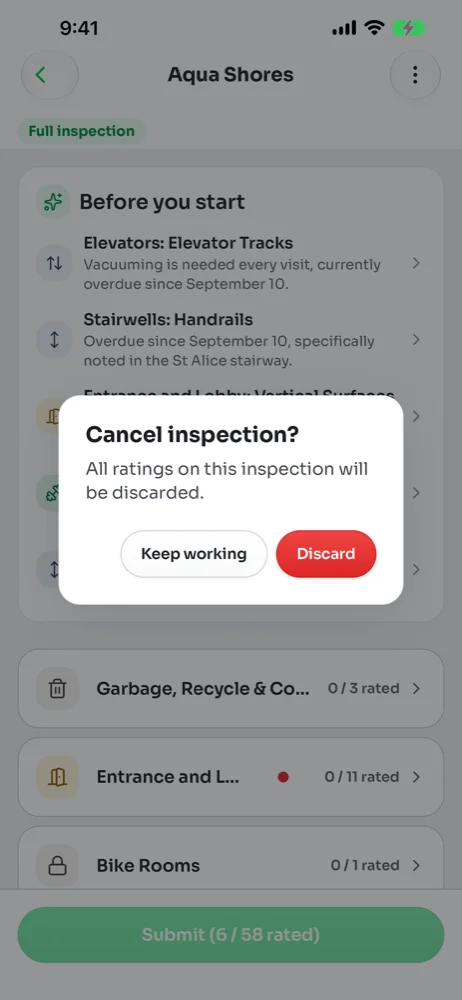
The three dots in the top right open a small menu. Pause and exit saves everything you have rated so far and takes you back to the site list; the draft waits at the top of the Sites tab until you come back. Cancel inspection throws the draft away after asking you to confirm. Leaving the app or taking a call also pauses the inspection for you, so nothing is lost.
8Submit
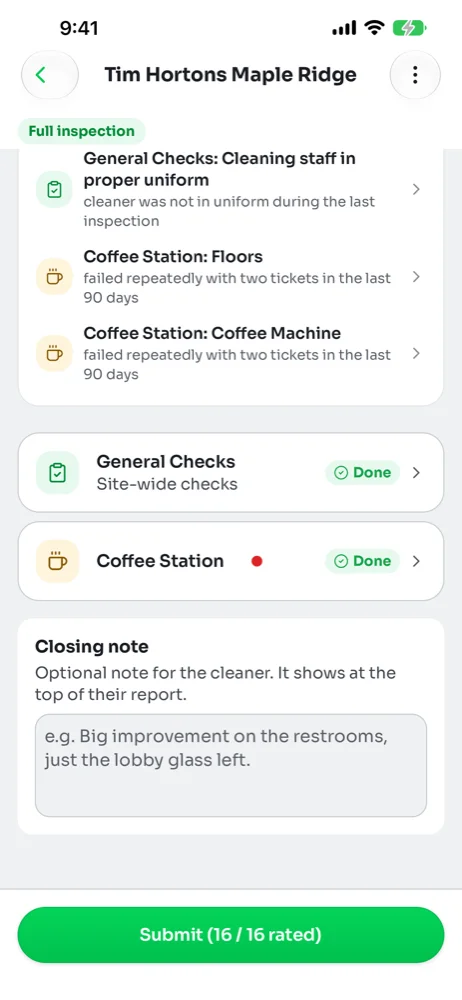
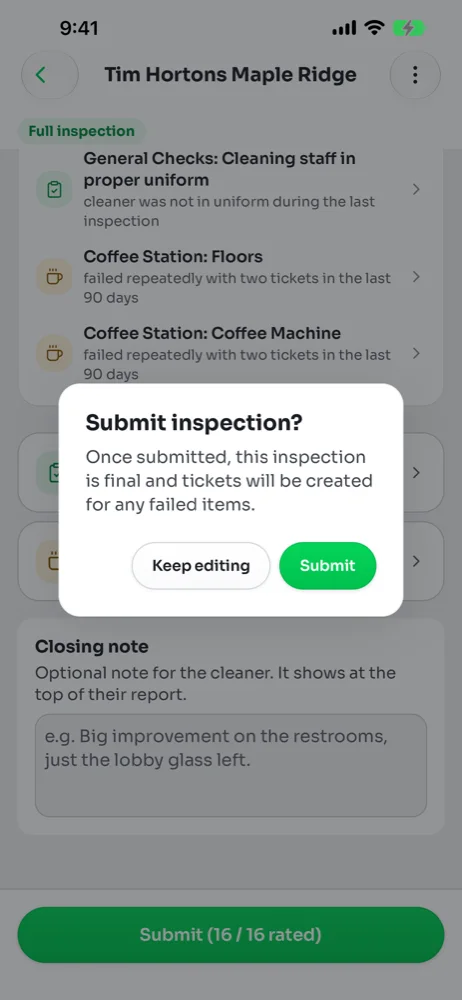
When every area is Done, scroll to the bottom. There is an optional Closing note for the crew, which shows at the top of their report. Tap Submit, then confirm. Once submitted the inspection is final and a ticket is opened for every Fail.
9Check the result
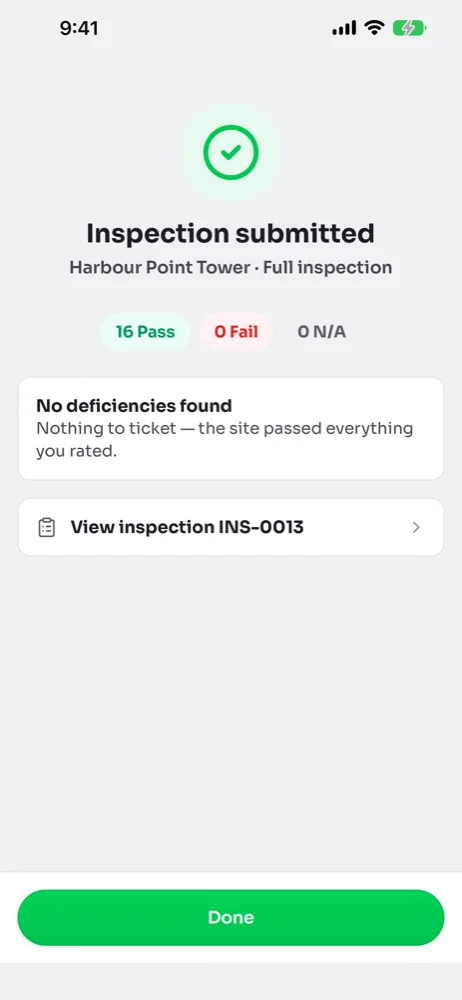
The last screen shows the Pass, Fail and N/A counts and lists the tickets the app created. Tap View inspection to see the full record, or Done to go back to your sites. Your supervisor and facility manager get a notification at the same time.
Common questions
I have no signal in part of the building.
I paused an inspection. How do I get back to it?