Signing in and finding your sites
- For
- Inspectors
- Where
- Phone app
- Time to read
- 3 minutes
Your manager adds you to the team on the web, and KleanProof emails you an invitation. You set your password once on kleanproof.com, then sign in on the phone with the same email and password. After that the app keeps you signed in, and the Sites tab is the first thing you see every time you open it.
Step by step
1Accept the invitation email
Look for an email titled You've been invited and tap Accept invitation. It opens kleanproof.com, where you choose a password and confirm it. The web then asks for your full name and a mobile number so your team can reach you. That is the only setup you do on the web.
If the email never arrived or the link has expired, ask your manager to press Resend invite next to your name on their Team page.
2Install the app and sign in
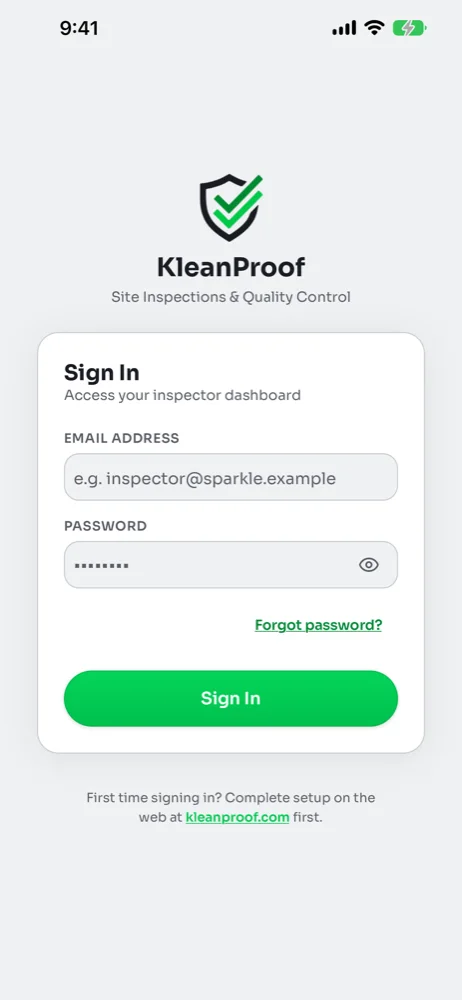
Install KleanProof from the App Store or Google Play. Open it, type the email the invitation went to and the password you chose, then tap Sign In. The app loads your workspace and drops you on the Sites tab.
If you forget your password, tap Forgot password? under the password box. It opens the reset page on kleanproof.com in your browser, and you sign in on the phone with the new password afterwards.
3Find your site on the Sites tab
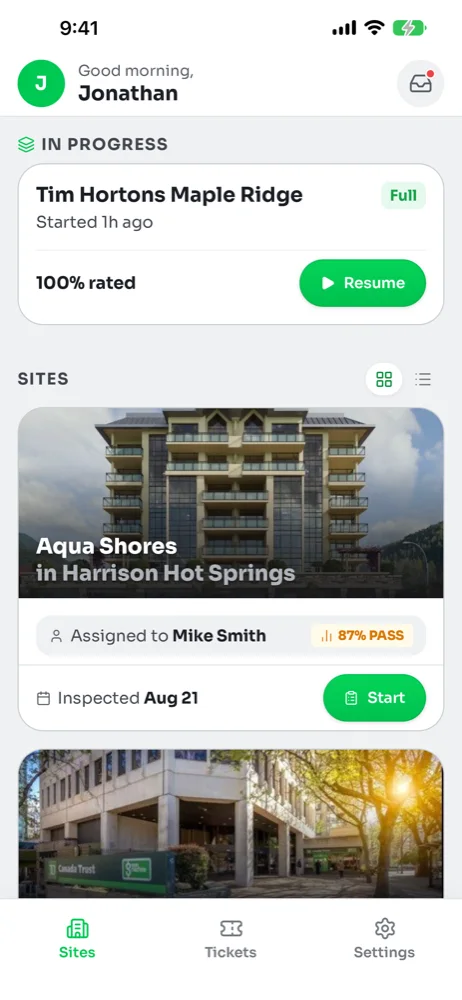
The Sites tab lists every active site in your workspace. When the app has your location, the closest site sits at the top with a Nearest badge and a distance, so the site you are standing in is usually the first card. Sites you are assigned to come first under Your Sites, and the rest follow under All Sites.
Each card shows the site photo, who is assigned, the last score and the date it was last inspected. The green Start button on the card begins an inspection there. An inspection you paused sits above the list under In Progress with a Resume button.
4Switch to the list view for a long portfolio
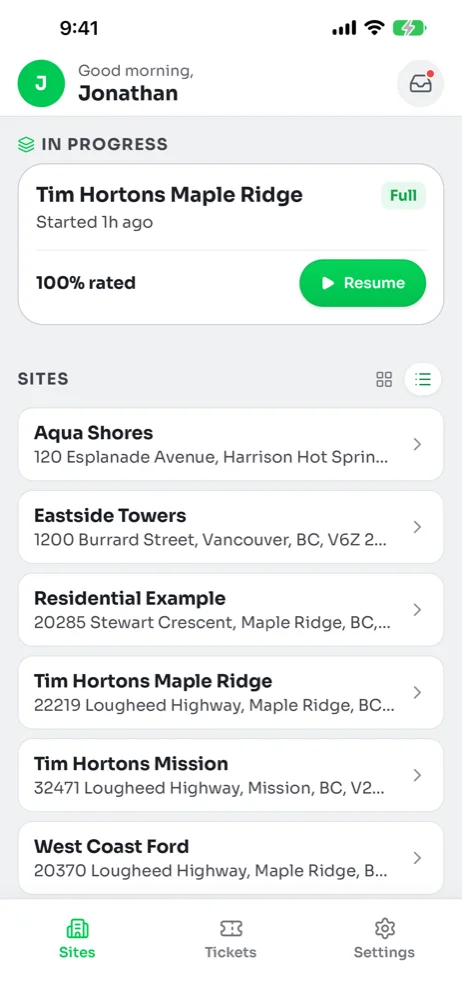
The two small icons beside the Sites heading switch between cards and a compact list. The list shows each site's name and address on one row, which is quicker to scan when you cover a lot of buildings. The app remembers your choice on this phone.
5Open a site for directions, access and contacts
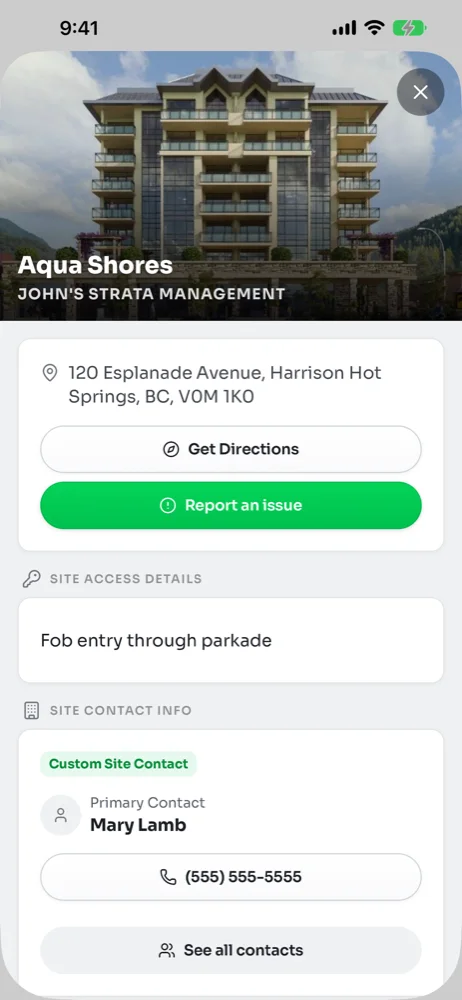
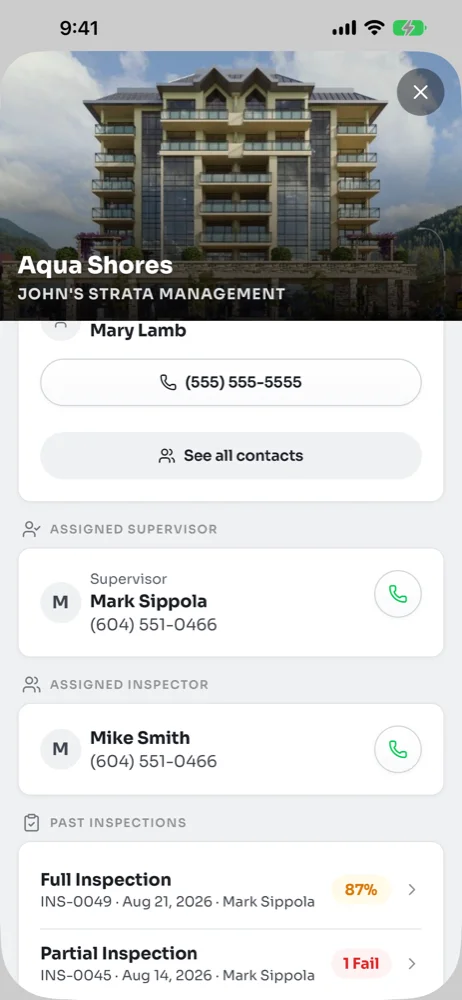
Tap a site card or a list row to open its details. Get Directions hands the address to your maps app. Site Access Details holds the fob, keycode or entry notes your manager saved. Site Contact Info shows the building's main contact with a button to call them, and See all contacts lists everyone on file for that site.
Further down you will find the site's supervisor and inspectors, each with a call button, and the Past Inspections list. Tap any past inspection to read it task by task.
Common questions
Why can I see sites I am not assigned to?
The app says Inspector Access Required. What now?
The app says Workspace Paused.
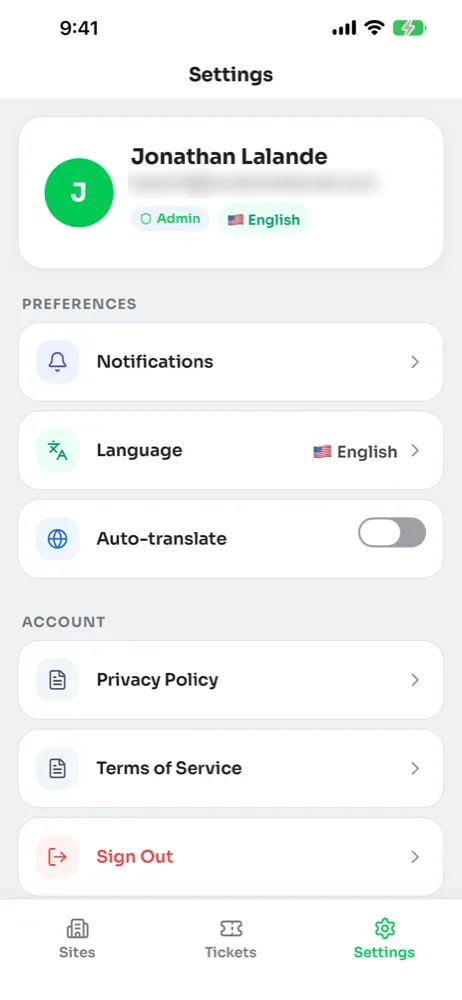
How do I sign out or change the app's language?