
Talking on a ticket or inspection
- For
- Inspectors
- Where
- Phone app
- Time to read
- 3 minutes
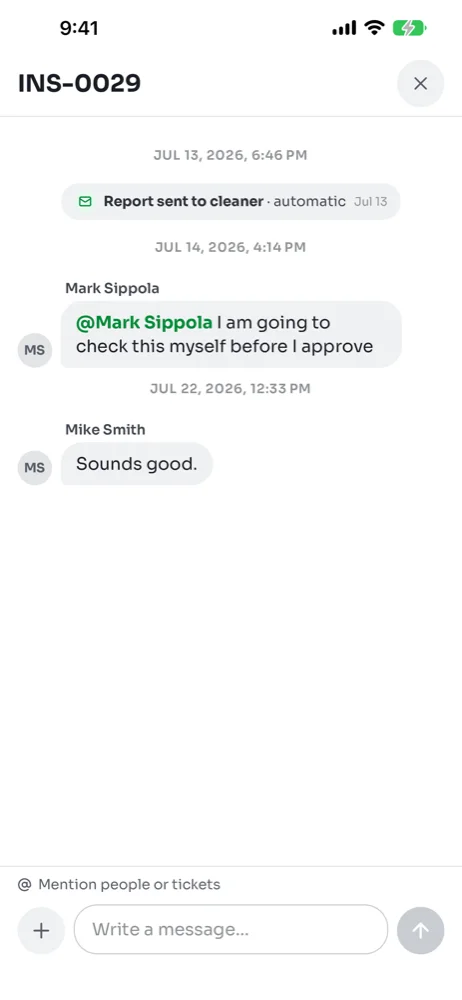
Every ticket and every inspection has its own discussion. It keeps the back-and-forth about the work in one place, next to the photos and the history, so nobody has to dig through texts later to find out what was agreed.
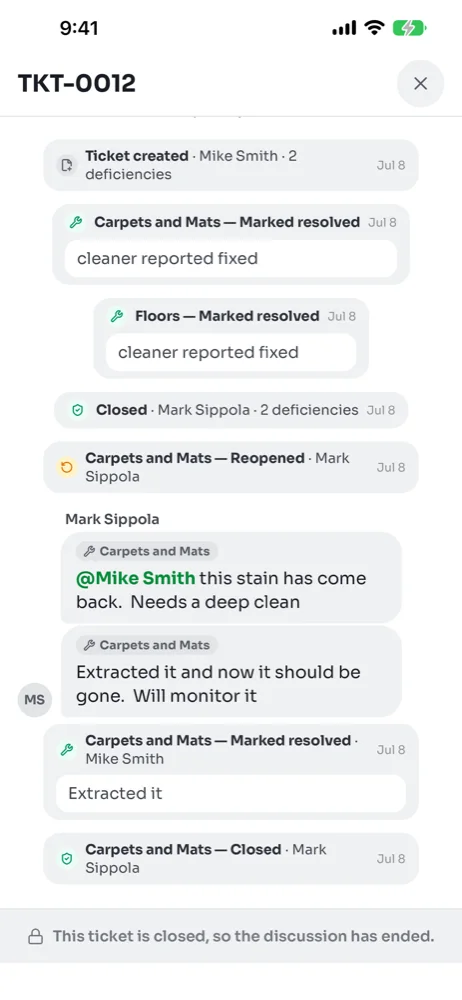
The discussion also records what happened to the ticket. Each change, such as a deficiency being marked resolved or reopened, appears in the thread as a small grey line with who did it and when.
Step by step
1Open the discussion
On a ticket, tap Discussion at the top of the screen. On an inspection, tap the speech-bubble icon beside the close button. A red dot on either one means there are messages you have not read.
Messages sit between the ticket's events in the order they happened. Messages about one deficiency carry its name in a small tag above the text, so you can tell which part of a bundled ticket they are about.
2Write a message and mention someone
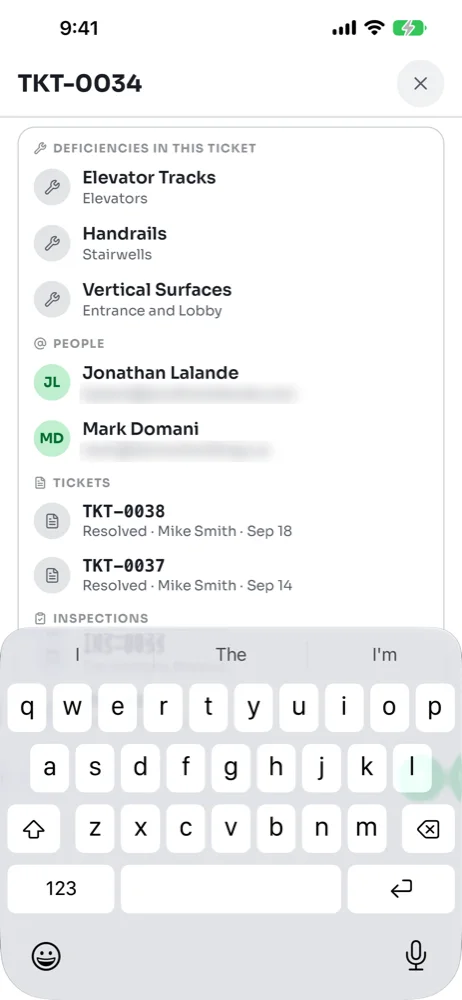
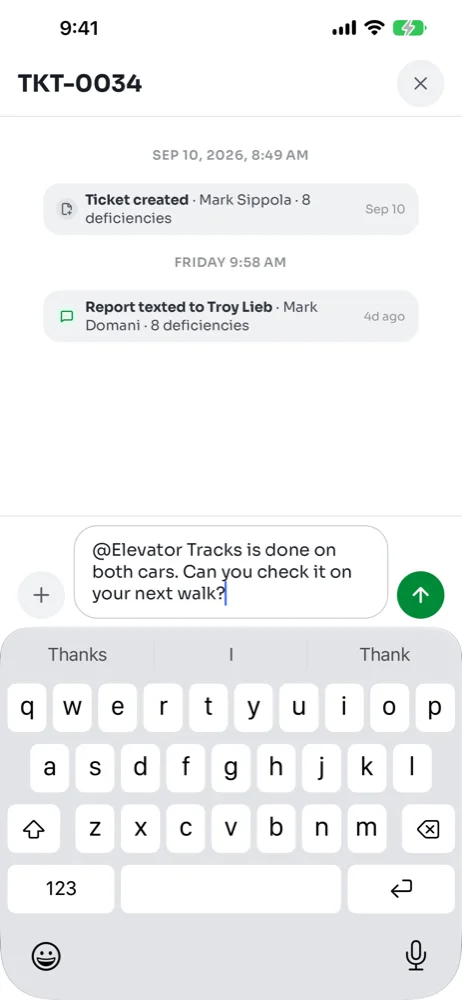
Type in Write a message… at the bottom and tap the green arrow to send. Type @ to mention someone. The list shows the deficiencies in this ticket first, then people, then other tickets and inspections, and it narrows as you keep typing.
Mentioning a person sends them a notification, even when they are not part of the thread. Mentioning a deficiency turns it into a link. Anyone who taps it gets a quick preview with the photos and a button to open it.
3Attach a photo or file
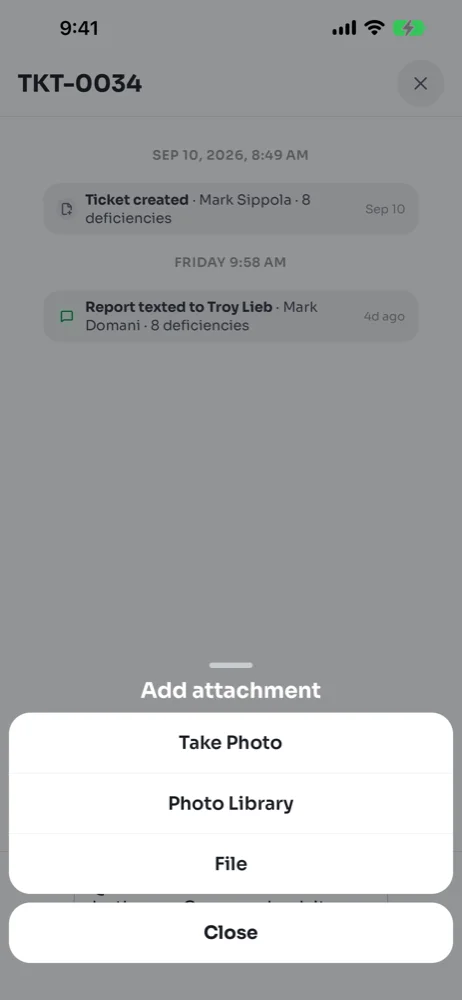
Tap the + beside the message box. Take Photo opens the camera, Photo Library lets you pick several pictures at once, and File attaches a document such as a quote or a work order.
4Talk about an inspection
An inspection's discussion works the same way. Use it for anything about the walk as a whole, such as a question about a score or a note for whoever reviews it. Questions about one failed item belong on that item's ticket, where the person fixing it will see them.
Reading messages in your own language
If your app language is set to Spanish, Hindi or Tagalog, a translate button appears at the top of the discussion. With Auto-translate on, messages from others show in your language and the ones you write are sent in English, with your original kept. Press and hold any message to see the other version. Change your language under Settings, then Language.