Raising a ticket without an inspection
- For
- Inspectors
- Where
- Phone and web
- Time to read
- 3 minutes
Problems turn up between inspections. A tenant calls about a wet mat, a cleaner mentions a broken dispenser, or you spot a spill on the way past. You can log any of these as a ticket straight away, without starting an inspection. The ticket gets a number, a due date from its priority and an owner, and it is tracked like any other.
You can raise one from the phone app or from kleanproof.com. The form is almost the same on both, and anyone on the team can use it.
Step by step
1Open the form
On the phone, tap the + at the top of the Tickets tab, or open a site and tap Report an issue so the site is already filled in. The form is called Report an issue.
On the web, open Tickets in the side menu and press + New ticket at the top right. The staff dashboard has a New ticket button as well.
2Choose the category, site and area
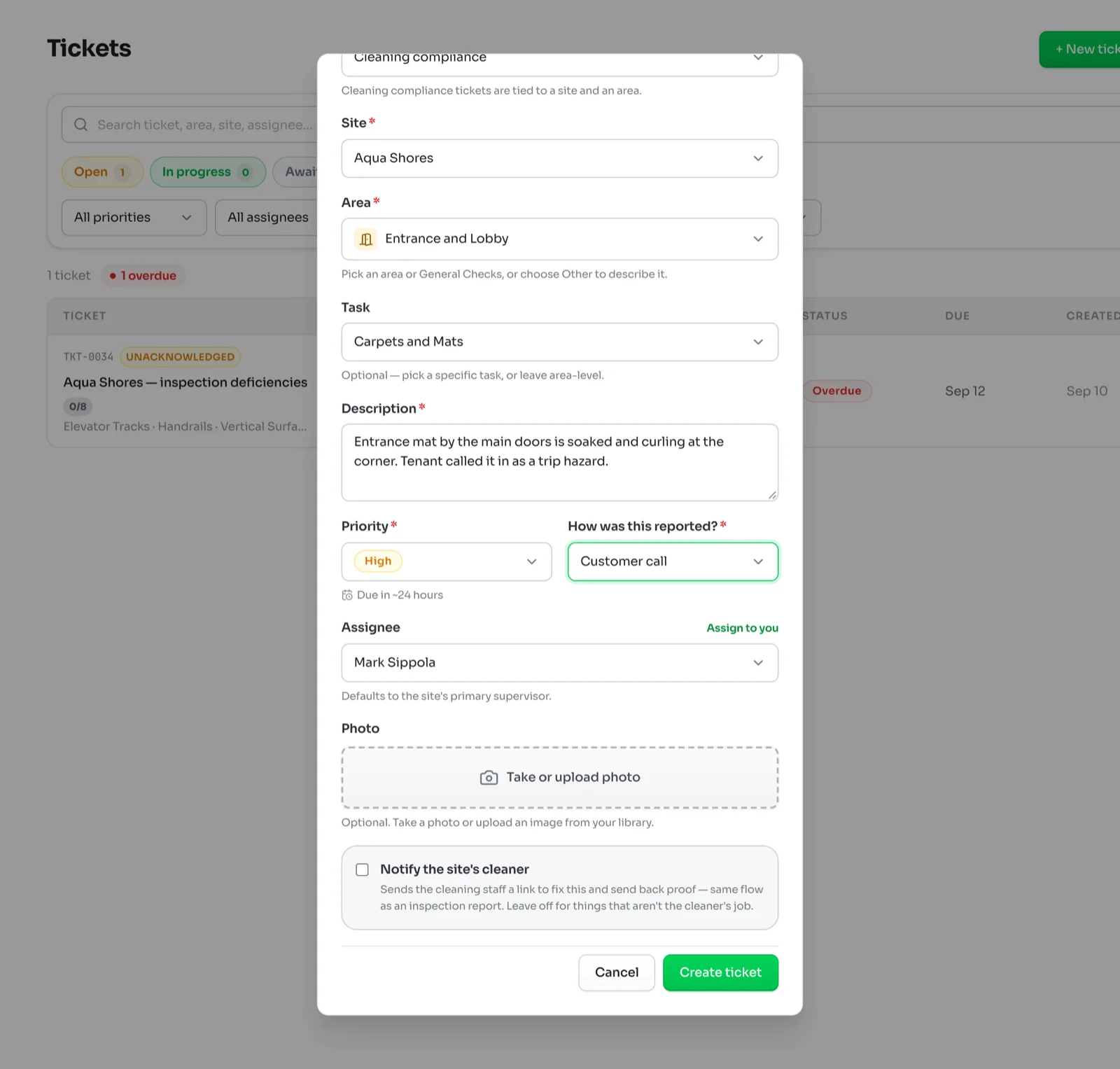
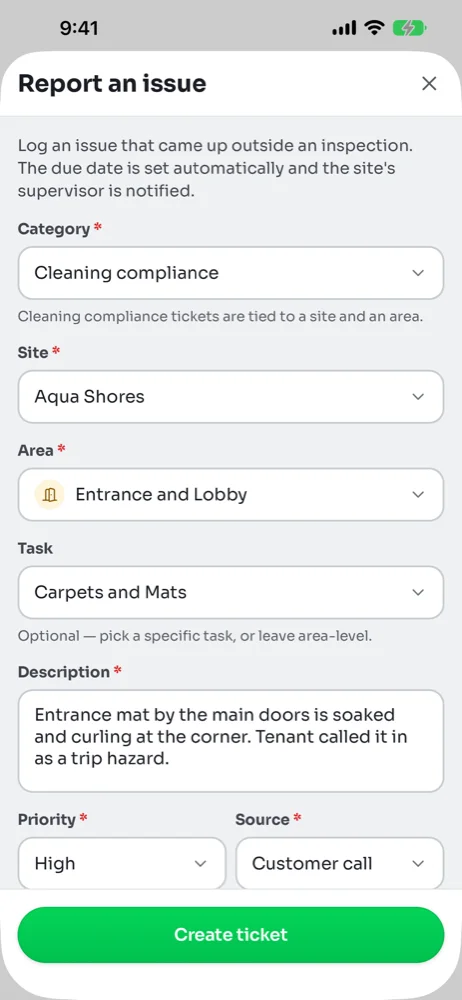
Category starts on Cleaning compliance, which is right for anything the cleaners should fix. A cleaning compliance ticket always belongs to a site and an area, so the scores and reports can place it.
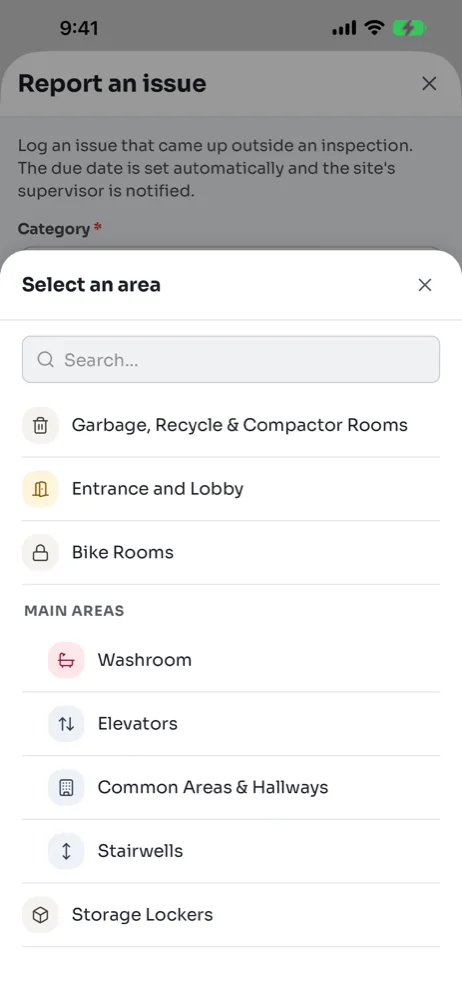
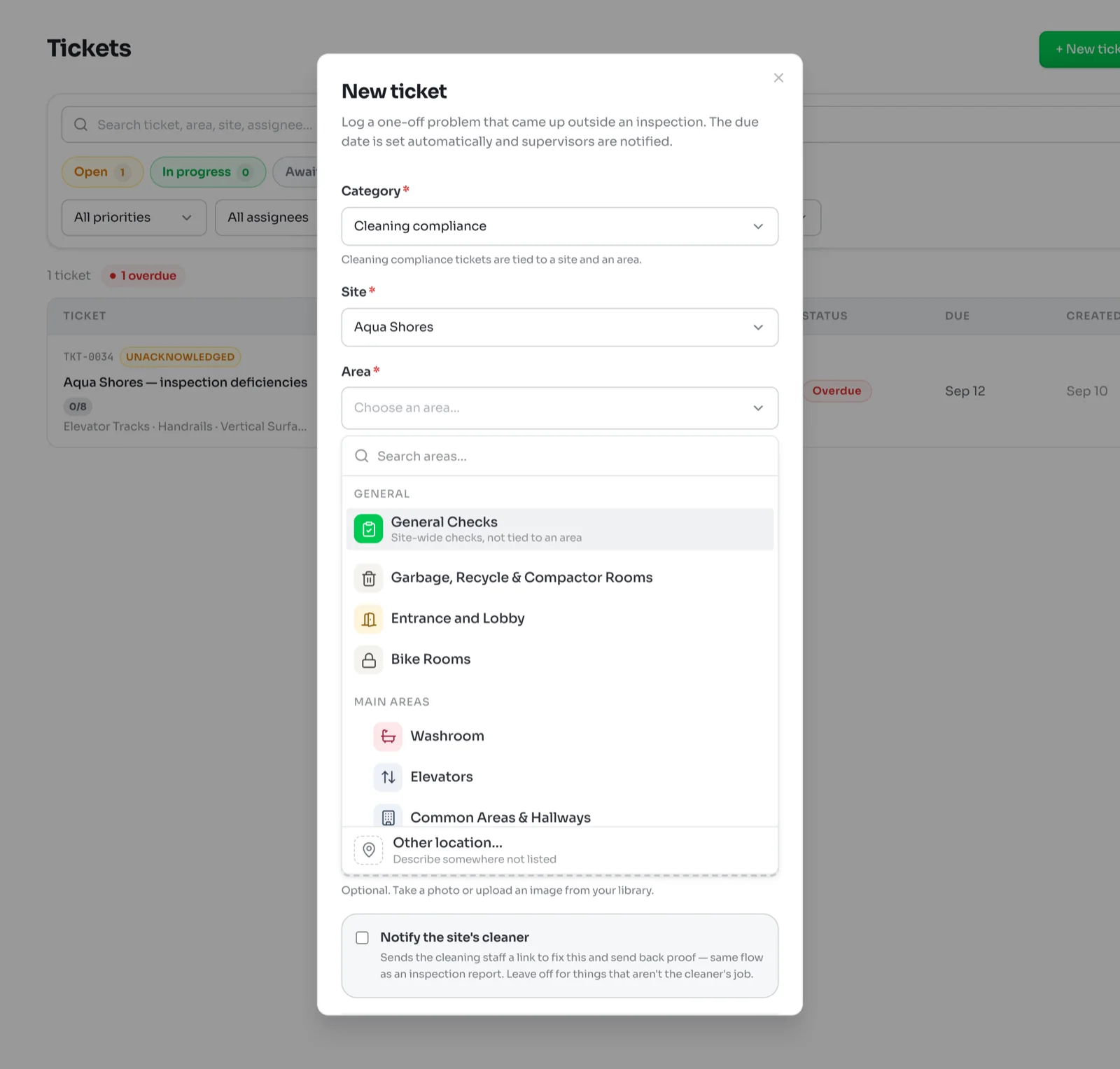
Pick the Site, then the Area. The area list is the site's own rooms, grouped the same way as the inspection checklist. General Checks covers site-wide items, and Other lets you type a location that is not on the list, such as a rooftop or a parking level.
Task is optional. Pick the exact checklist item when there is one, or leave it on the area.
3Describe the problem and set the priority
Write what is wrong and where, in words the person fixing it will understand on site. The description is the only thing you have to type.
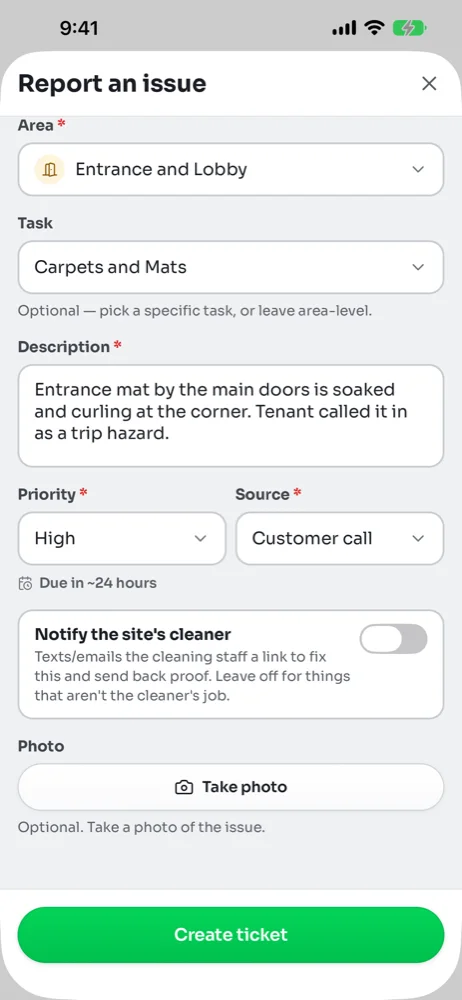
Set the Priority. The form shows the due date it will get: Urgent is due in about two hours, High in a day, Normal in two days and Low in five. Normal is the default.
Then say how you heard about it. The choices are Customer call and Staff report, plus Drive-by observation on the phone or Noticed on site on the web. The Tickets list can be filtered by it, and a recent customer call flags the site as at risk for your managers.
4Add a photo and decide on the cleaner
A photo is optional and helps a lot. On the phone, Take photo opens the camera. On the web you can take one or upload an image from your computer.
Turn on Notify the site's cleaner when the cleaning staff should fix this themselves. They get a text or email with a link to see the problem and send back a photo of the fix, the same way they receive an inspection report. Leave it off for anything that is not the cleaner's job, like a burnt-out light or a broken lock.
5Create the ticket
Tap or press Create ticket. The ticket goes to the site's primary supervisor unless you choose someone else. The web form has an Assignee box for that and an Assign to you shortcut. On the phone it always goes to the supervisor. The supervisor is notified, and the ticket appears in the Tickets list with its number.
On the phone this works without signal. The ticket shows Syncing… in the list until the phone reconnects, then it uploads on its own.