
Plans and billing
- For
- Facility managers
- Where
- Web app
- Time to read
- 3 minutes
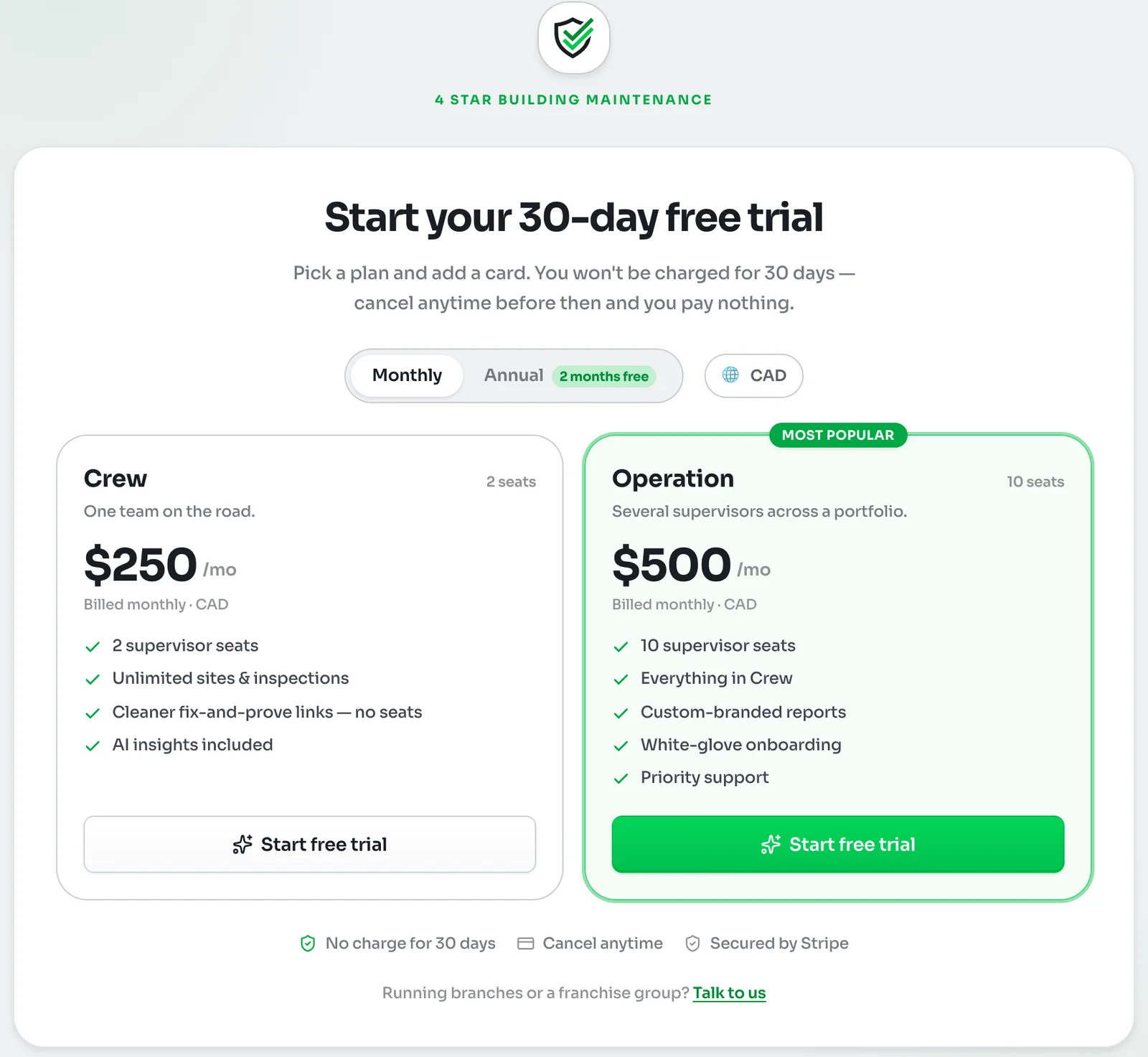
KleanProof has two self-serve plans. Crew suits one team on the road, with 2 seats. Operation suits several supervisors across a portfolio, with 10 seats, custom-branded reports and white-glove onboarding. Both include unlimited sites and inspections. See pricing for current prices.
Every plan starts with a 30-day free trial. Only admins see billing. Everyone else is told their admins handle it.
Step by step
1Start your free trial
When a new workspace is set up, the billing page asks you to pick a plan. Choose Monthly or Annual. Annual billing gives you 2 months free. The currency is picked from where you are, and you can tap it to switch between Canadian and US dollars.
Click Start free trial on the plan you want and add a card on the secure Stripe checkout. You are not charged for 30 days. Cancel before then and you pay nothing.
If you run several branches or a franchise group, click Talk to us for a plan that fits.
2Check your plan
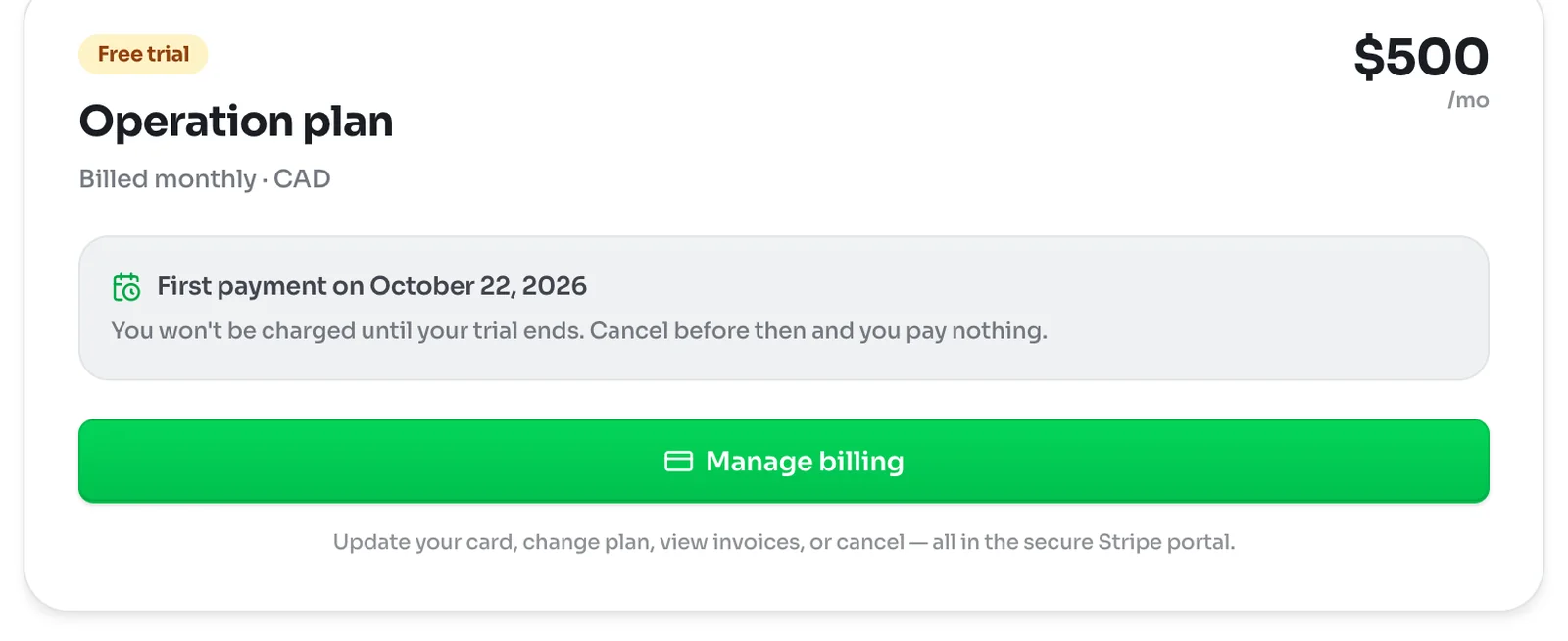
Click Settings at the bottom of the left-hand menu, then Billing. It shows your plan and how many people are active in the workspace. Click Manage billing to open the billing page.
During the trial, the billing page shows Free trial and the date of your first payment. After that it shows Active and when the plan renews.
3Change your card, plan or invoices
Click Manage billing to open the secure Stripe portal. There you can update your card, change plans, download invoices or cancel.
If you cancel, the page shows Cancels soon and the date access ends. You keep full use of the workspace until then.
When a payment fails
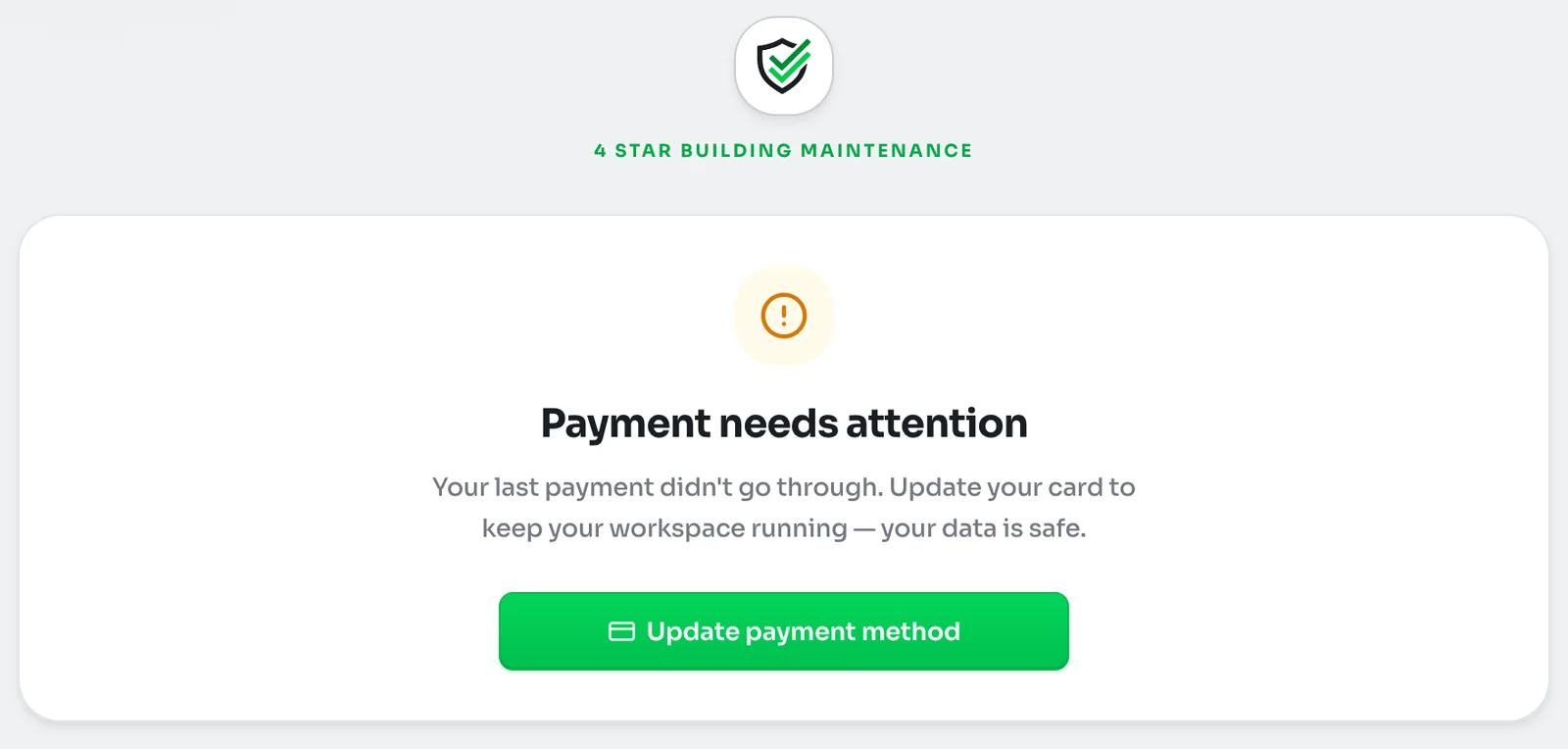
If a payment does not go through, admins see Payment needs attention and your team cannot get in until it is fixed. Your data is safe. Click Update payment method and enter a new card in the Stripe portal. Access comes back once the payment clears.
Workspace not active yet
If someone on your team sees Workspace not active yet, billing needs an admin. Either no plan has been picked yet or a payment needs attention. Ask an admin to open the billing page and sort it out.