
Adding cleaning staff who don't log in
- For
- Facility managers
- Where
- Web app
- Time to read
- 4 minutes
Most of the people who do the cleaning never sign in to KleanProof. They still need to know what failed at their site and to show it has been fixed. Cleaning staff are for them: a name, an email and a phone number, with no password and no seat.
Once a cleaner is attached to a site, KleanProof can send them the deficiency report after each inspection. They open it from a link, see what to fix and send back photos. Reading your deficiency report shows what they see.
Step by step
1Add them to your staff list
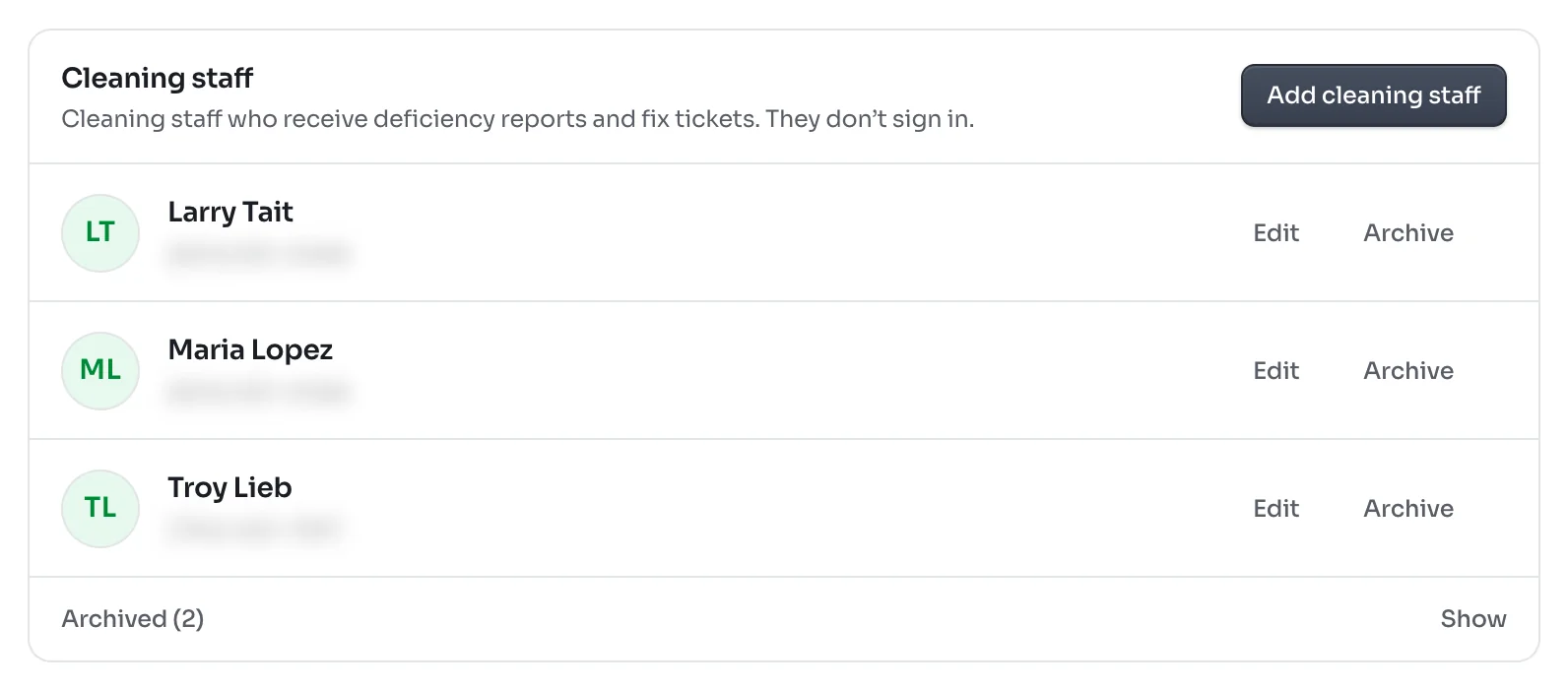
Click Settings at the bottom of the left-hand menu, then Team. The Cleaning staff section sits below your members.
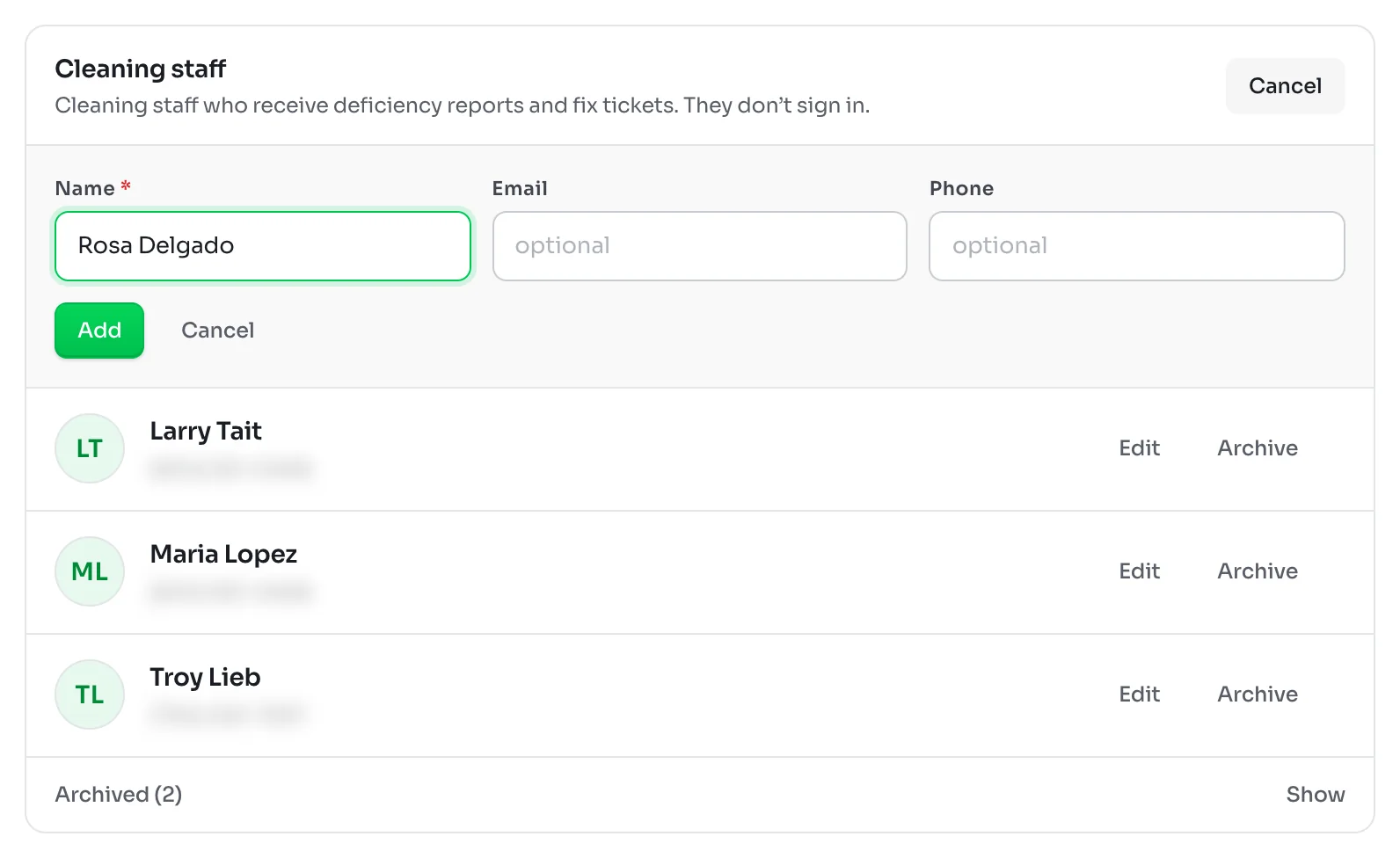
Click Add cleaning staff, type their name, and add an email, a phone number or both. Click Add.
Everyone on your team sees the same list, so a supervisor setting up a site can pick from it.
2Attach them to the sites they clean
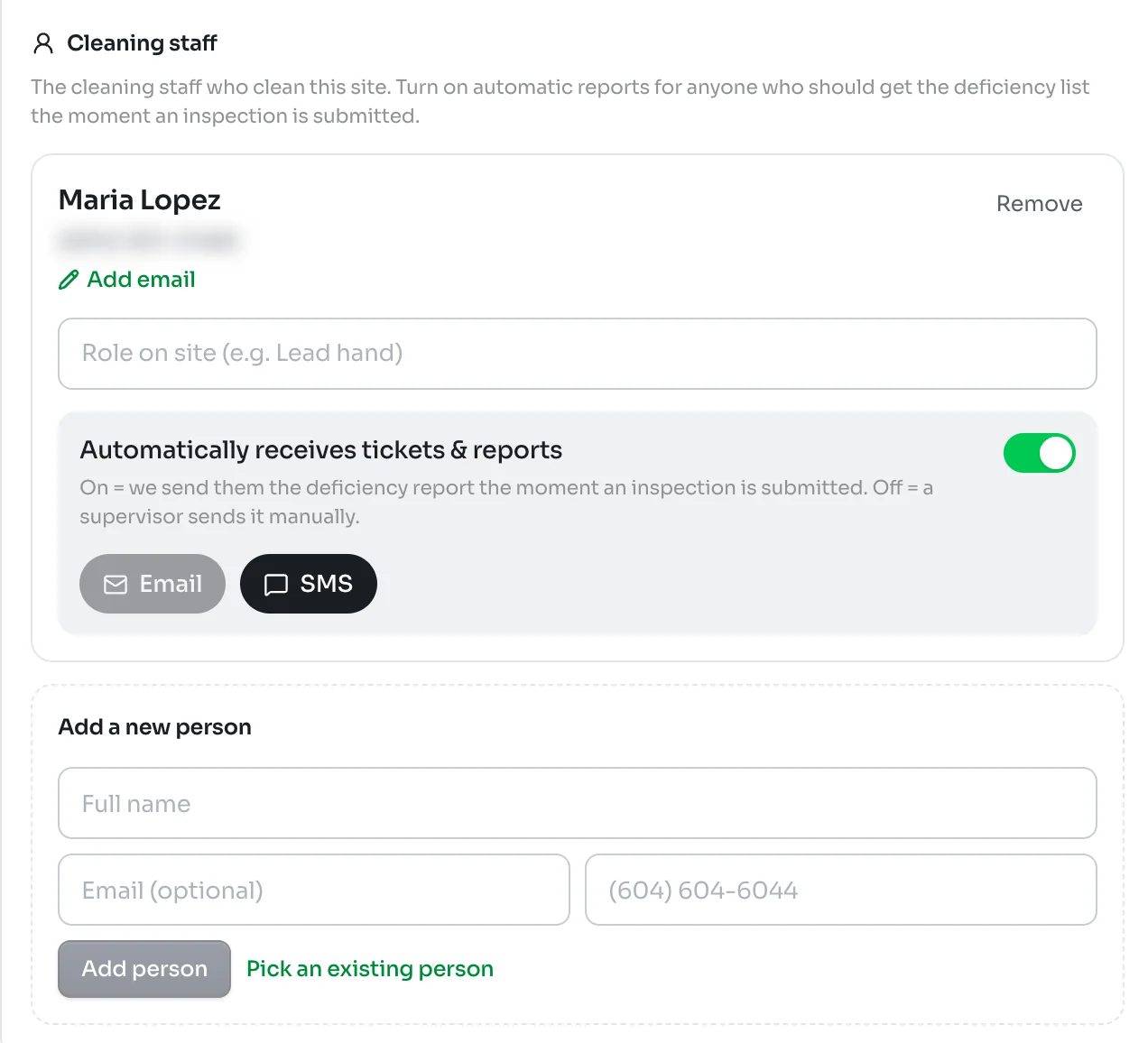
Open the site, click Edit, then open Team. Under Cleaning staff, click Pick an existing person to choose someone from your list, or fill in Add a new person to add them on the spot.
For each person on the site you can:
- Type their Role on site, such as Lead hand or Night crew.
- Turn Automatically receives tickets & reports on or off.
- Pick how the report reaches them: Email, SMS or both. A channel needs that contact detail first, so add an email to use Email.
Changes to cleaning staff save as you make them. Click Remove to take someone off this site. They stay in your staff list for other sites.
3Or set up a customer's sites all at once
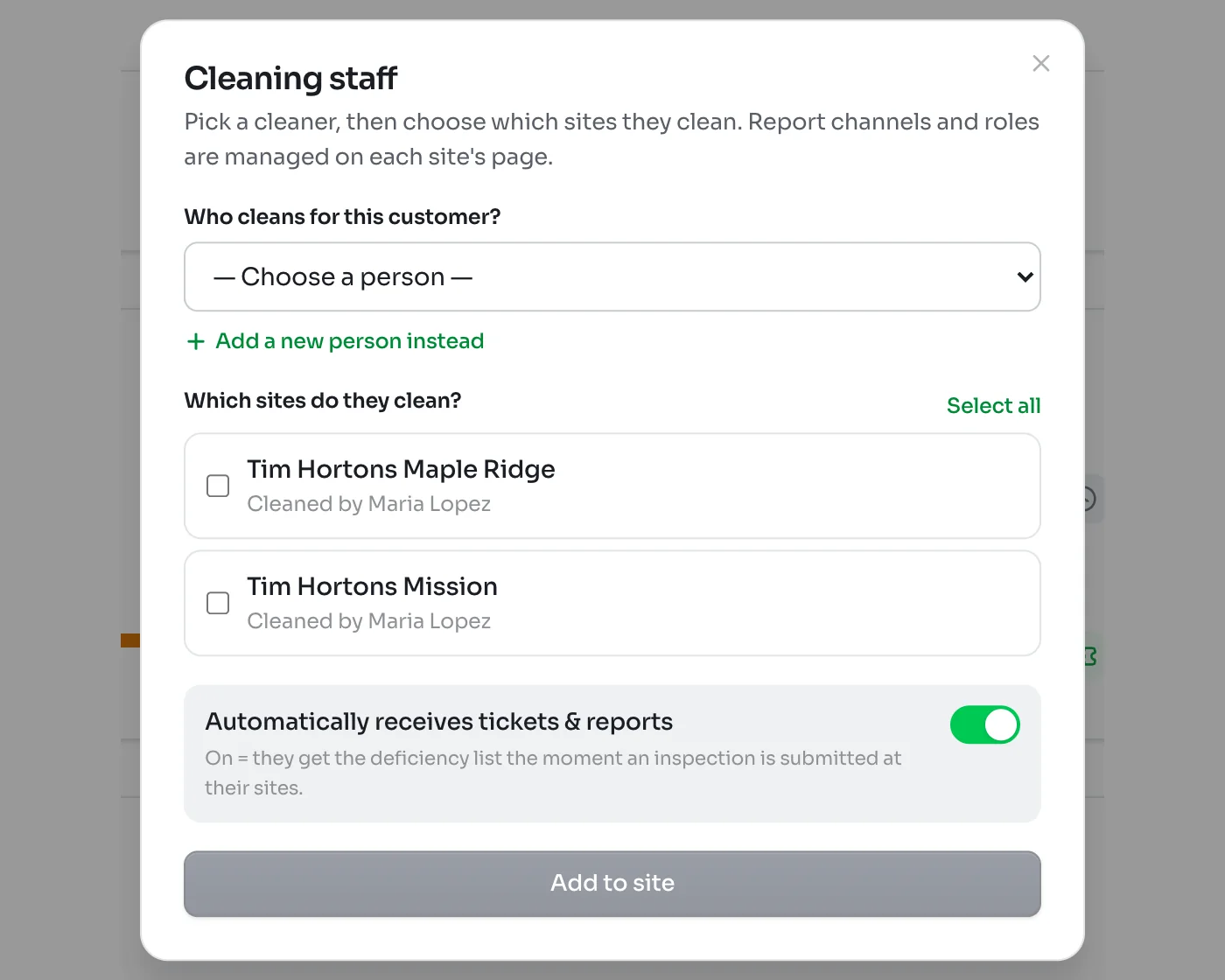
When one cleaner covers several sites for the same customer, open the customer and click Cleaning staff above the list of sites. Pick the person, tick the sites they clean or click Select all, and click Add to site.
Email or text and roles are then set on each site's own page.
Automatic or by hand
With Automatically receives tickets & reports on, a cleaner gets the deficiency report the moment an inspection with failed items is submitted at their site. With it off, nothing goes out until a supervisor sends it from the ticket. Sending a ticket to the cleaner by link covers sending by hand.
Turn it on for the person in charge at the site, such as the lead hand, and leave it off for the rest of the crew so they are not flooded.
Editing and archiving
In Settings under Team, click Edit to fix a name, email or phone number. Click Archive when someone leaves. They stop getting reports and fix tickets straight away, and past reports keep their name. Click Show beside Archived to see them and restore anyone who comes back.
Turning cleaner reports off
If your company does not share reports with cleaners, an admin can switch off Cleaner fix-it loop in Settings under Features. That hides cleaner sharing everywhere, including the cleaning staff on each site.