
Sending a ticket to the cleaner by link
- For
- Facility managers
- Where
- Web app
- Time to read
- 4 minutes
After an inspection, the cleaner who works the site needs to know what failed. From the ticket, KleanProof sends them a cleaner report: a link to the list of deficiencies with the inspector's photos. They open it on their phone, fix each item and send back a photo. No account or app is needed.
Their fixes land back on the ticket for you to approve. Taking a ticket from found to fixed covers the review side.
Step by step
1Open the cleaner report card
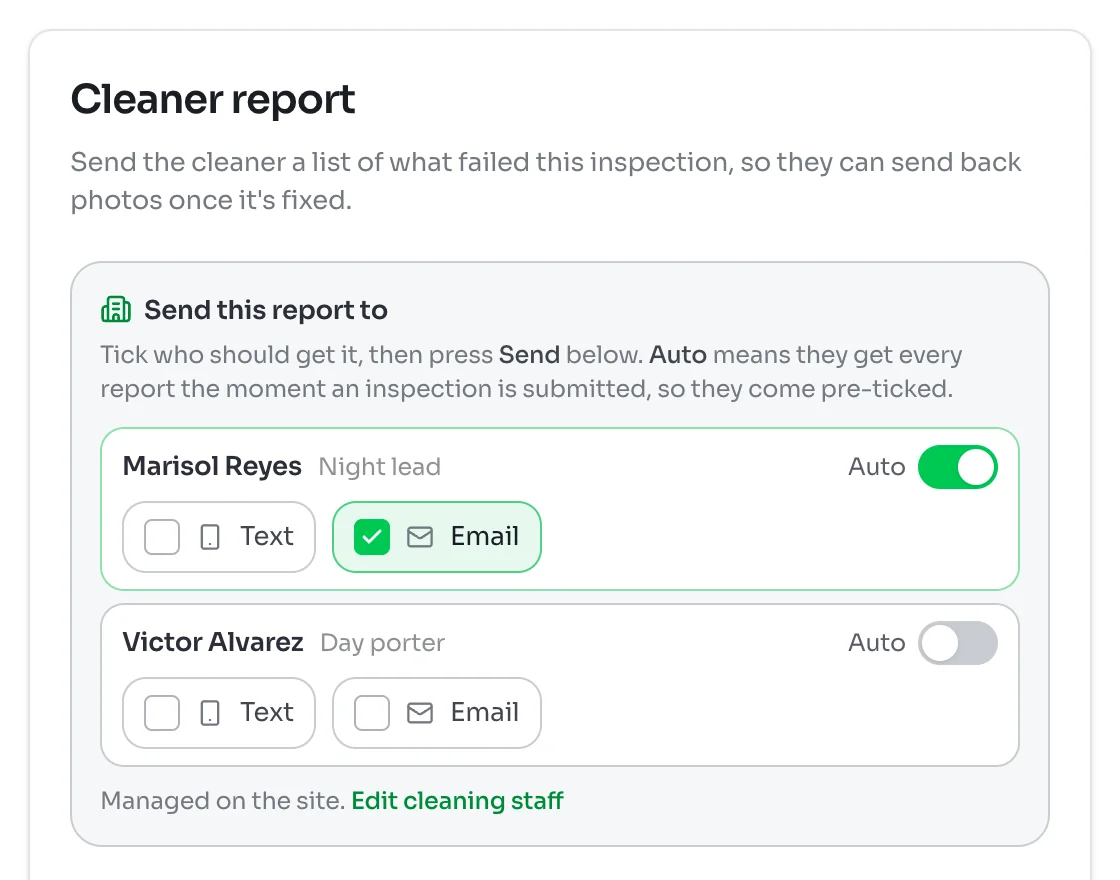
Open the ticket. The Cleaner report card sits on the right. Under Send this report to it lists the cleaning staff attached to the site.
Anyone set to Auto gets every report the moment an inspection is submitted, so they come pre-ticked. For everyone else, tick Text, Email or both beside their name.
The list comes from the site. Click Edit cleaning staff to add someone or change their details. Adding cleaning staff who don't log in explains how.
2Add anyone else for this report
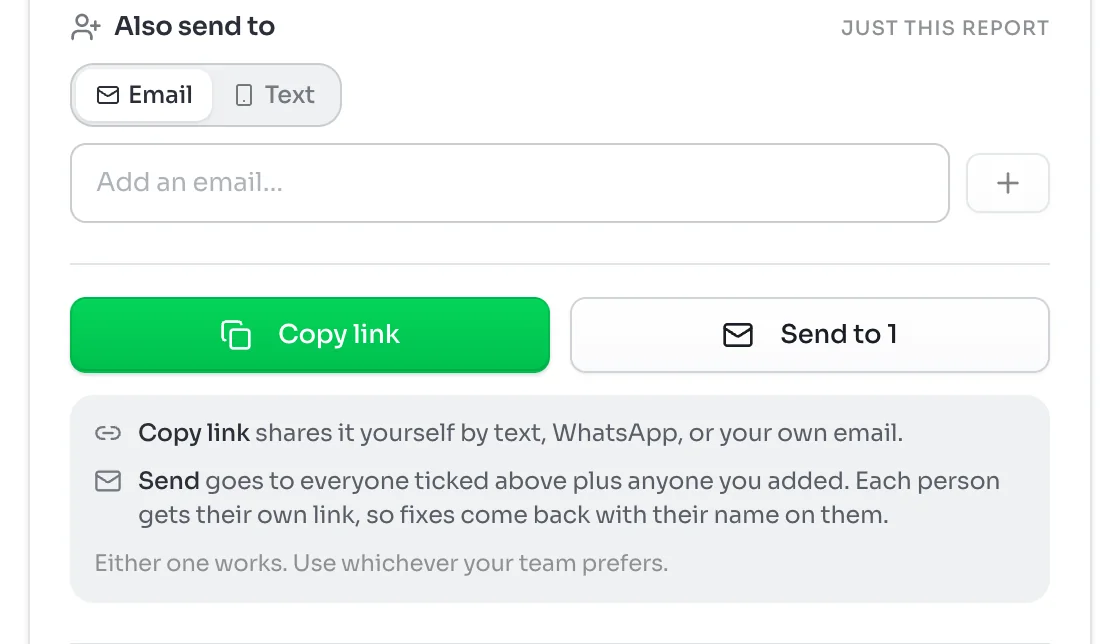
To send to someone who is not on the site's staff, such as a relief cleaner, use Also send to. Pick Email or Text, type the address or number and click +. They get this report only and are not added to the site.
People you have sent to before show under Recently sent to, so you can add them again with one click.
3Send it, or copy the link
Click Send. The button counts who will get it, such as Send to 1. Each person gets their own link, so fixes come back with their name on them.
To share it yourself by WhatsApp, a group text or your own email, click Copy link and paste it wherever your team talks.
Adding a note for the cleaner
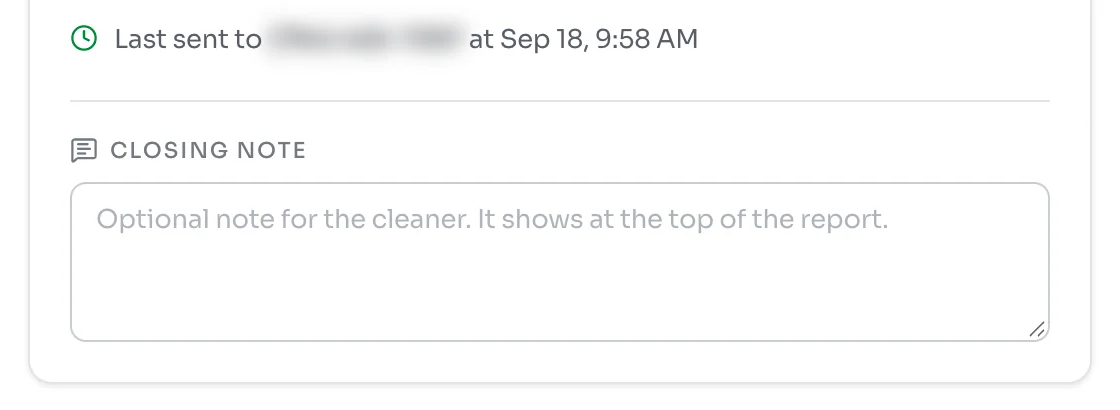
Type in Closing note to put a message at the top of the report, such as which door to use after hours. Click Save note. The note shows on the report whether it is sent or copied.
Once the report goes out, the card shows who it was last sent to and when.
What the cleaner sees
The link opens a list of what failed, area by area, with the inspector's comment and photo for each. The cleaner fixes an item, takes a photo and sends it. Reading your deficiency report and Fixing a ticket from a link walk through it from their side.