
Taking a ticket from found to fixed
- For
- Facility managers
- Where
- Web app
- Time to read
- 6 minutes
When an inspection finds problems, KleanProof puts them on a ticket so nothing is forgotten. Each failed task becomes a deficiency on the ticket, with the inspector's comment and photo. The ticket stays open until every deficiency is fixed or waived.
A ticket moves through four steps: Open, In progress, In review and Closed. The bar at the top of the ticket shows where it stands.
Step by step
1Find your tickets
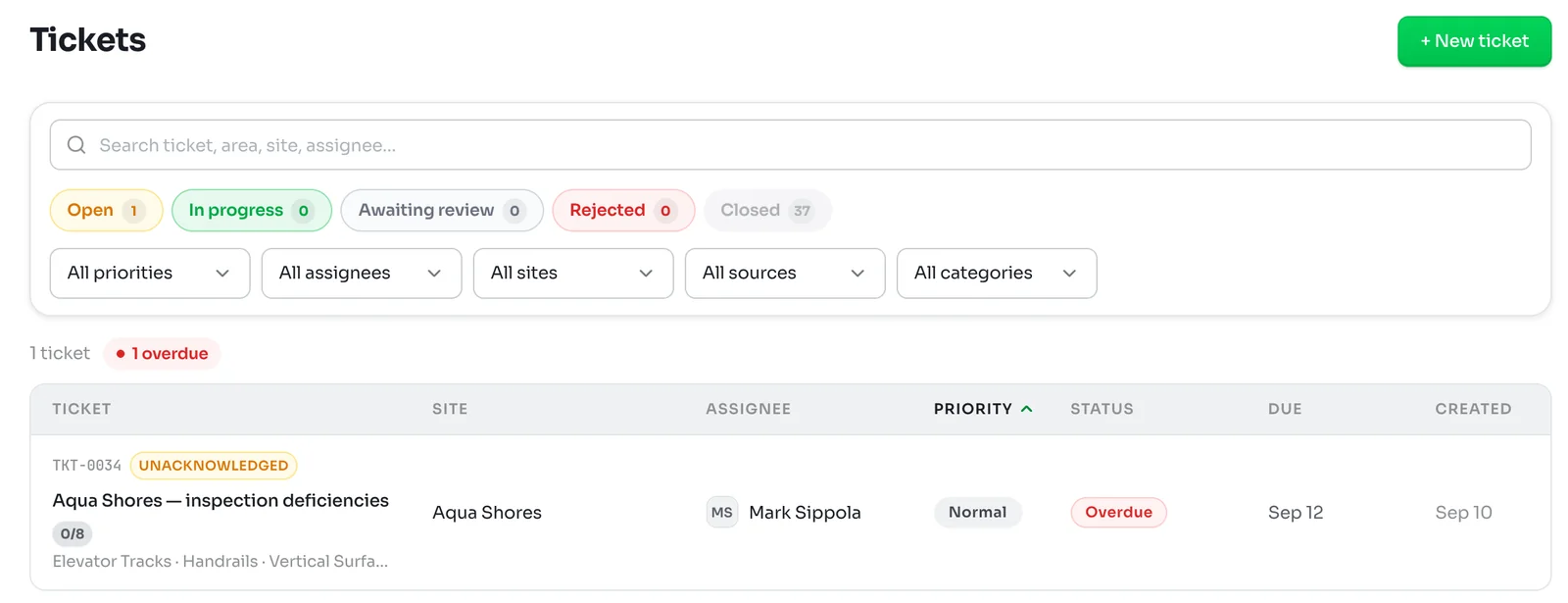
Click Tickets in the left-hand menu. The chips at the top count tickets by status: Open, In progress, Awaiting review, Rejected and Closed. Click one to filter, or narrow by priority, assignee, site, source or category.
A red Overdue tag means the due date has passed. Unacknowledged means nobody has picked the ticket up yet.
2Open the ticket
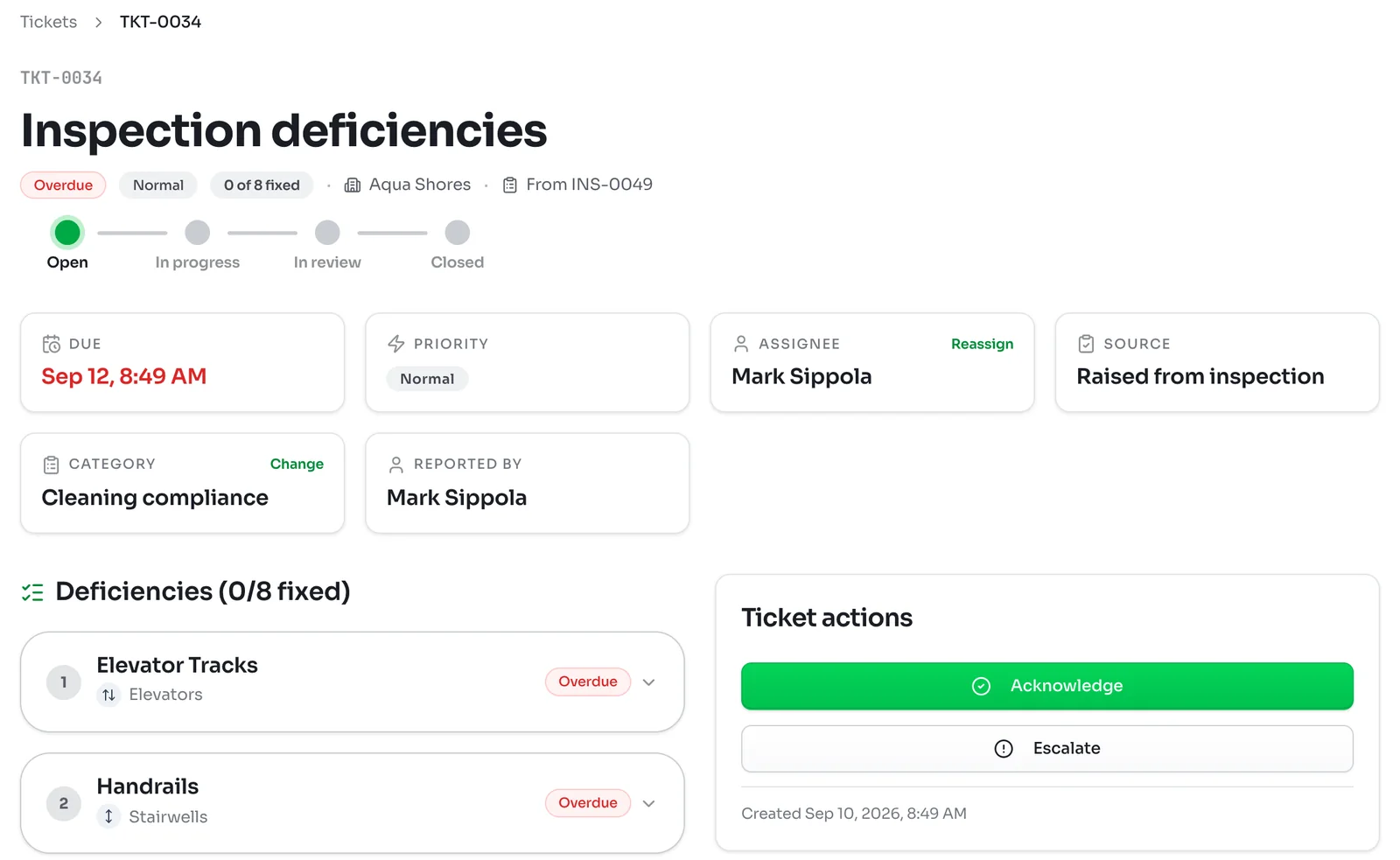
The top of the ticket shows the site, the inspection it came from and how many deficiencies are fixed so far. The tiles show the Due date, Priority, Assignee, Source, Category and who reported it.
New tickets go to the site's supervisor. The due date comes from the priority: 2 hours for urgent, 24 hours for high, 2 days for normal and 5 days for low.
Click Acknowledge under Ticket actions to show you have seen it. The ticket moves to In progress, and the time it took counts toward your response times.
3Get each deficiency fixed
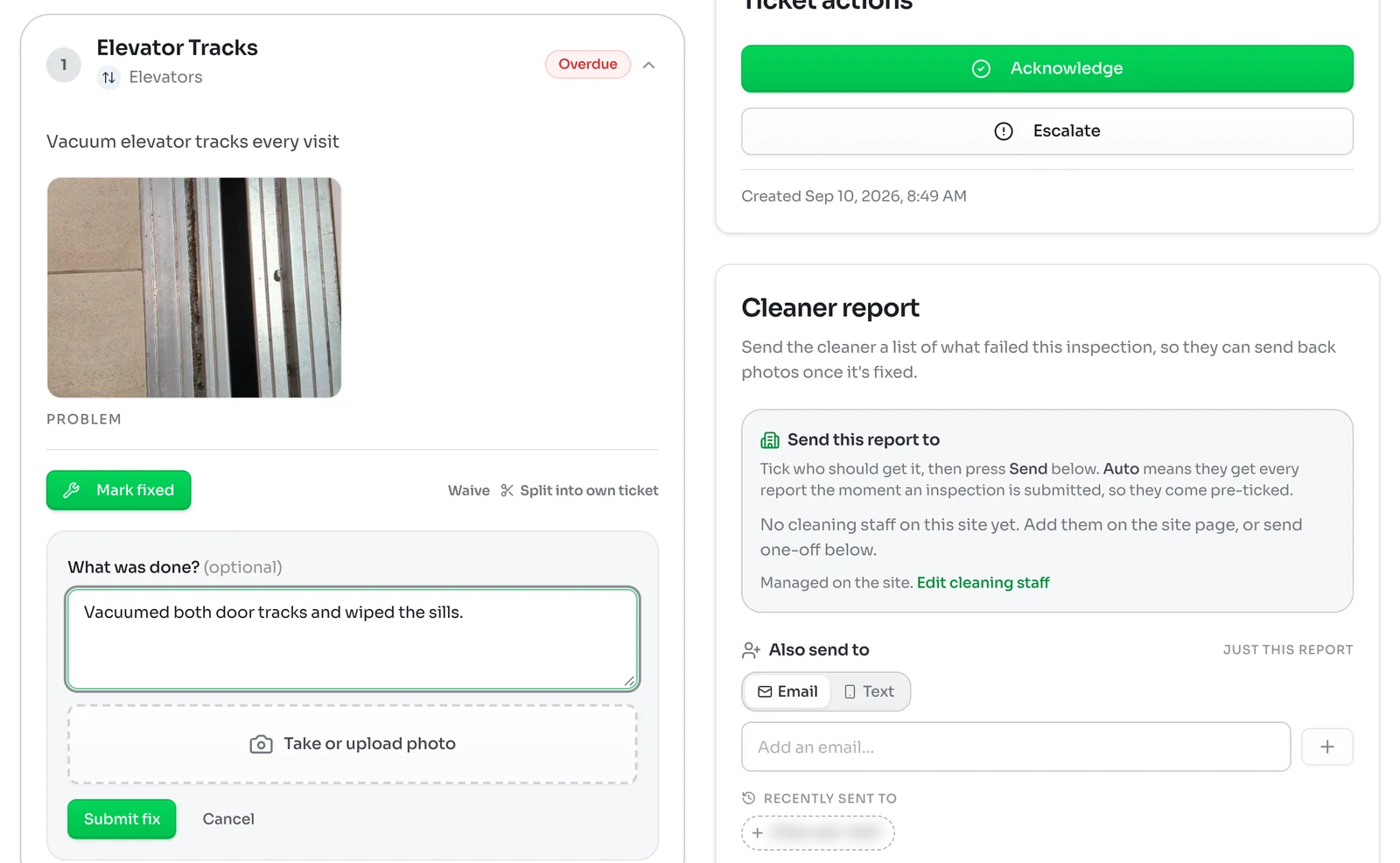
The usual way is to send the ticket to the cleaner. They open it on their phone, fix each item and send back a photo. Sending a ticket to the cleaner by link covers that.
If your supervisor fixes it on the spot, open the deficiency and click Mark fixed. Add a note on what was done and a photo, then click Submit fix.
4Review the work
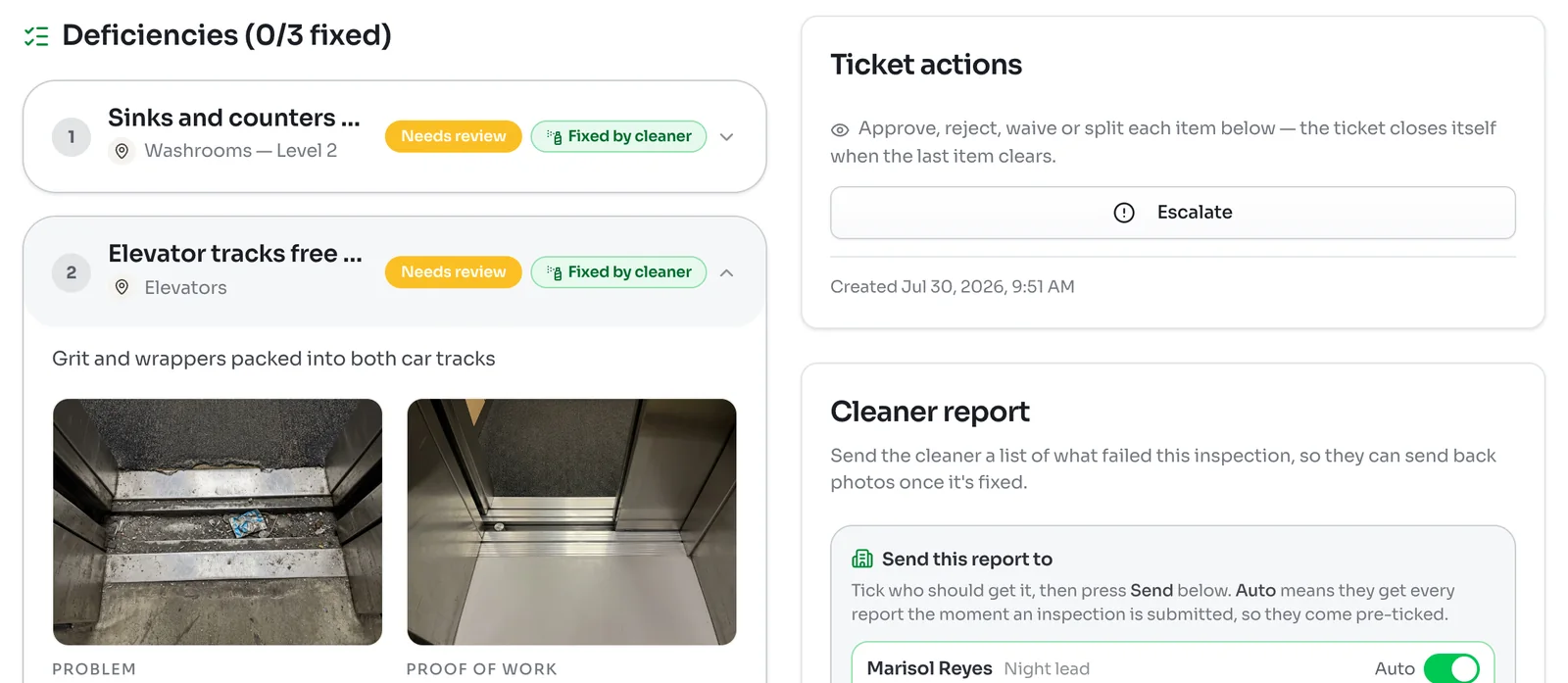
Fixes sent in by a cleaner show Needs review and Fixed by cleaner. Open the deficiency to see the inspector's Problem photo next to the cleaner's Proof of work.
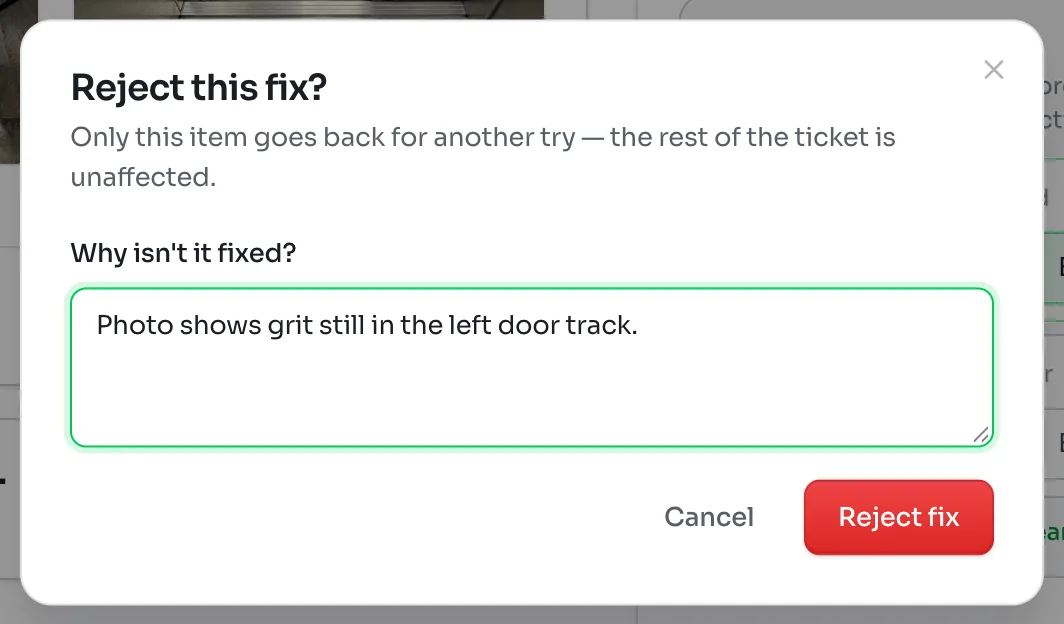
Click Approve if it is done. Click Reject if it is not, and say why. Only that item goes back for another try, and the rest of the ticket carries on.
Once the last deficiency is approved or waived, the ticket closes itself.
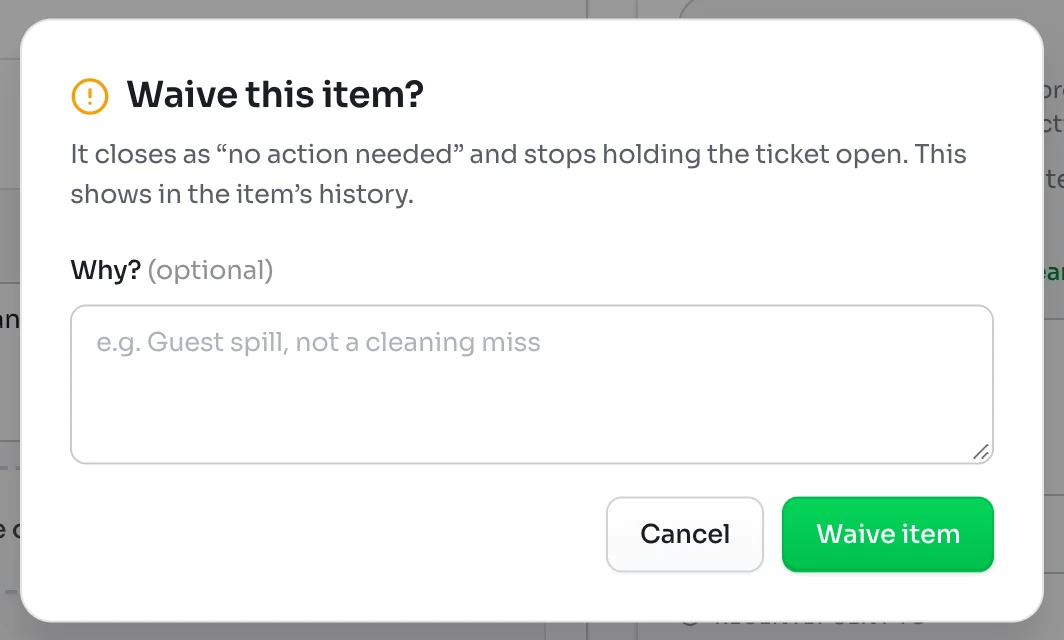
Waiving an item
Sometimes a deficiency is not a cleaning miss, such as a guest spill after the cleaners left. Open it and click Waive. Add why if you like, and click Waive item. It closes as no action needed, stops holding the ticket open and stays in the item's history.
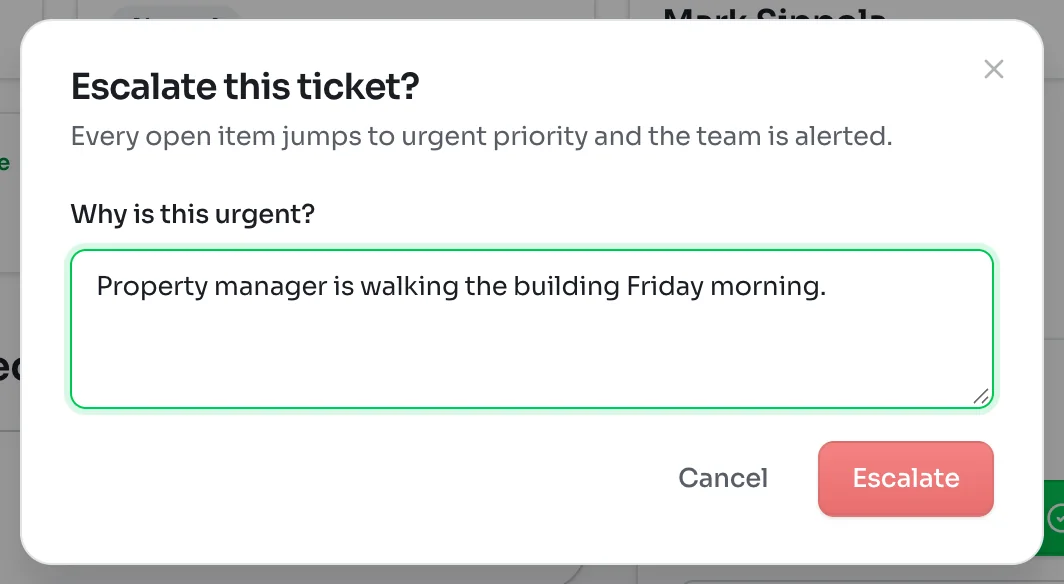
Escalating
When a ticket cannot wait, such as the property manager walking the building tomorrow, click Escalate and say why it is urgent. Every open item jumps to urgent priority and your team is alerted. De-escalate puts it back.
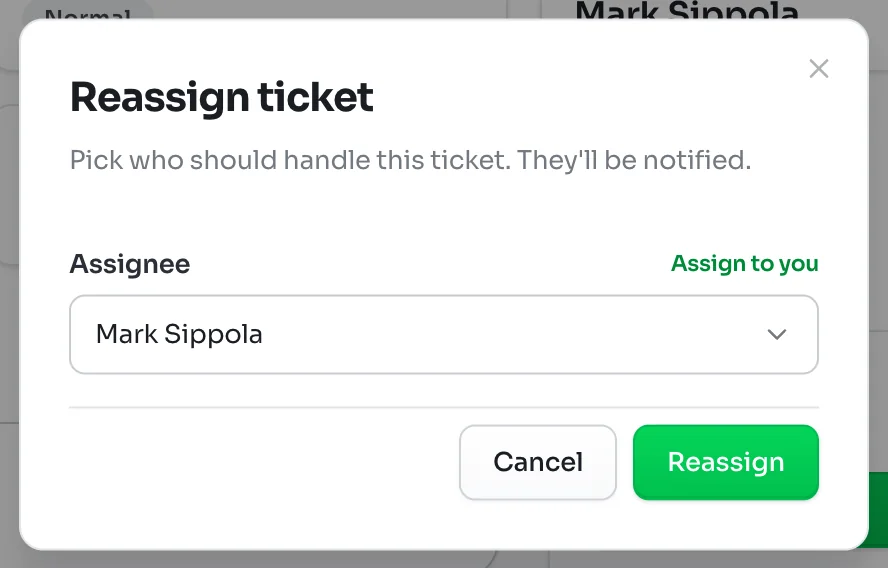
Reassigning
Click Reassign on the Assignee tile, pick someone and click Reassign. They are notified. The list puts the site's primary and backup supervisors first.
Splitting and reopening
If one deficiency needs a contractor or will take much longer, click Split into own ticket on it. It moves to a ticket of its own so the rest can close.
Admins and supervisors can Reopen an item on a closed ticket if the problem comes back.
Tickets without an inspection
Anyone can raise a ticket for something spotted between inspections, such as a spill in the lobby. Click New ticket on the Tickets page, or raise one from the phone app. Raising a ticket without an inspection shows the app side.