Reading an inspection
- For
- Facility managers
- Where
- Web app
- Time to read
- 4 minutes
Every inspection your team submits from the phone app lands on kleanproof.com within seconds. The inspection page tells you how the site did, what failed, where the fix stands and what the inspector saw.
Step by step
1Find the inspection
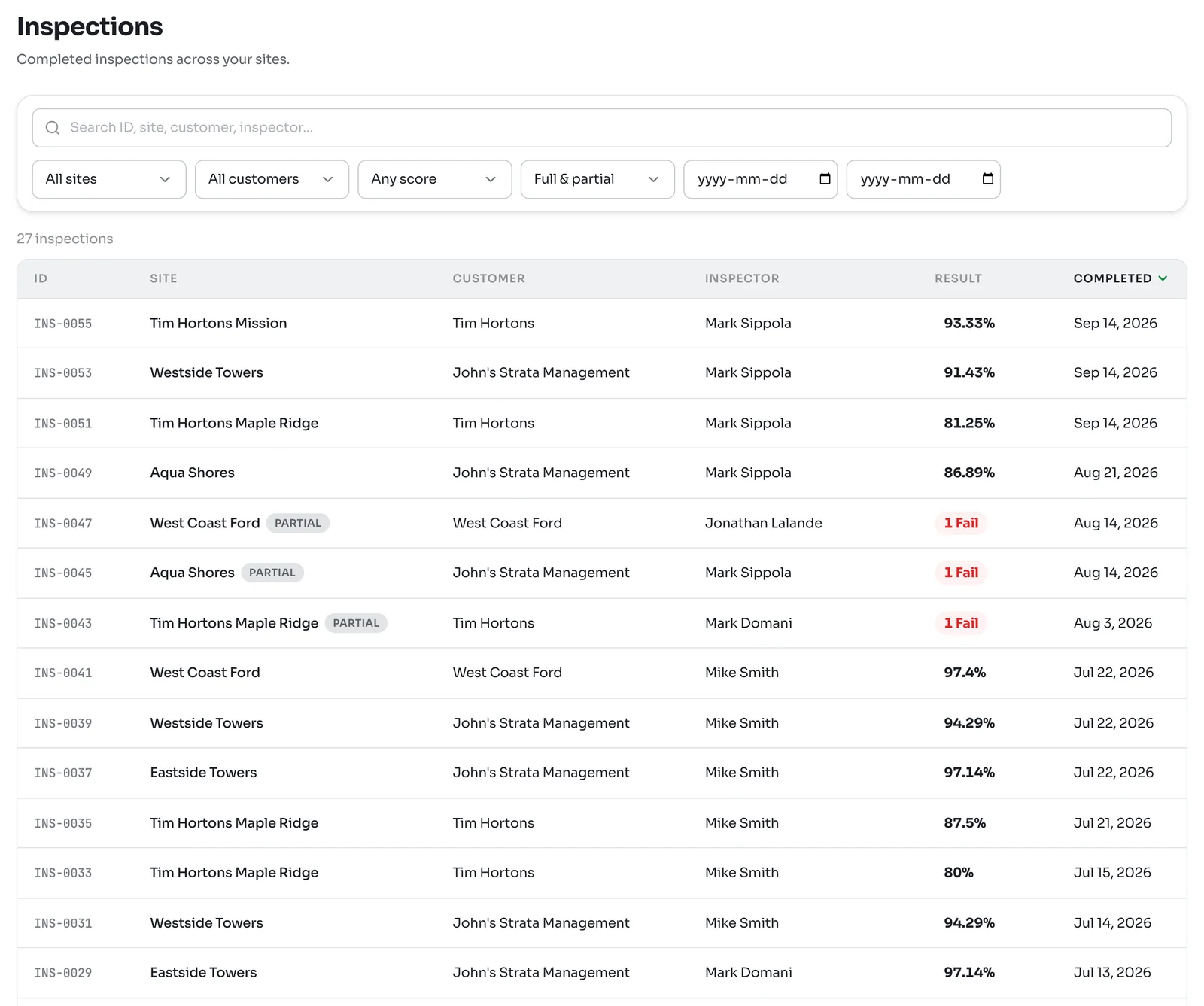
Click Inspections in the left-hand menu. Every completed inspection is listed, newest first, with its INS number, site, customer, inspector and result.
Search by number, site, customer or inspector, or narrow the list by site, customer, score, Full & partial and a date range. A partial inspection shows a Partial tag, and its result is a count of fails instead of a score.
You can also open an inspection from a site's calendar, from a ticket or from a notification.
2Read the top of the page
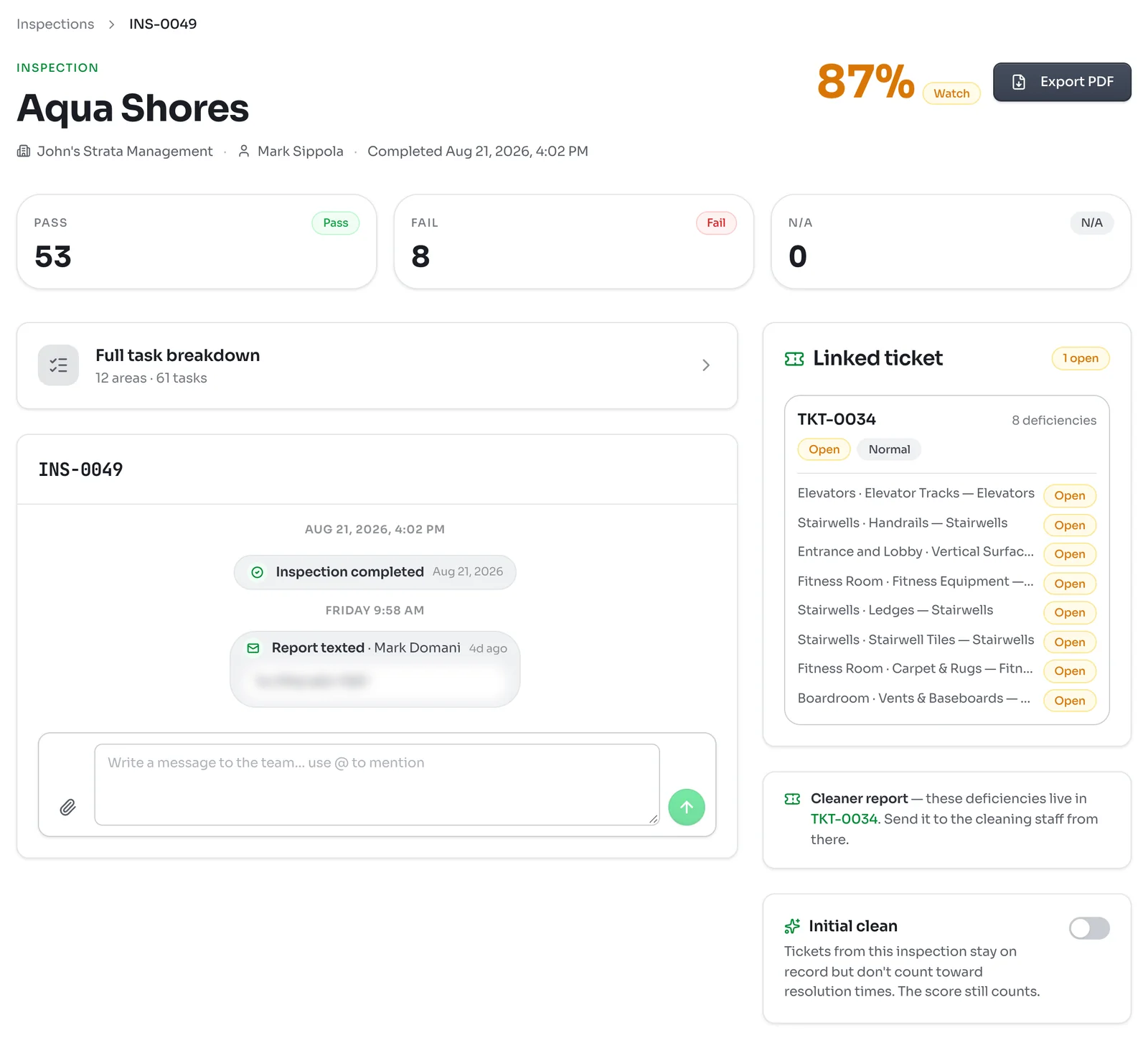
The header shows the site, customer, inspector and when it was completed. The score sits on the right with a label: Excellent in green, Watch in amber or Needs attention in red.
Below it, three tiles count the tasks rated Pass, Fail and N/A. Tasks marked N/A are left out of the score.
You may also see a tag in the header. Initial clean marks a first walk at a new contract. Started off-site with a distance means the inspector began the inspection away from the building.
3Check the deficiencies
Every failed task becomes a deficiency, and they are gathered into one ticket per inspection. The Linked ticket card on the right lists them, each with its area and whether it is still open. Click the ticket to follow up, send it to the cleaner or close items out.
If no ticket was made, the page lists the Deficiencies directly, with the inspector's comment and photos for each.
4Open the full task breakdown
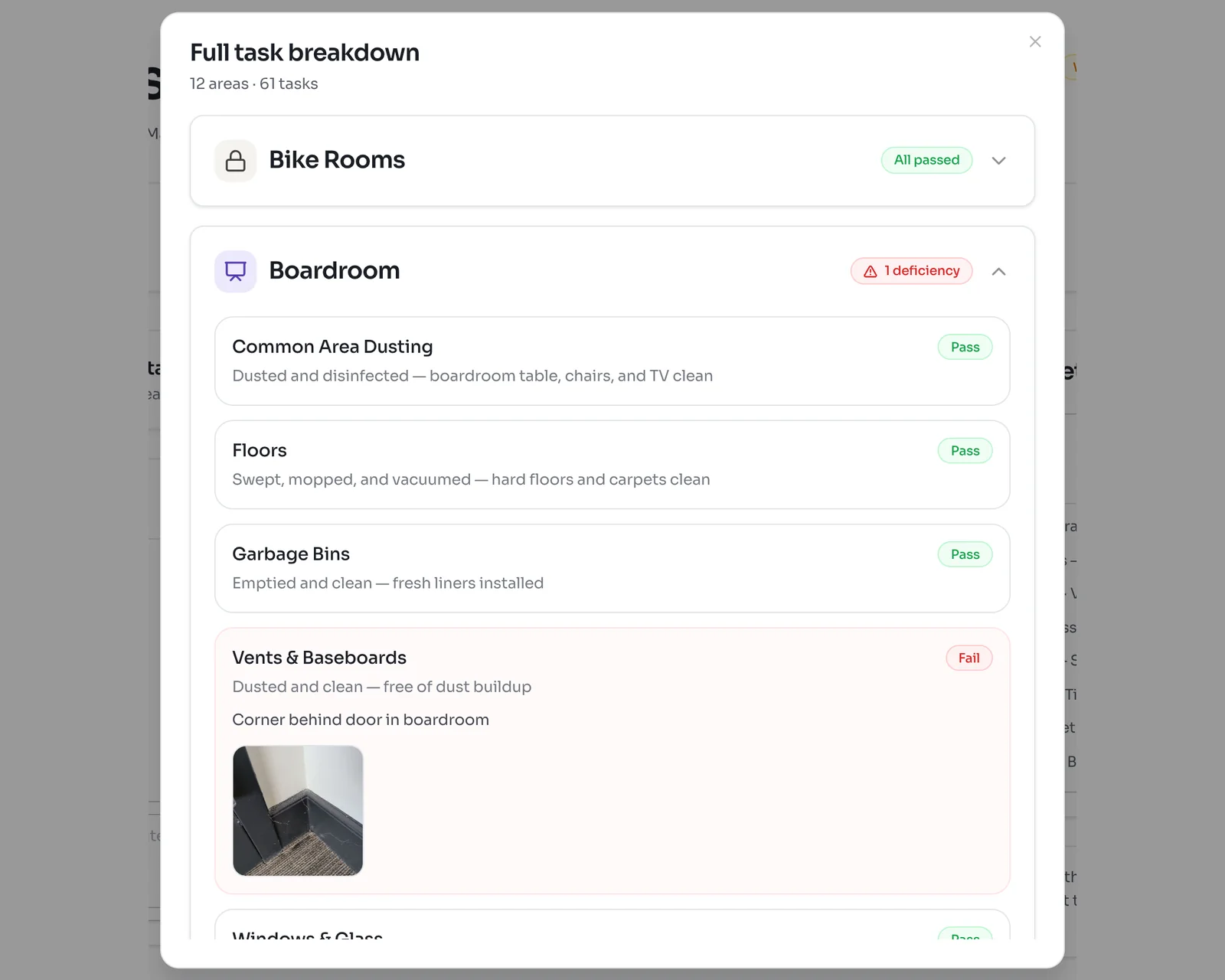
Click Full task breakdown to see every task that was checked, area by area. Areas with a failed task open up on their own and show a red count. Areas where everything passed stay folded with an All passed tag.
Failed tasks show the inspector's comment and photos. Click a photo to see it full size.
Notes and discussion
If the inspector left an Inspector note or an Internal note, it shows under the breakdown.
The discussion box keeps the conversation about this inspection in one place. Type a message and use @ to mention someone on your team. The same thread also logs activity, such as when the report was emailed or texted to a cleaner.
Initial clean
The first inspection at a new contract often finds the building below standard from before you took over. Turn on Initial clean on the right to mark it. Its tickets stay on record but do not count toward resolution times, and the score still counts.
Exporting a PDF
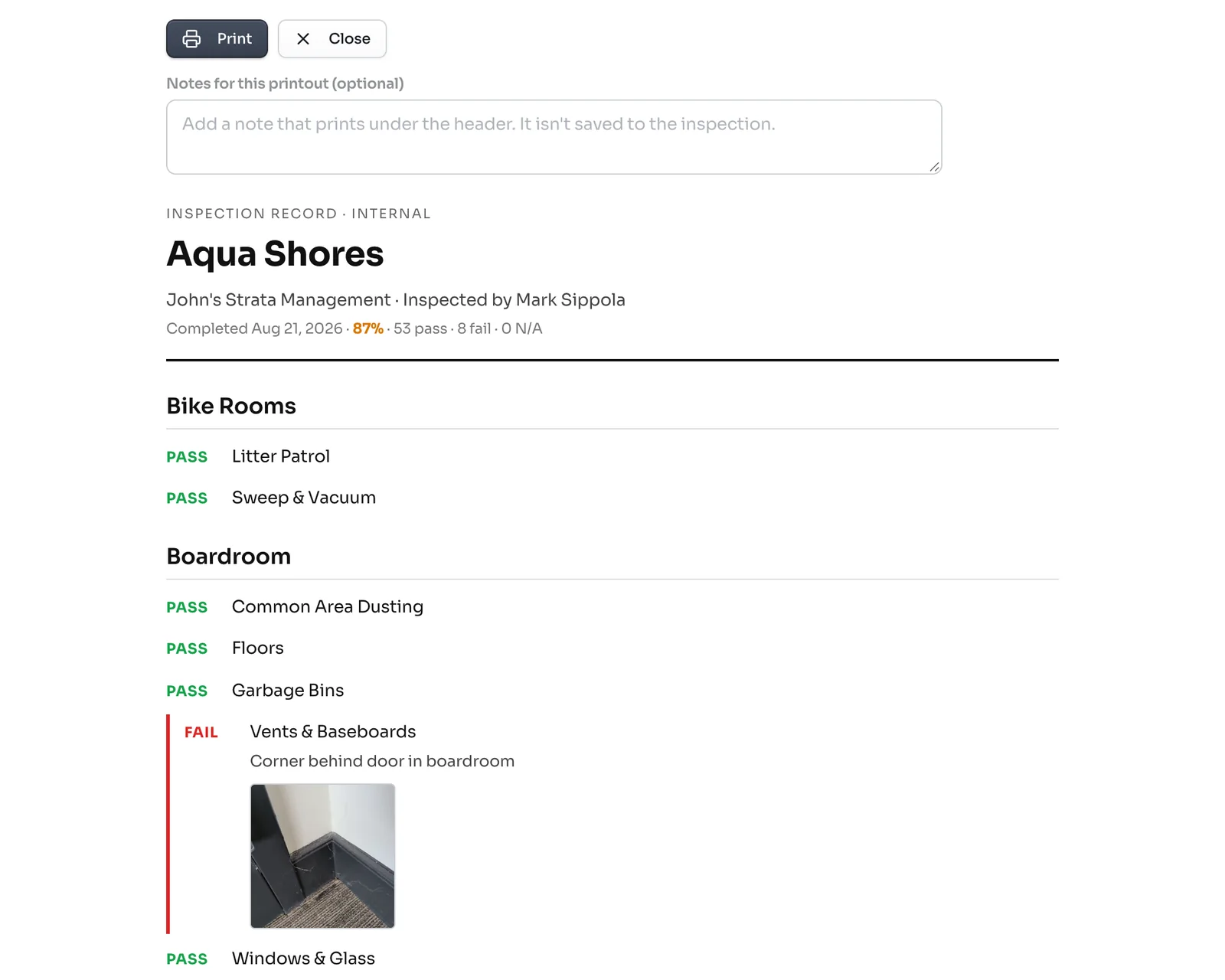
Click Export PDF at the top right. A printable page opens in a new tab with the full record: every area and task, the fails with their comments and photos, the notes and the linked tickets.
Type in Notes for this printout to add a line under the header, such as who it is for. That note prints only and is not saved. Click Print, then choose Save as PDF in your browser's print window.
The printout is marked as an internal record. To send customers a polished summary instead, use a shared report. Sharing reports with your customer explains how.