
Inviting your team and setting roles
- For
- Facility managers
- Where
- Web app
- Time to read
- 4 minutes
Everyone who signs in to KleanProof has a seat in your workspace with one of three roles. Office staff and supervisors mostly work on kleanproof.com, and inspectors work from the phone app.
Admins manage the team from Settings, under Team. Click Settings at the bottom of the left-hand menu, then Team in the list on the side of the page.
Step by step
1Invite someone
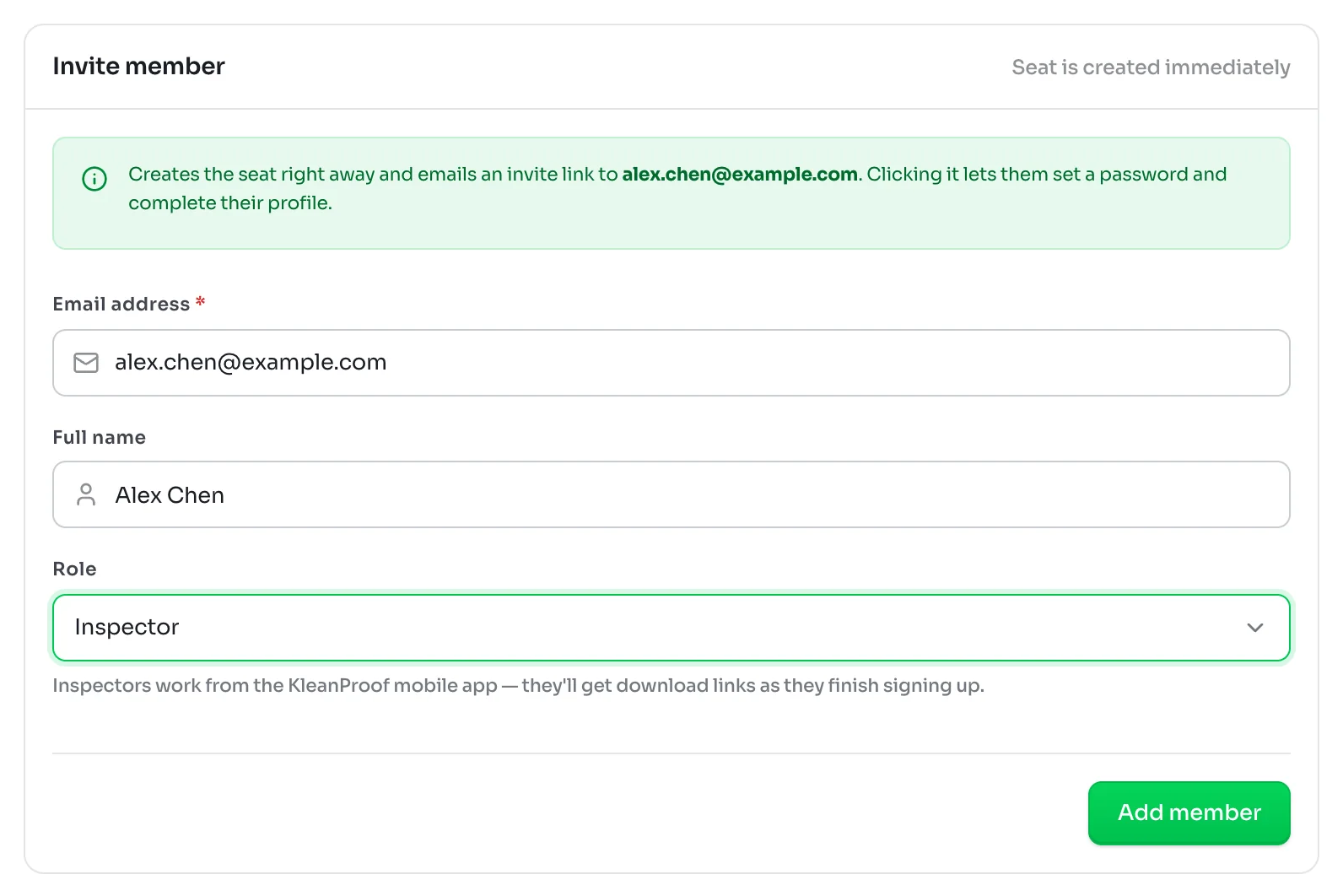
In the Invite member box, type the person's email address and full name, and pick their role. Click Add member.
The seat is created right away, and KleanProof emails them an invite link. Clicking it lets them set a password and finish their profile. Inspectors also get links to download the phone app as they finish signing up.
2Pick the right role
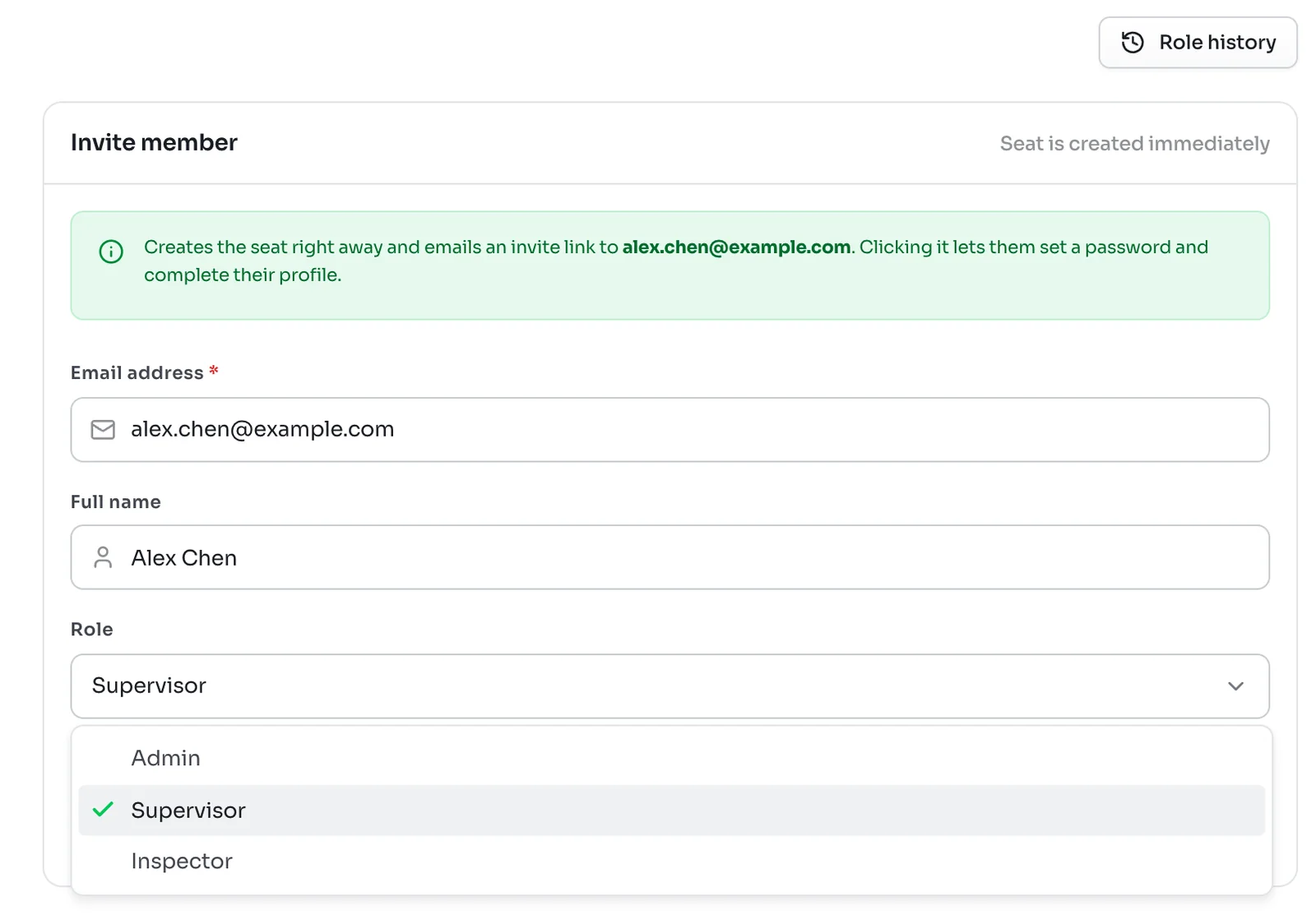
- Admin has full access. Admins manage the team, billing and every site, and can also supervise and inspect.
- Supervisor looks after sites, runs inspections and resolves tickets.
- Inspector performs inspections on the sites they are assigned to.
Give each person the smallest role that covers their work. A site supervisor who walks buildings and closes tickets is a Supervisor. Only people who run the company side, such as the owner or an operations manager, need Admin.
3Manage the members list
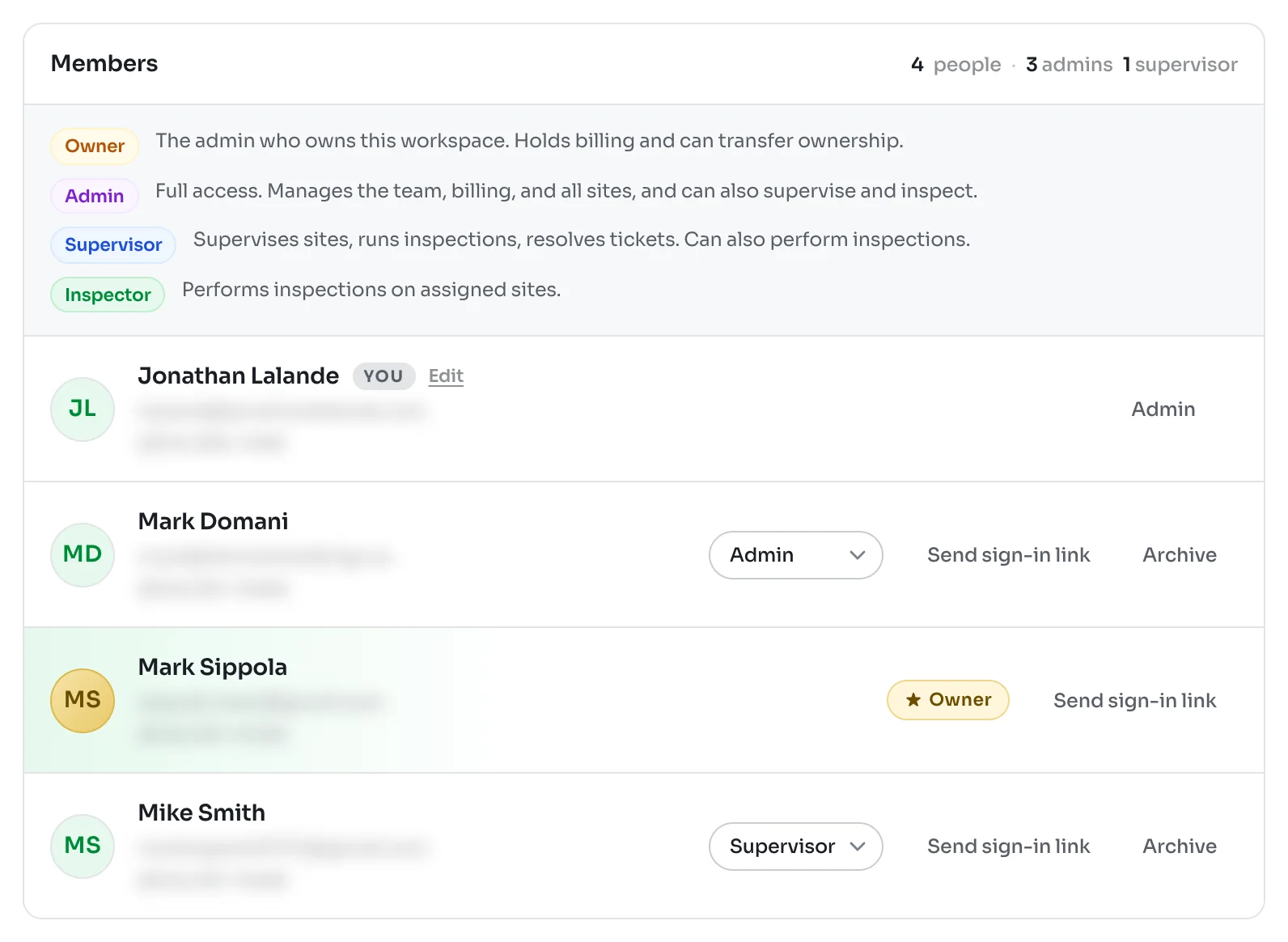
The Members list below shows everyone in the workspace, with a count of each role and a reminder of what each role does. For each person you can:
- Change their role with the menu beside their name. The change takes effect straight away.
- Click Send sign-in link to email them a fresh link, handy when someone has forgotten their password.
- Click Archive to take away their access, such as when they leave the company.
Someone who has not accepted their invite yet is marked as invited, and their button reads Resend invite instead.
Role history
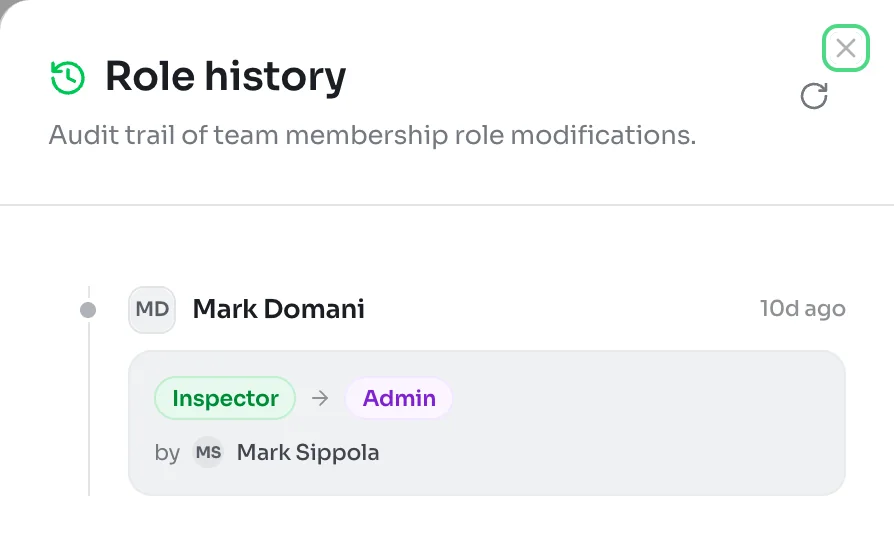
Click Role history at the top of the Team section to see every role change: who changed, from what to what, by whom and when.
Archived members
An archived member loses access immediately. Their past inspections, tickets and notes stay in your records with their name on them. They show in the Archived list under the members list, where an admin can restore them or delete them for good.
The workspace owner
The person who created the workspace is its Owner, marked with a star. The owner is an admin who also controls billing, can delete the workspace and can hand ownership to someone else.
To hand it over, the owner clicks Transfer ownership, picks the member and clicks Send verification code. KleanProof emails a code to the owner, and entering it confirms the transfer. The old owner stays an Admin.
Cleaning staff
Cleaners who do not sign in to KleanProof do not need a seat. Add them in the cleaning staff section further down the same page. Adding cleaning staff who don't log in explains how.