Adding a customer and a site
- For
- Facility managers
- Where
- Web app
- Time to read
- 5 minutes
In KleanProof, a customer is a company you clean for, such as a strata, a property manager or a franchise owner. A site is one building or location you clean for them. Inspections, tickets and reports all hang off the site, and roll up to the customer.
Most customers have one site, so KleanProof sets up the first site at the same time as the customer.
Step by step
1Open your customers
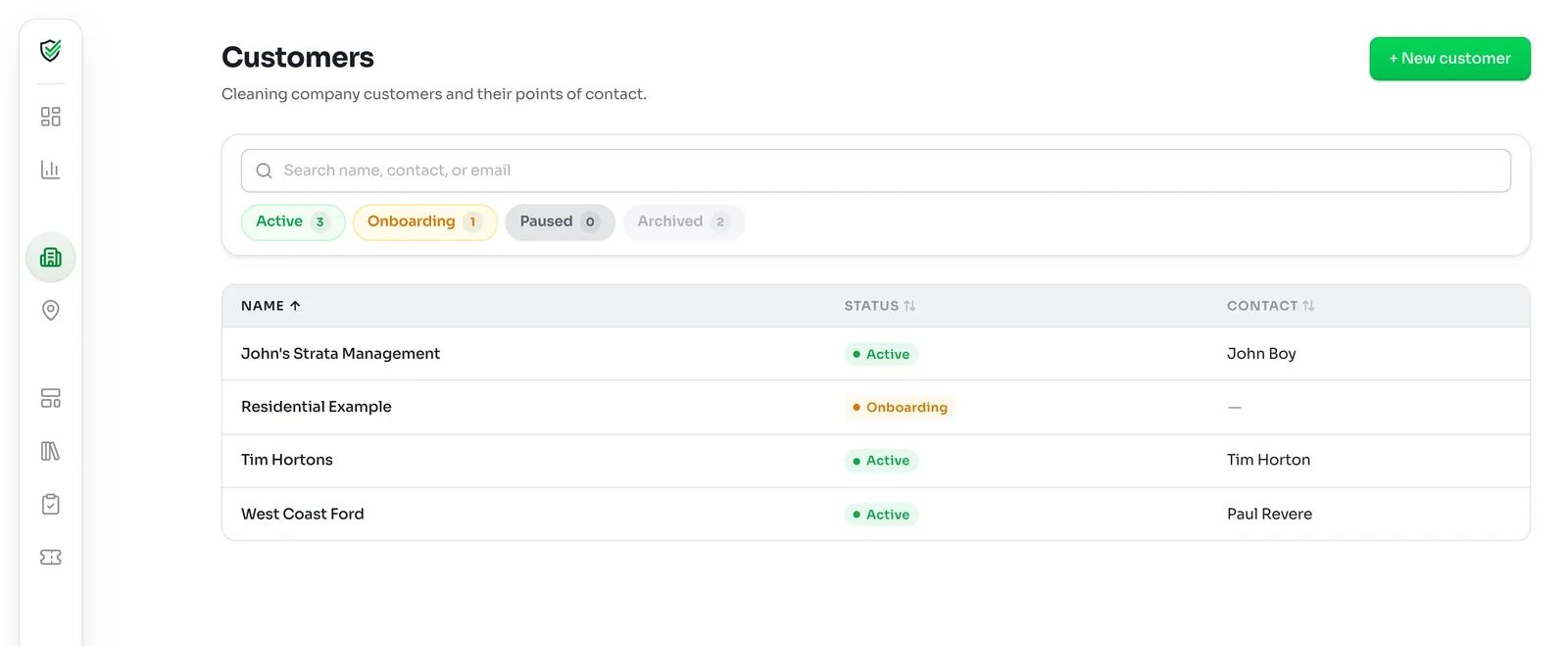
Click Customers in the left-hand menu. The list shows every customer with their status and main contact. Search by name, contact or email, or filter by Active, Onboarding, Paused and Archived.
Click New customer at the top right.
2Fill in the customer
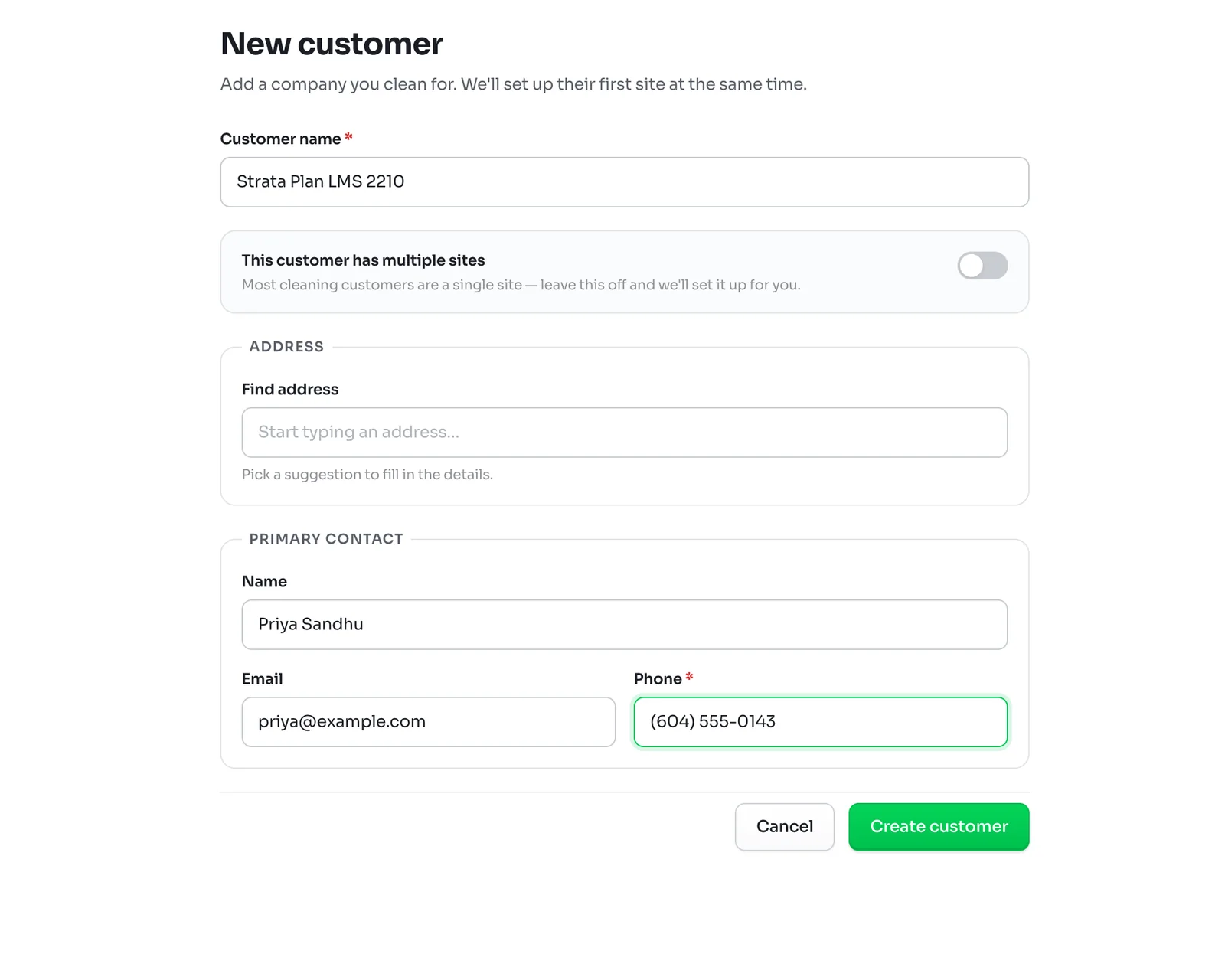
Type the Customer name the way you want it to appear on reports, for example the strata plan number or the company name.
Leave This customer has multiple sites off if they have one building. You then fill in the building's address here, and KleanProof creates the site for you. Turn it on for a customer with several locations, and you add each site on its own afterwards.
Under Primary contact, add the name, email and phone number of the person you deal with. The phone number is required. You can add more contacts later.
Click Create customer. With one site, KleanProof opens the new site straight away. With multiple sites, it opens the new site form with the customer already picked.
3Add a site
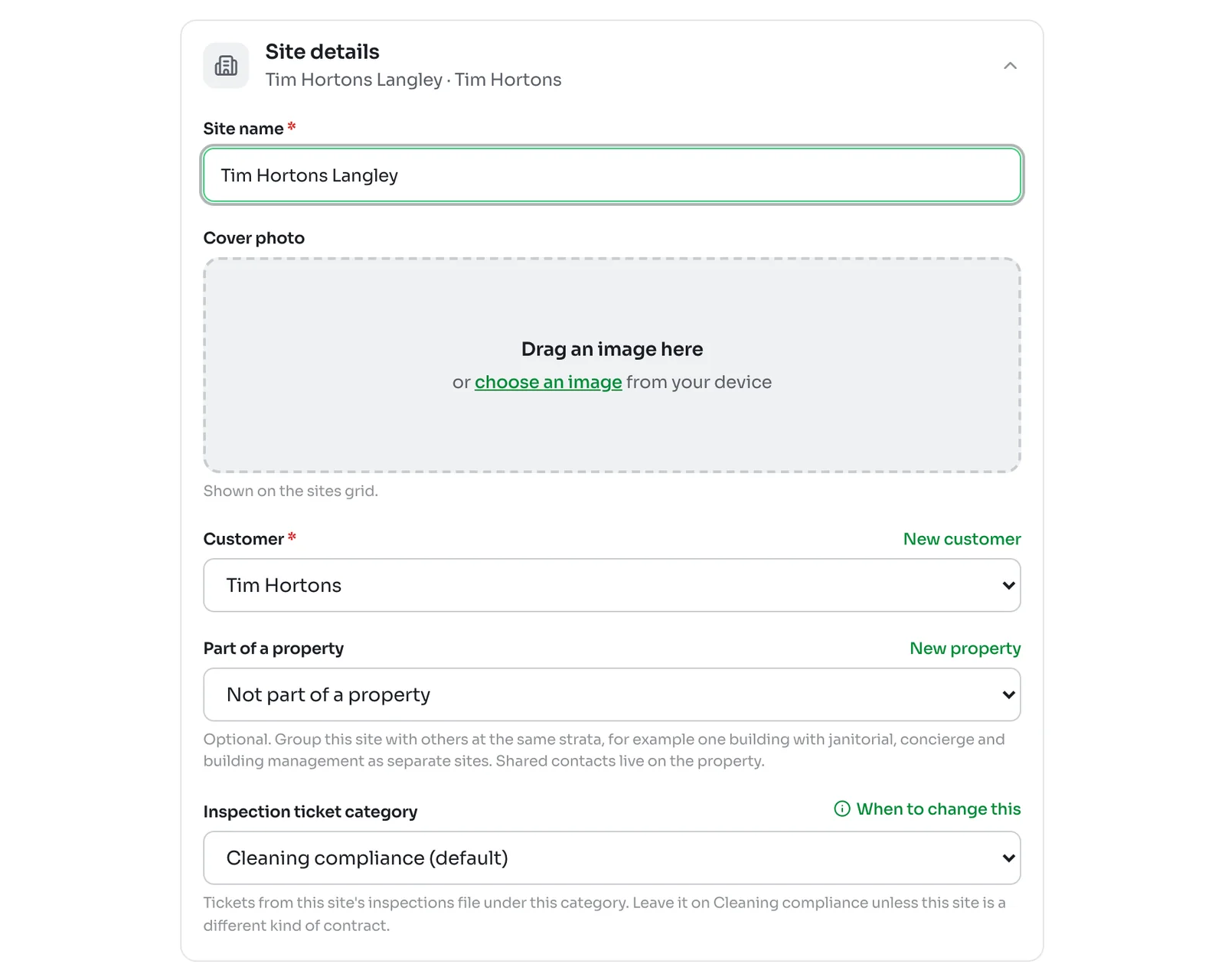
To add another site later, click Sites in the left-hand menu and then New site, or click Add site on the customer's page. The form is split into sections that open and close:
- Site details. The site name, an optional cover photo for the sites grid, the customer and, if the building is part of a bigger property, which one. Leave the ticket category on Cleaning compliance unless this site is a different kind of contract.
- Address. Start typing and pick a suggestion to fill in the details.
- Schedule. The date cleaning starts and how often a supervisor inspects. Setting the inspection schedule covers the options.
- Team. Who looks after the site. See the next step.
- Access & notes. How staff get into the building, plus any quirks worth knowing.
- Notifications & rules. Turn on Auto-approve resolved tickets if you want fixes at this site closed without a supervisor review.
4Pick the site's team
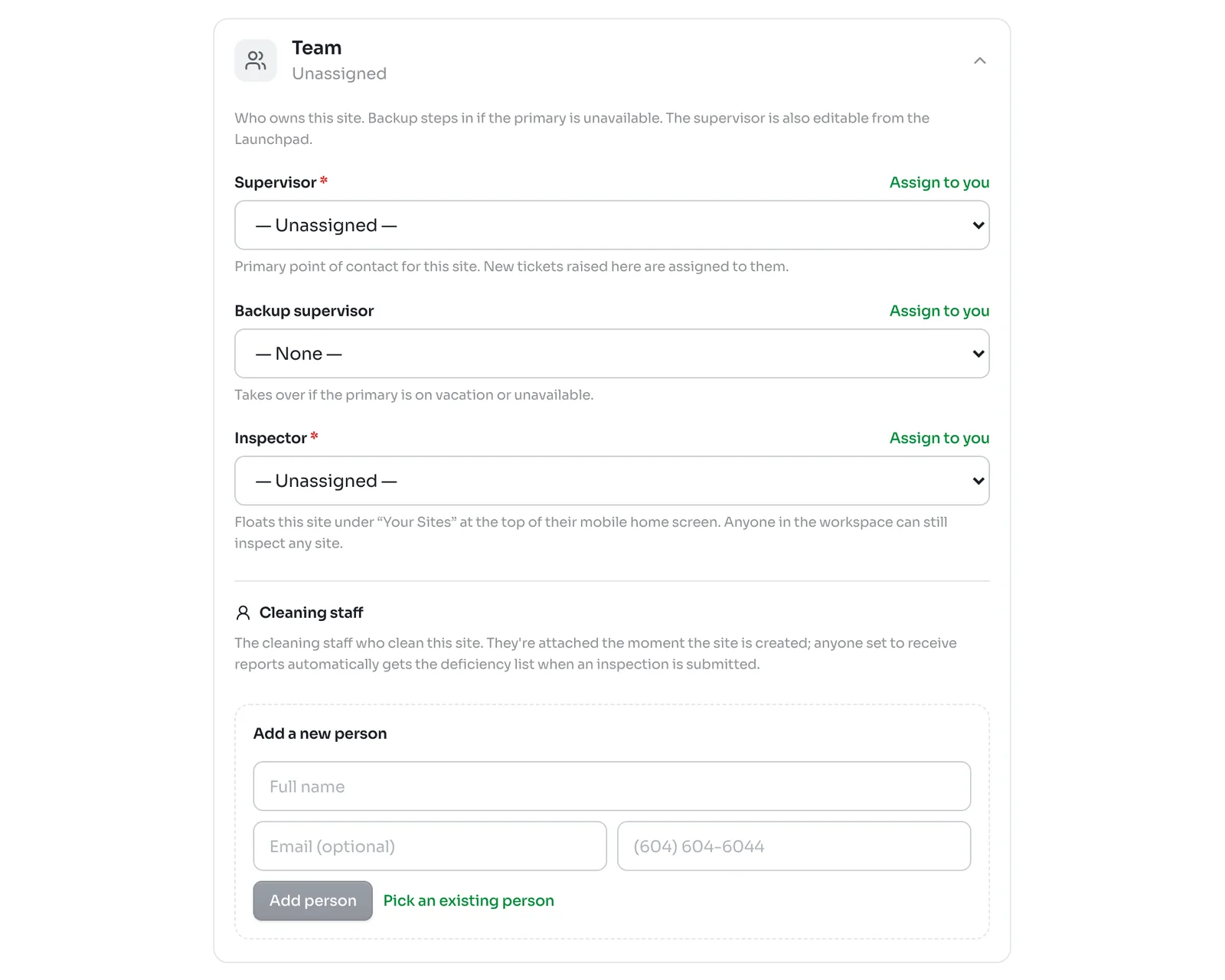
Every site needs a Supervisor and an Inspector. The supervisor is the main point of contact, and new tickets raised at the site are assigned to them. The inspector sees the site at the top of their phone app under Your Sites, though anyone in the workspace can still inspect it. Click Assign to you to fill a role with yourself.
A Backup supervisor is optional. They take over when the supervisor is on holiday or unavailable.
Under Cleaning staff, add the cleaners who work the site. They do not need an account. Anyone set to receive reports automatically gets the list of things to fix whenever an inspection is submitted. Adding cleaning staff who don't log in explains more.
5Create the site
Click Create site. KleanProof opens the new site's page. From there, build its checklist and, if you use the launchpad, work through the steps to get it ready.
The customer page
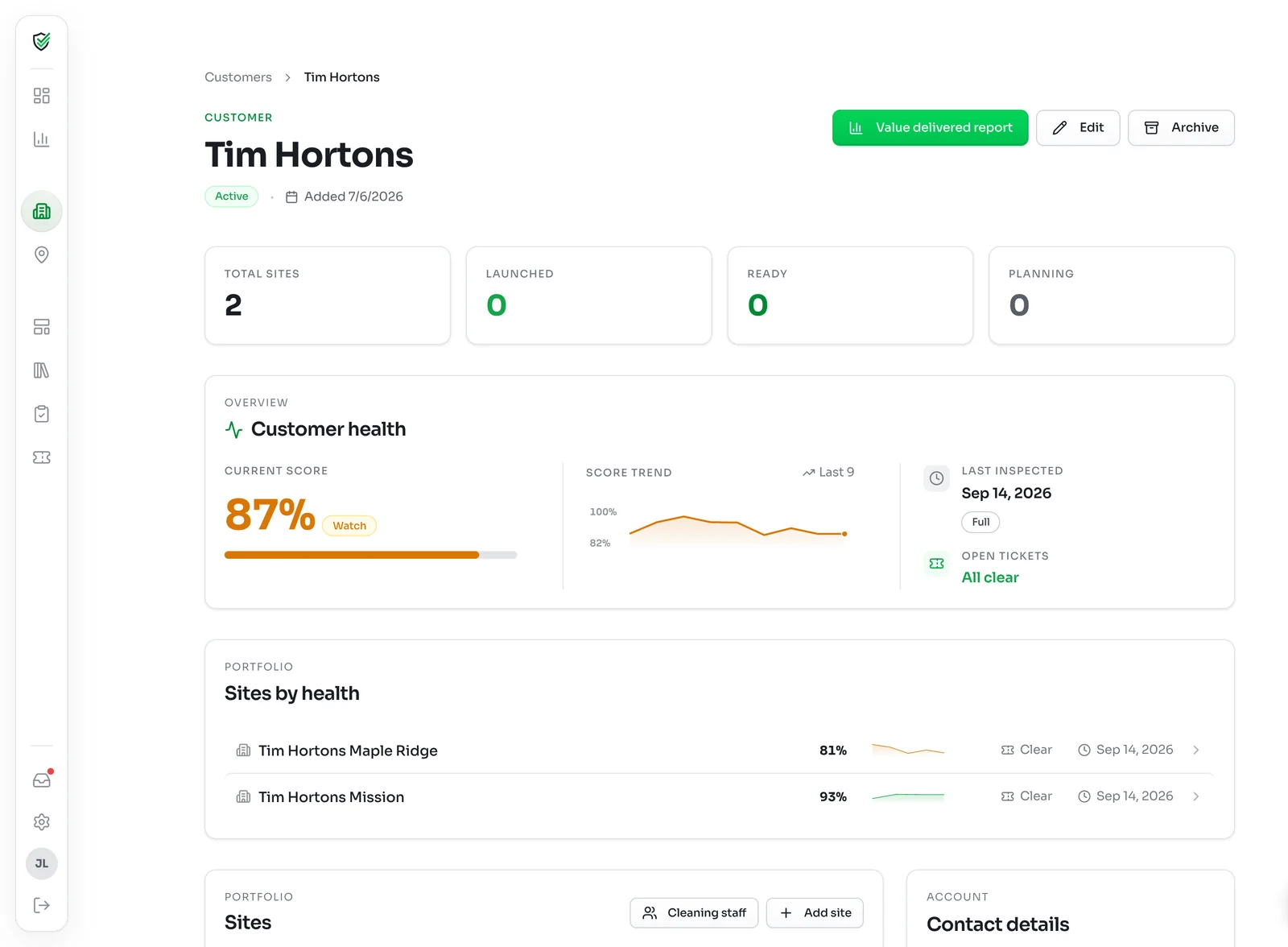
Click a customer to see all their sites in one place. The top shows how many sites they have and where each one stands. Customer health shows their latest score, the score trend over recent inspections, when they were last inspected and whether any tickets are open. Sites by health lists each site with its score.
From here you can edit the customer, add a site, manage the customer's cleaning staff and create a Value delivered report to share with them.
The site page
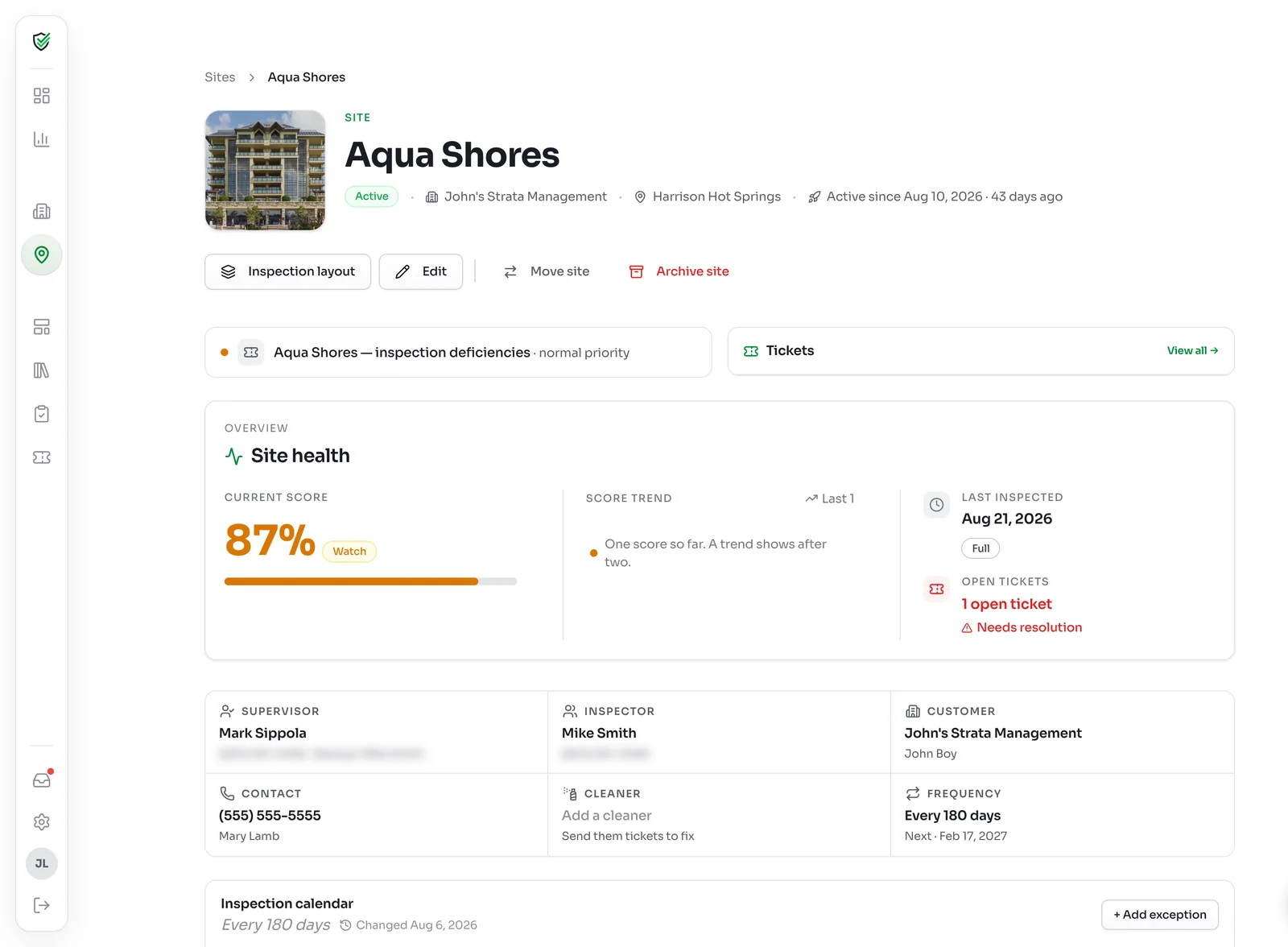
A site's page is its home. It shows the site's health score and trend, open tickets, the team, the customer, the contact and how often it is inspected, with the inspection calendar below.
The buttons at the top open the Inspection layout (the checklist), let you edit the site, move it to another customer or archive it.