
Setting the inspection schedule
- For
- Facility managers
- Where
- Web app
- Time to read
- 5 minutes
Each site has its own inspection schedule, such as every Monday or the first Tuesday of the month. KleanProof uses it to show your team what is due, to flag a site when an inspection is missed and to remind the site's supervisor.
The schedule is for full inspections. Quick partial spot-checks are welcome any time, but they do not count toward it.
Step by step
1Open the schedule
For a new site, the Schedule section is part of the new site form. For an existing site, open the site and click Edit, then open Schedule. You can also set it from the site's launchpad.
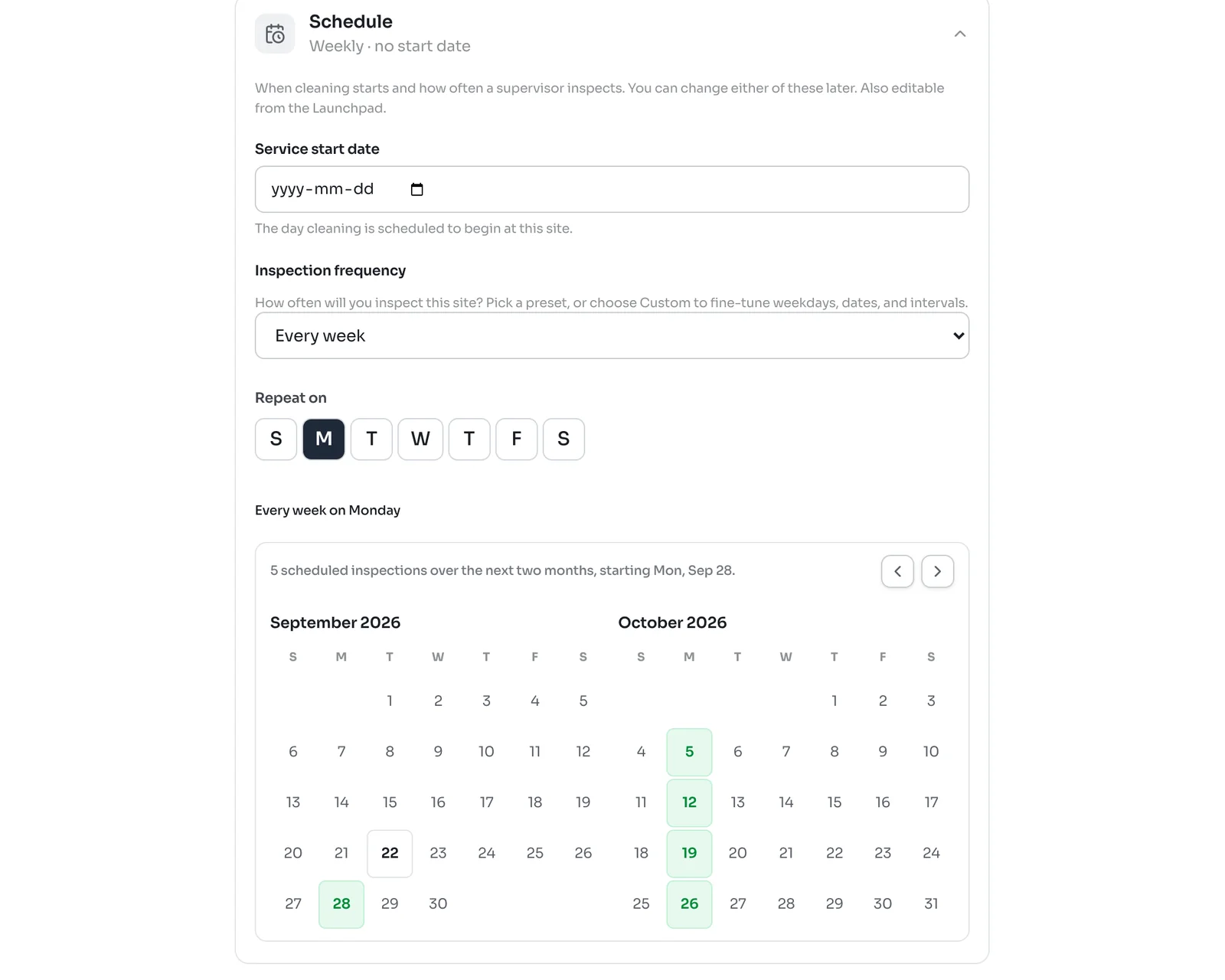
Set the Service start date, the day cleaning begins at the site. The schedule counts from that day until the site's first full inspection.
2Pick a frequency
Under Inspection frequency, choose a preset: Every day, Every weekday, Every week or Every month. For a weekly schedule, click the day of the week under Repeat on.
The line under the days sums it up, such as Every week on Monday, and the calendar below shows the scheduled days for the next two months in green.
3Or set a custom schedule
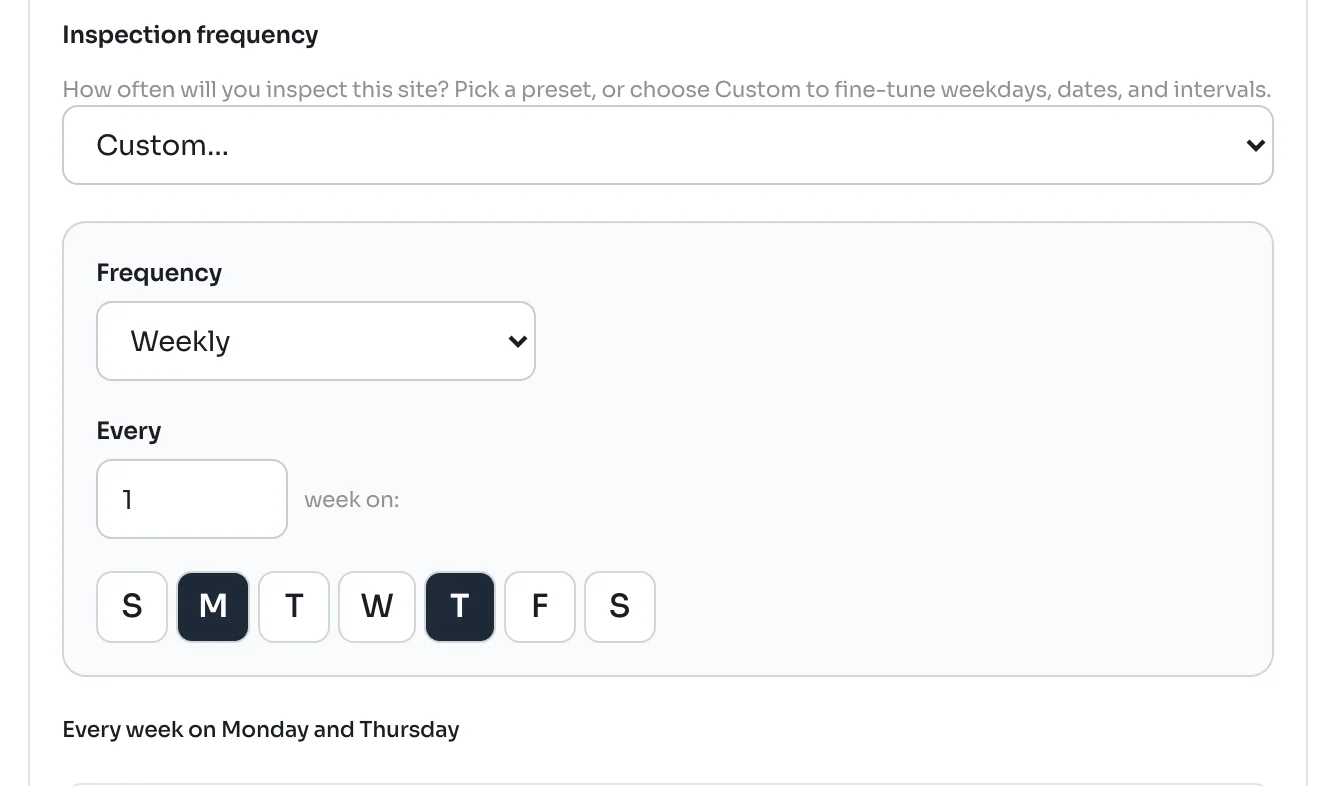
Choose Custom for anything the presets do not cover:
- Every N days, such as every 14 days. Turn Include weekends off to count only weekdays.
- Weekly, every 1 or more weeks, on one or more days. For example, every week on Monday and Thursday.
- Monthly, on dates of the month such as the 1st and 15th, or on days of the week such as the first Tuesday or the last Friday.
4Save
Click Create site or Save changes. If the site is already running, the new schedule counts from today, so changing it never makes a site overdue by surprise.
Reading the inspection calendar
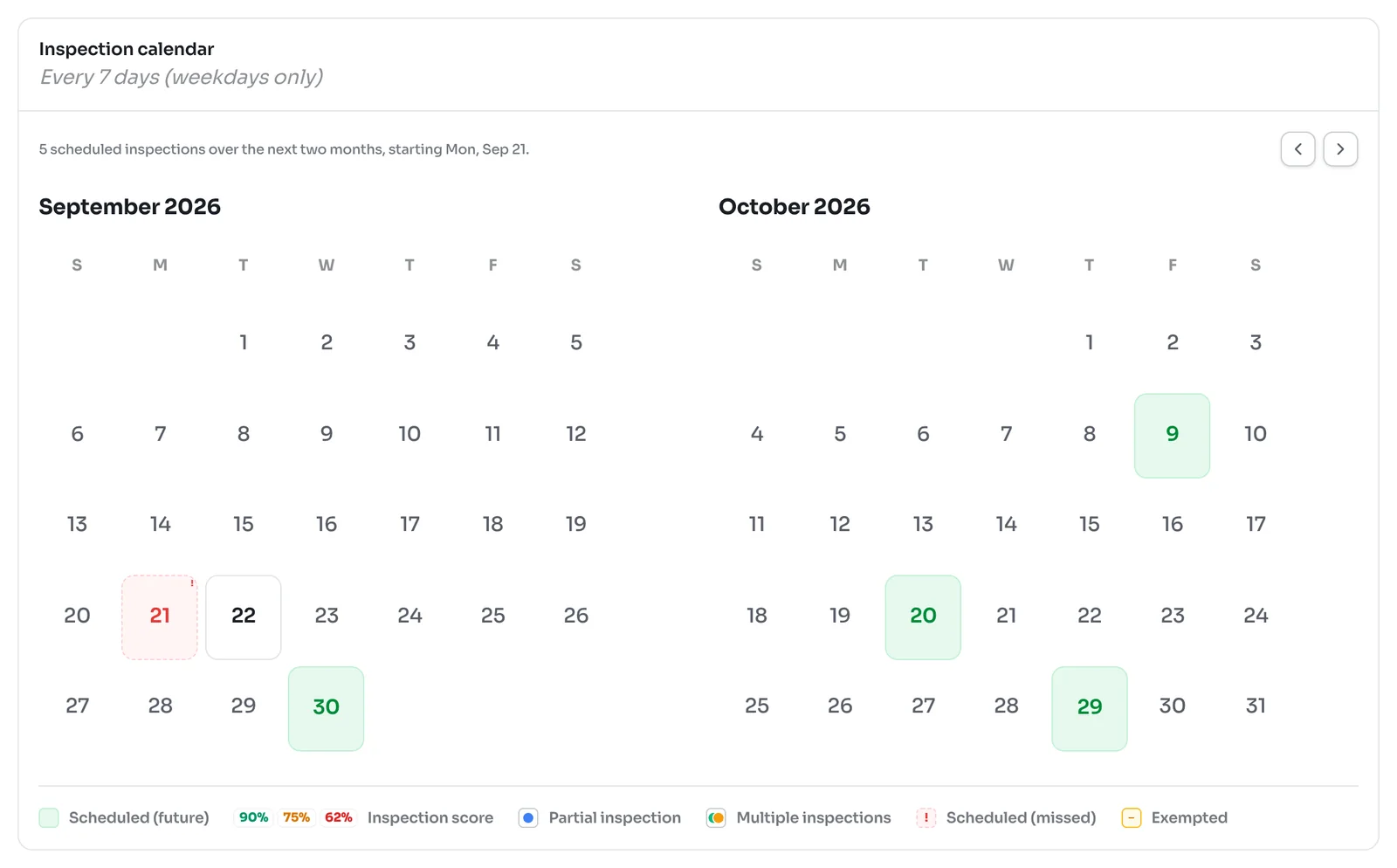
The Inspection calendar at the bottom of a site's page shows the schedule next to what actually happened:
- Pale green days are scheduled inspections still to come.
- Days with an inspection show its score in green, amber or red.
- A red day with an exclamation mark is a scheduled inspection that was missed.
- A yellow day was skipped on purpose with an exception.
- A blue dot marks a partial inspection, and two colours mean more than one inspection that day.
Use the arrows to page back through past months or ahead to future ones.
Skipping a day
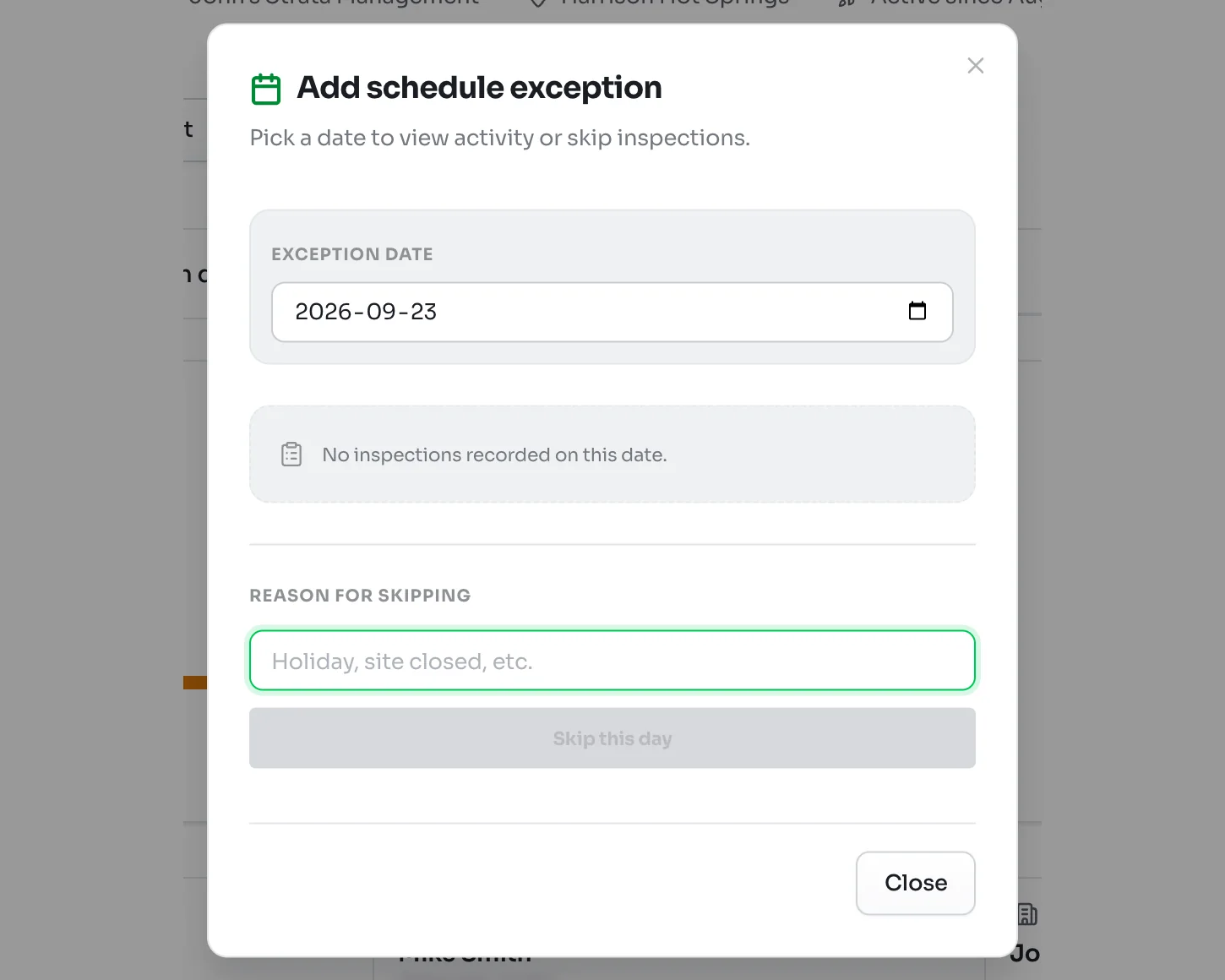
When a site is closed for a holiday or a tenant event, skip that day so it does not count as missed. On the site page, click Add exception on the calendar, pick the date, type the reason and click Skip this day.
The same window shows any inspections already done on that date. To undo a skip, pick the date again and allow inspections on it.
When an inspection is missed
Each night, KleanProof checks every active site against its schedule. If a full inspection is due and none was done, the site is marked overdue. It shows up in Needs attention on the dashboard, and the site's supervisor is notified.
The supervisor keeps getting reminders while the site stays overdue, once, every 3 days or daily, depending on their Overdue reminders setting in notification settings. The next full inspection clears it.