
Getting a site ready with the launchpad
- For
- Facility managers
- Where
- Web app
- Time to read
- 4 minutes
Starting a new cleaning contract means a lot of small jobs: keys and alarm codes, a supervisor, trained staff, supplies on site, a checklist for inspectors. The launchpad is a checklist on every new site's page that keeps track of them, so nothing is missed before the first shift.
A site stays in Planning until you launch it. Once launched, it becomes Active, and inspection reminders start counting.
Step by step
1Find the launchpad
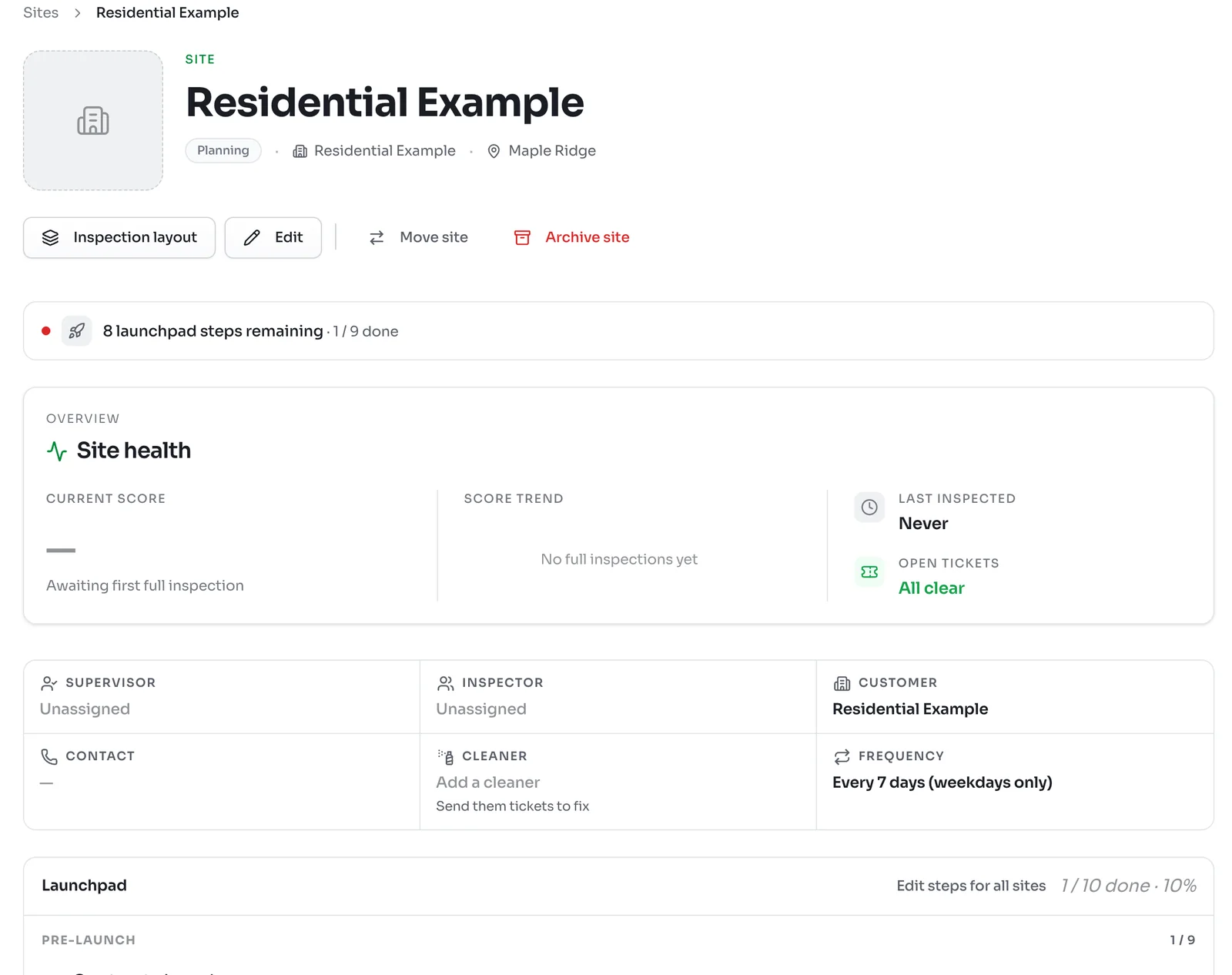
Open a new site. The line under the buttons shows how many launchpad steps are left, and the Launchpad card lower down lists them.
2Work through the pre-launch steps
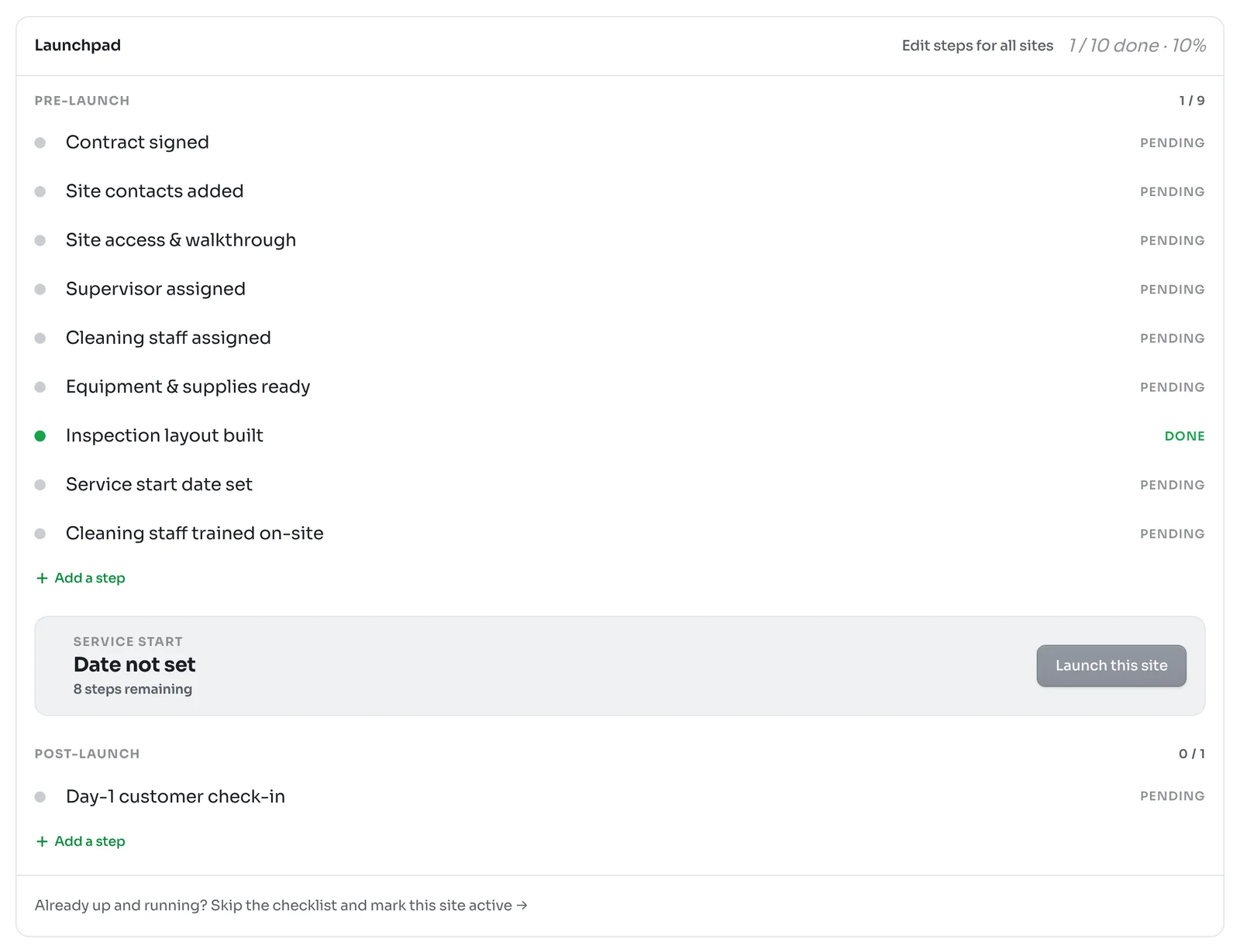
The standard steps run from Contract signed through to Cleaning staff trained on-site. The top right of the card shows how many are done.
Some steps tick themselves off from what you have already set up. For example, Inspection layout built turns Done once the site's checklist has an area, and Supervisor assigned turns Done once the site has a supervisor. Others, such as the contract, you mark yourself.
3Open a step to fill it in
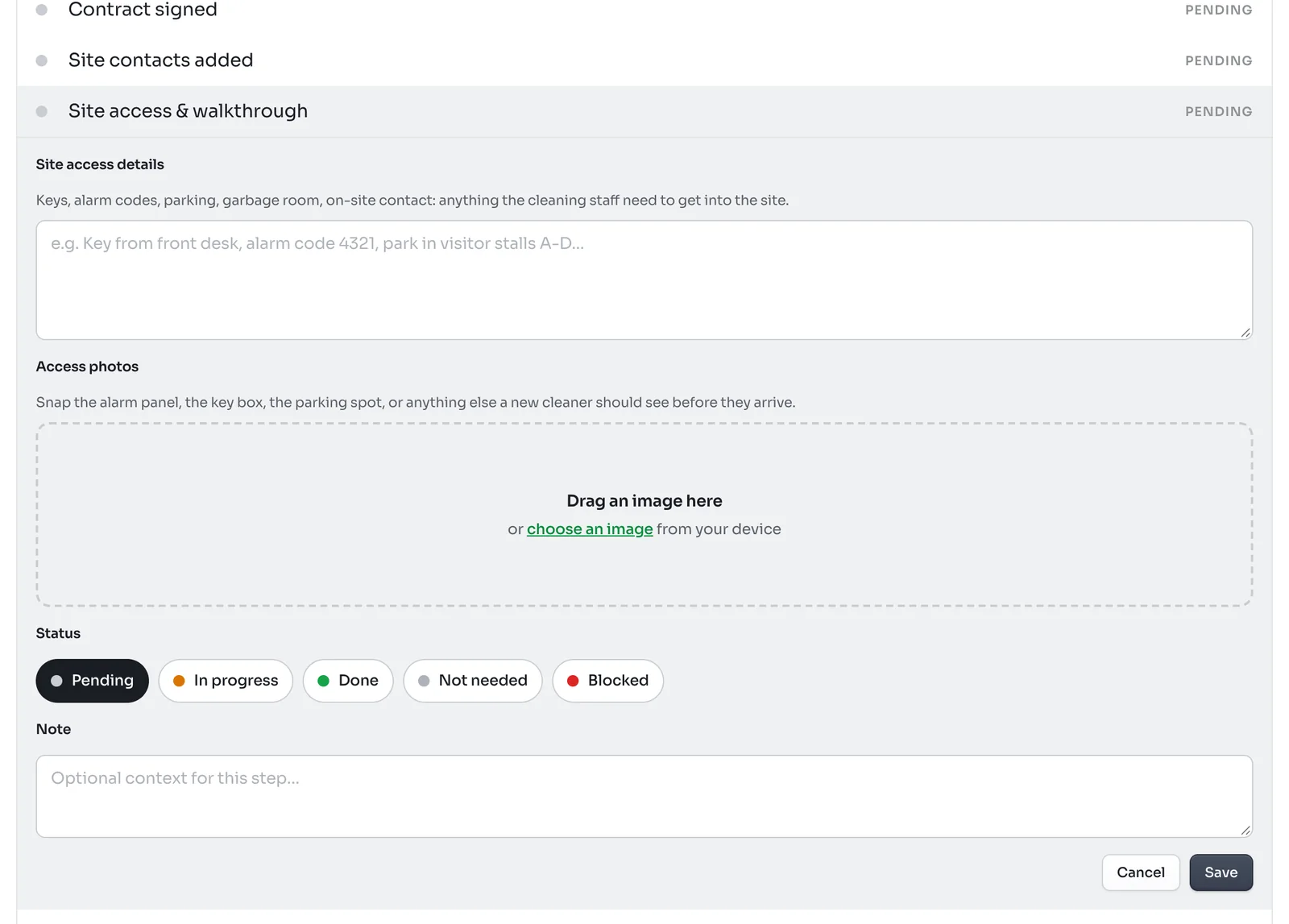
Click a step to open it. Many steps have a place for the details they are about. Site access & walkthrough, for example, has a box for keys, alarm codes, parking and on-site contacts, and room for photos of the alarm panel or key box. Everything you enter there is saved to the site, so a new cleaner can find it later.
Set the step's Status:
- Pending means not started.
- In progress means someone is on it.
- Done means finished.
- Not needed takes the step off this site's list. It no longer counts toward launch.
- Blocked flags a step that is stuck, such as waiting on the customer for keys.
Add a Note if it helps, then click Save.
4Launch the site
When every pre-launch step is Done or Not needed, Launch this site turns on. Click it, confirm the service start date and click Launch site.
The site becomes Active. The post-launch steps then get their due dates: a Day-1 customer check-in the day after the start and a Week-1 customer check-in a week in.
Adding your own steps
Click Add a step under either list to add a step for this site only, such as booking a floor strip before launch.
To change the steps every site gets, click Edit steps for all sites at the top of the card. That opens the launchpad settings, where you can switch standard steps off and add your own for every site.
Sites that are already running
When you move an existing contract into KleanProof, there is nothing to launch. Click Already up and running? Skip the checklist and mark this site active at the bottom of the card. The launch checklist goes away, the site becomes active, and inspection reminders count from today.
If your company does not use launch checklists at all, an admin can turn the launchpad off in Settings under Features.