Notifications and your inbox
- For
- Inspectors
- Where
- Phone and web
- Time to read
- 3 minutes
KleanProof tells you when something needs you. A new ticket on one of your sites, an escalation, a supervisor sending your fix back and a message that mentions you all arrive as a push on your phone. Everything also lands in your inbox, so you can catch up on anything you missed.
Step by step
1Allow notifications on your phone
The first time you sign in, your phone asks whether KleanProof may send notifications. Tap Allow. If you said no, open your phone's Settings, find KleanProof and turn notifications on. Without this, alerts still reach your inbox but your phone stays silent.
2Open your inbox
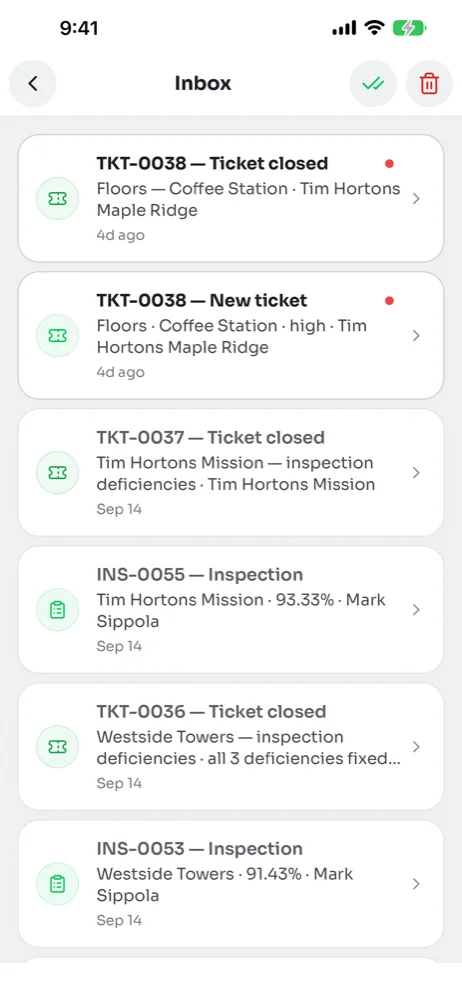
On the phone, tap the tray icon at the top right of the Sites tab. A red dot on it means something is unread. The inbox lists your recent notifications newest first, plus a card for any discussion with messages you have not read. Unread items have a bold title and a red dot.
Tap an item to open what it is about, such as the ticket, the inspection or the discussion. That also marks it read. The double tick at the top marks everything read, and the bin clears the inbox for good.
3Check notifications on the web
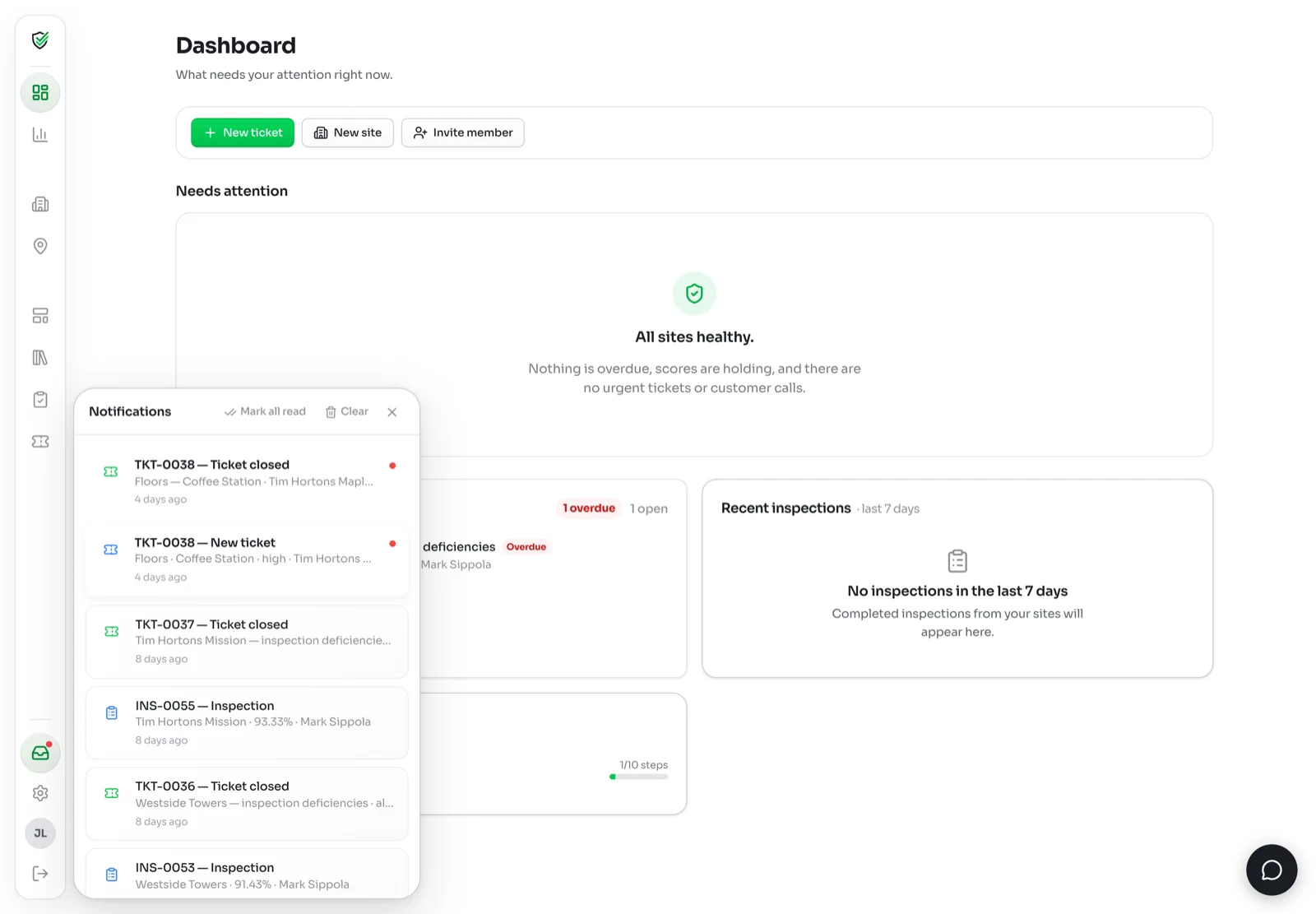
On kleanproof.com, click Notifications near the bottom of the side menu. The panel shows the same items as the phone inbox, with Mark all read and Clear at the top. Reading an item in either place marks it read in both.
4Choose which messages ping you
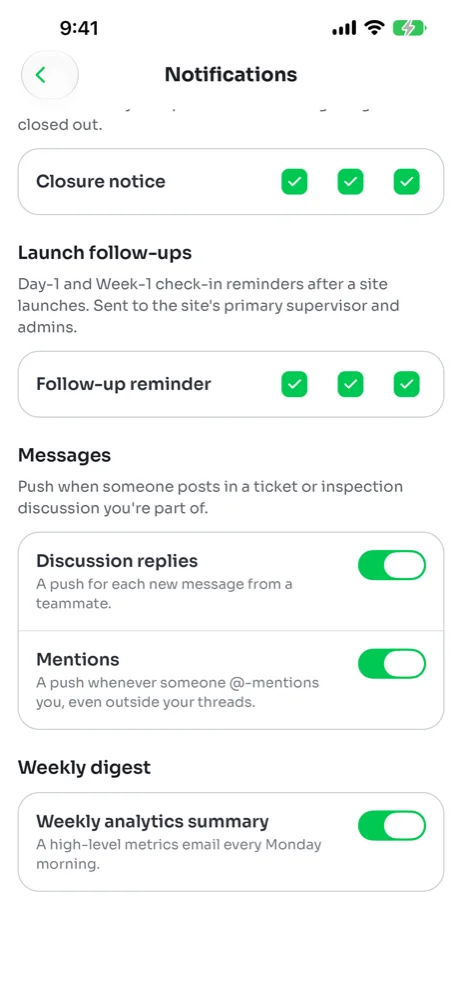
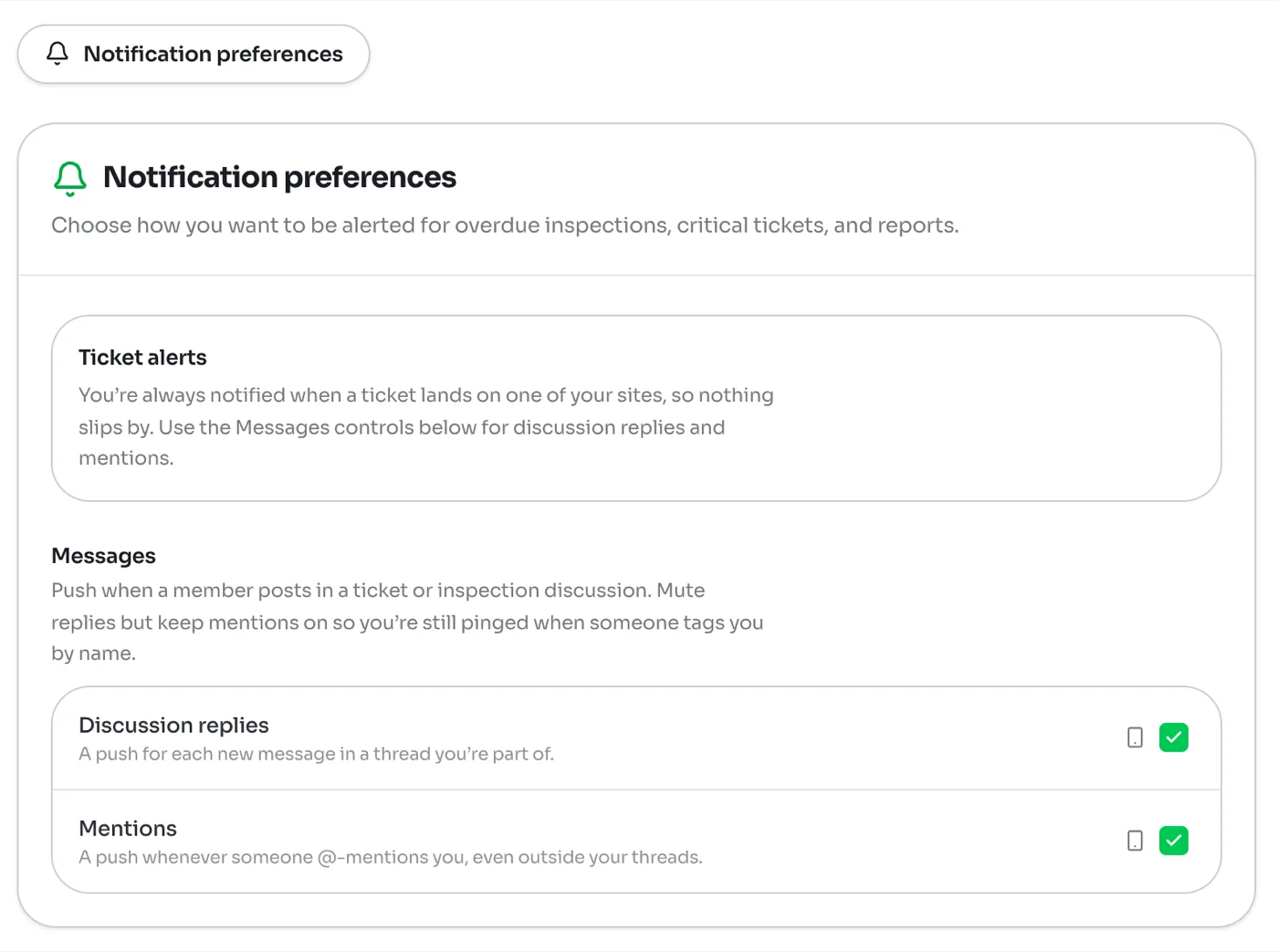
Alerts about tickets on your sites are always on for inspectors, so nothing slips past you. What you can change is how chatty discussions are. Discussion replies sends a push for every new message in a thread you are part of. Mentions sends one whenever someone tags you by name.
If a busy ticket is too noisy, turn off replies and keep mentions on. You will still hear about anything addressed to you. On the phone these switches are under Settings, then Notifications. On the web they are under Settings, then Notification preferences. The choice is saved to your account and applies on both.