Looking up a past inspection
- For
- Inspectors
- Where
- Phone and web
- Time to read
- 4 minutes
Every inspection you submit is kept, with its score, every rating, your notes and your photos. You can open any of them later from the phone app or from kleanproof.com. It is handy when a customer asks about a visit, when a problem comes back, or when you want to compare today's walk with the last one.
Past inspections are read-only. Nobody can change the ratings after an inspection is submitted, which is what makes it a record you can stand behind.
Step by step
1Find it on the phone
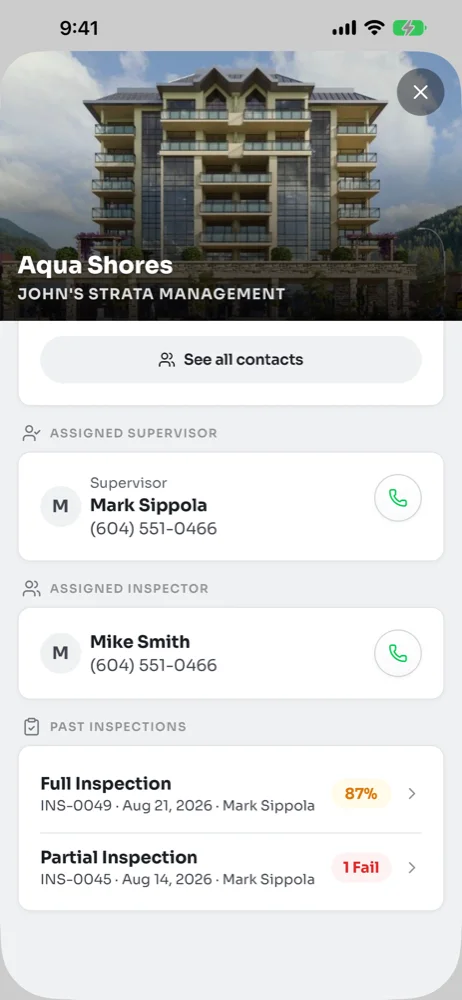
Open the site from the Sites tab and scroll to Past Inspections. The last 25 inspections are listed newest first. Each row shows whether it was a full or partial inspection, its number, when it was done and who did it.
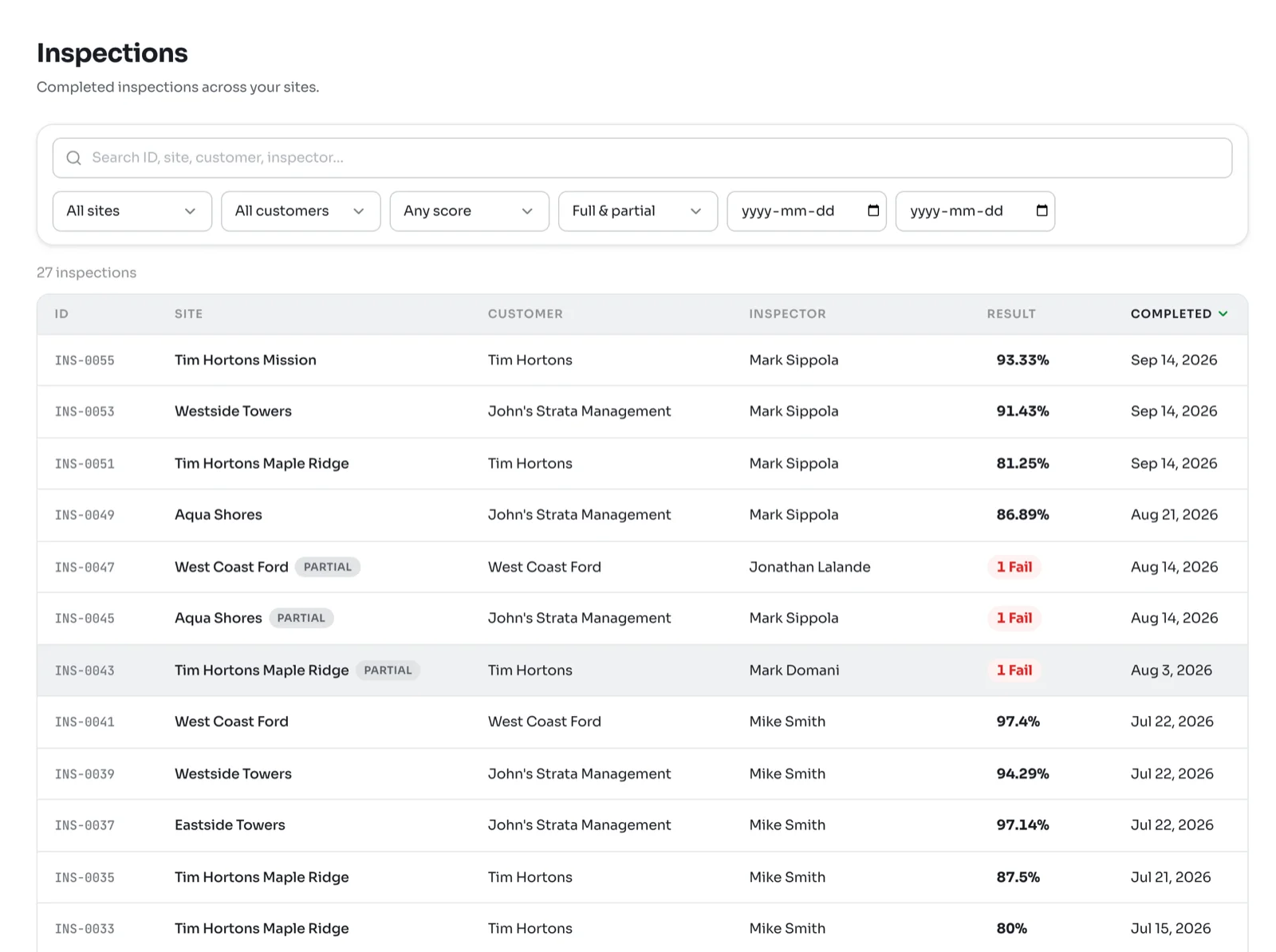
A full inspection shows its score. A partial inspection has no score, so it shows how many items failed, or No issues. Tap a row to open it.
You can also reach an inspection from a ticket it raised, through the From inspection link at the top, or from a notification in your inbox.
2Read the summary
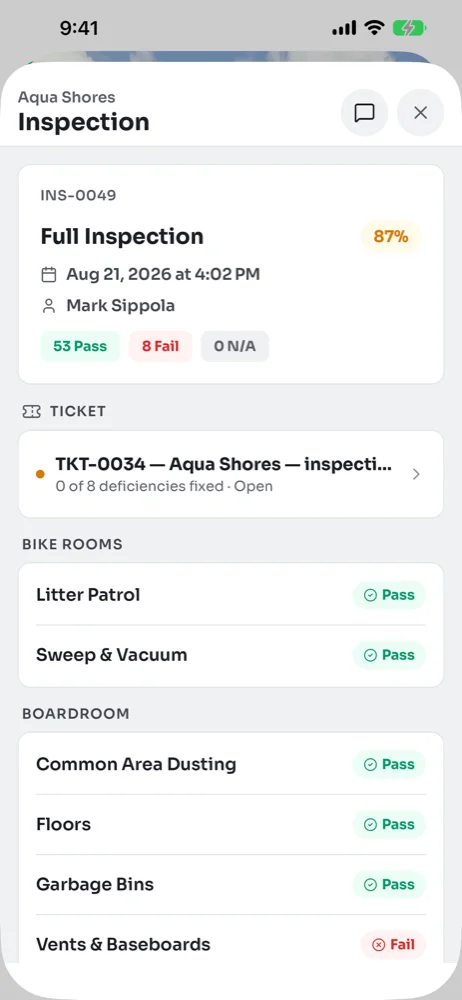
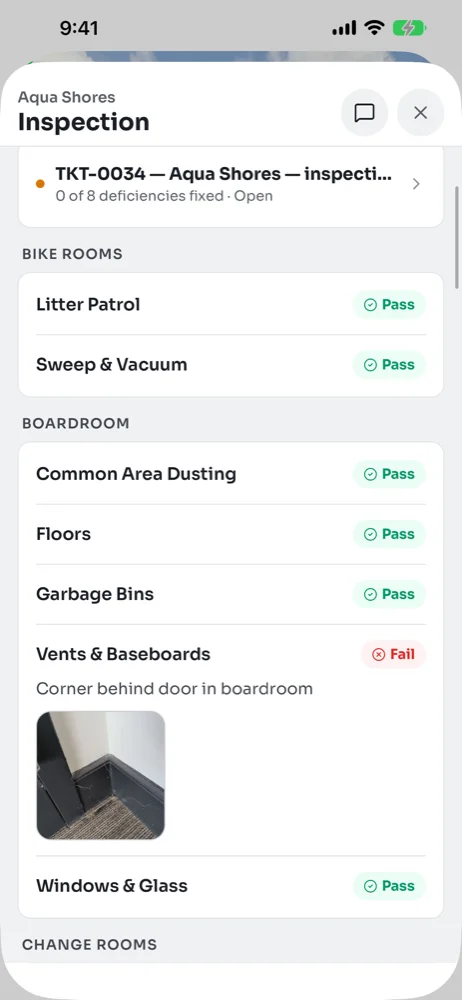
The card at the top shows the number, the type, the score, when it was finished and who did it, with a count of Pass, Fail and N/A items. Below it is the ticket the inspection raised, with how many of its deficiencies are fixed so far. Tap the ticket to follow the fixes.
3Check the failed items
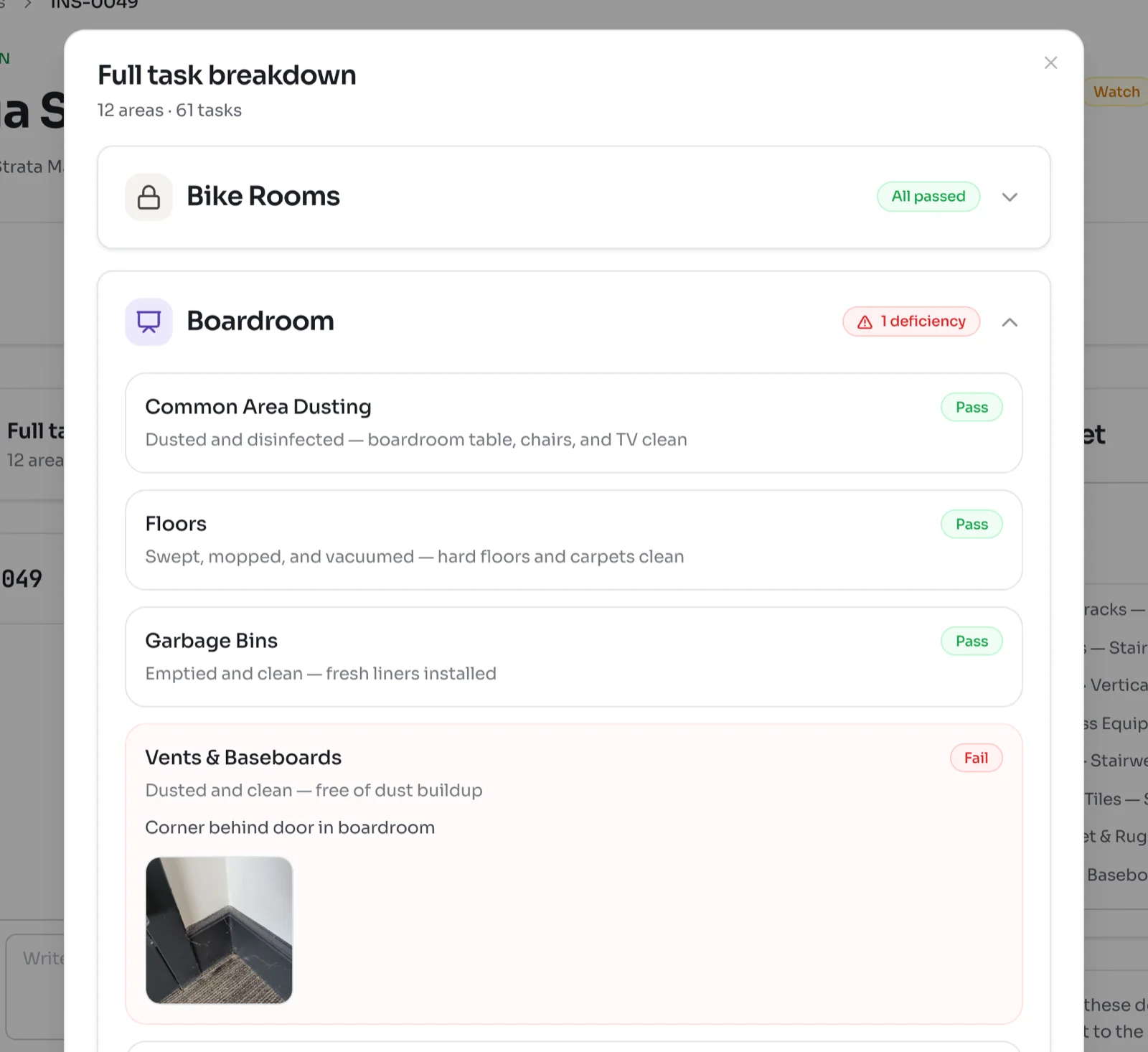
Scroll down to see every area and every task with its rating. A failed item shows the note and the photos taken on the walk. Tap a photo to open it full screen.
The speech bubble at the top opens the inspection's discussion, where the team talks about the walk as a whole.
4Find it on the web
On kleanproof.com, your dashboard has a My recent inspections card with the ones you did in the last 30 days. Click one to open it.
For anything older, open an inspection and click Inspections in the path at the top. That list has every finished inspection you can see. Search by number, site, customer or inspector, or narrow it by site, customer, score, type and dates. Partial inspections carry a Partial tag and show their fails instead of a score.
5Read it on the web and export a PDF
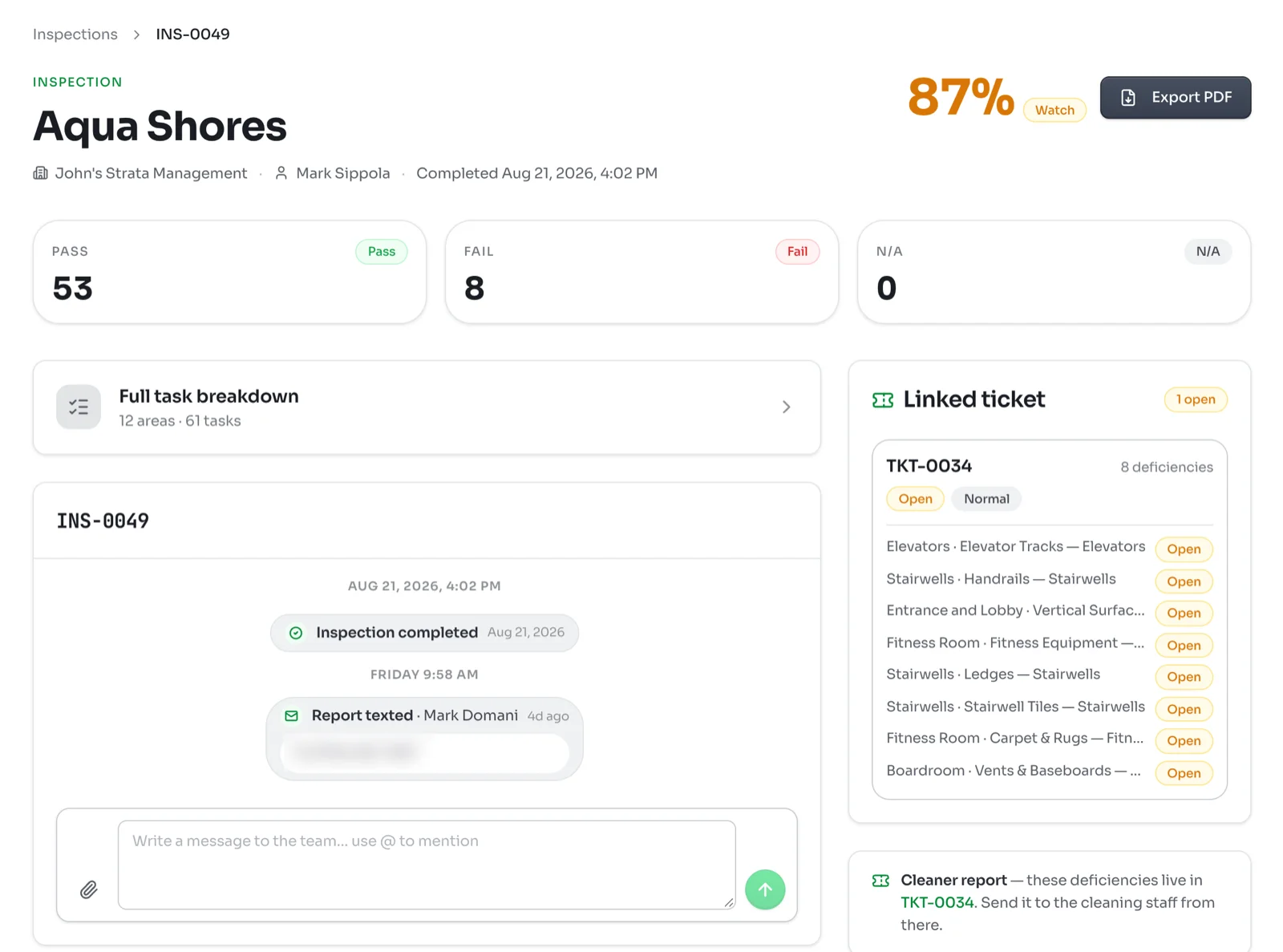
The web page shows the same record laid out for a bigger screen. The score sits at the top right with a label: Excellent at 90% and up, Watch from 80 to 89 and Needs attention below 80. The linked ticket and its deficiencies are on the right, and the discussion is below.
Click Full task breakdown to open every area. Areas with problems are flagged with how many deficiencies they have, and failed items show their note and photos.
Export PDF opens a printable copy with every area, rating, note and photo. Press Print and choose Save as PDF. It includes internal notes, so check it before you send it to anyone outside the team.